The Company profile page is the quiet, important corner of your dashboard — the place that holds your company’s identity, your account security, and the controls for exporting or removing your data. You won’t visit it often, but when you need it, everything is in one page. This article walks through every section, exactly as it appears in the product, and flags the couple of buttons that are permanent so nothing catches you out.
Open the Company profile page
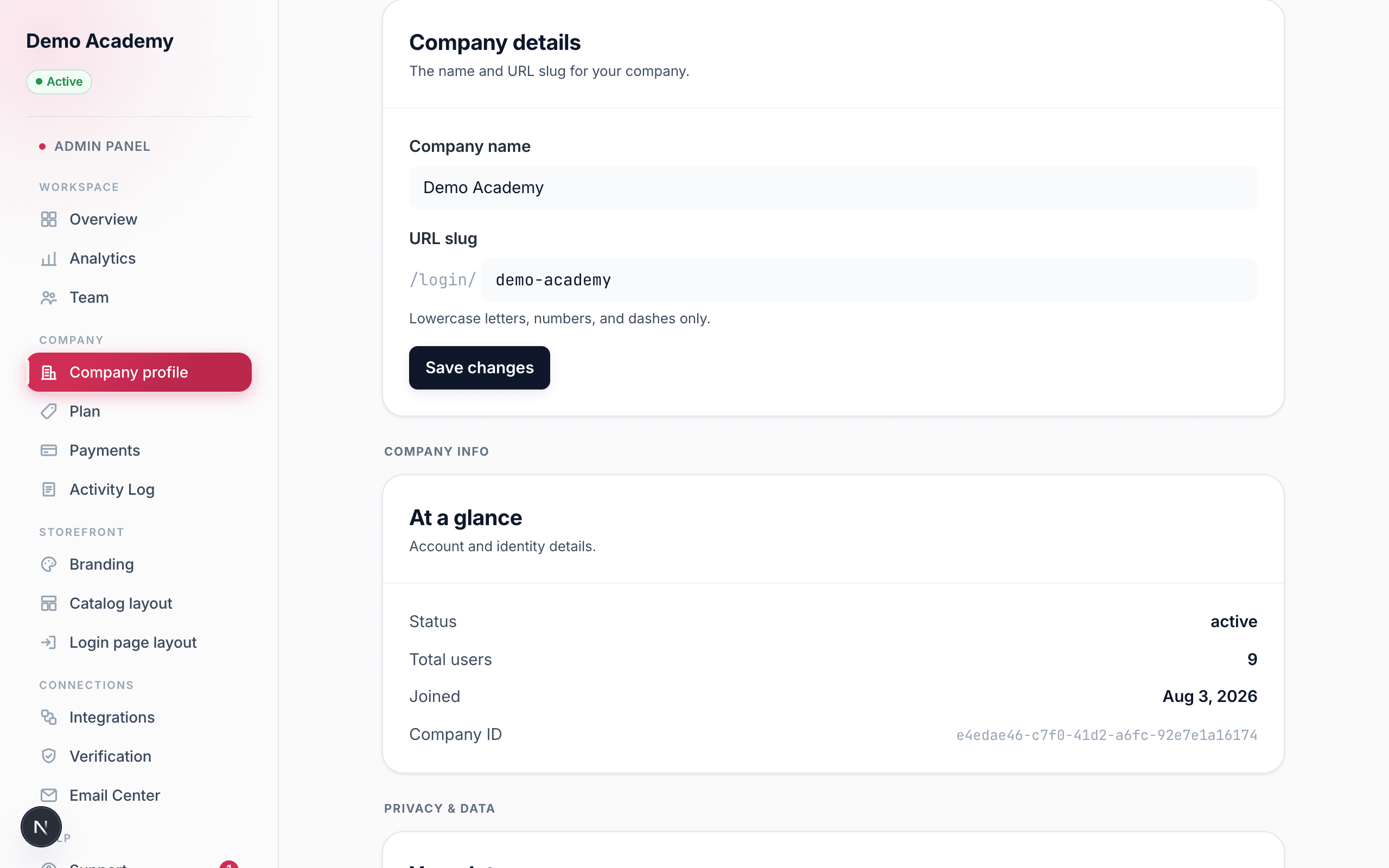
Go to Admin PanelCompany profile. The page is headed Company profile with the line “Manage your company name, URL, and account security settings.” It’s laid out as a stack of cards: Company details, At a glance, Privacy & data, and an Account security block for your password.
At a glance
The At a glance card is a read-only summary of your account — nothing here is editable, it’s just the facts you sometimes need to quote. It shows four things:
- Status — whether your company is active (the normal state). If you ever schedule the company for deletion, this is where its status changes.
- Total users — the number of people in your workspace. This counts everyone — your team members and your learners, together — which is the same total that the Free plan’s 5-user limit measures against.
- Joined — the date your company was first created.
- Company ID — your workspace’s unique internal identifier, shown in a monospace font.
Your company name & URL slug
The top card, Company details, holds the two things that make up your company’s identity: its name and its URL slug. Edit either field, then click Save changes. A green Saved confirmation appears for a moment; if something goes wrong (an empty name, or a slug that’s already taken), a red message tells you exactly what to fix.
Company name is the human-readable name of your academy — the one your learners and team see. Change it whenever your branding changes; it can’t be left blank.
The URL slug (change this carefully)
Your URL slug is the short, web-safe version of your name that lives in your links — you’ll see it shown with a /login/ prefix right in the field, so a slug of acme-corp means your team’s sign-in link is /login/acme-corp. The rules, enforced as you save, are simple: lowercase letters, numbers, and dashes only — no spaces, capitals, or symbols — and it can’t be empty. If the slug you want is already in use by another workspace, you’ll see “That slug is already taken. Try a different one.”
The moment you type a different slug, the field shows an inline warning in amber, because this is the one setting here with a real side-effect: “Changing your slug will break existing /login/<your-old-slug> links.”
Where your own display name lives
One thing you won’t find on the Company profile page is your personal name. This page is about the company, not the individual signed in. To change your own first and last name — the display name shown next to your account — open your profile in the learner portal (the same portal your learners use), on its Profile Settings page, where you can edit your name and save. See The learner experience for a tour of that side of Learn 360.
Account security: change your password
At the bottom of the page, under the Account security heading, is the Change password card. It asks for three fields:
- Current password — your existing password, required so that nobody holding only a browser session can silently change it.
- New password — at least 8 characters, and it must be different from your current one.
- Confirm new password — type the new password again so a typo can’t lock you out.
Click Update password and you’ll see “Password updated successfully.” If the current password you entered is wrong, Learn 360 tells you “Current password is incorrect” and nothing changes. If the new password is under 8 characters, or the two new-password fields don’t match, it points that out before submitting.
Privacy & data: download your data
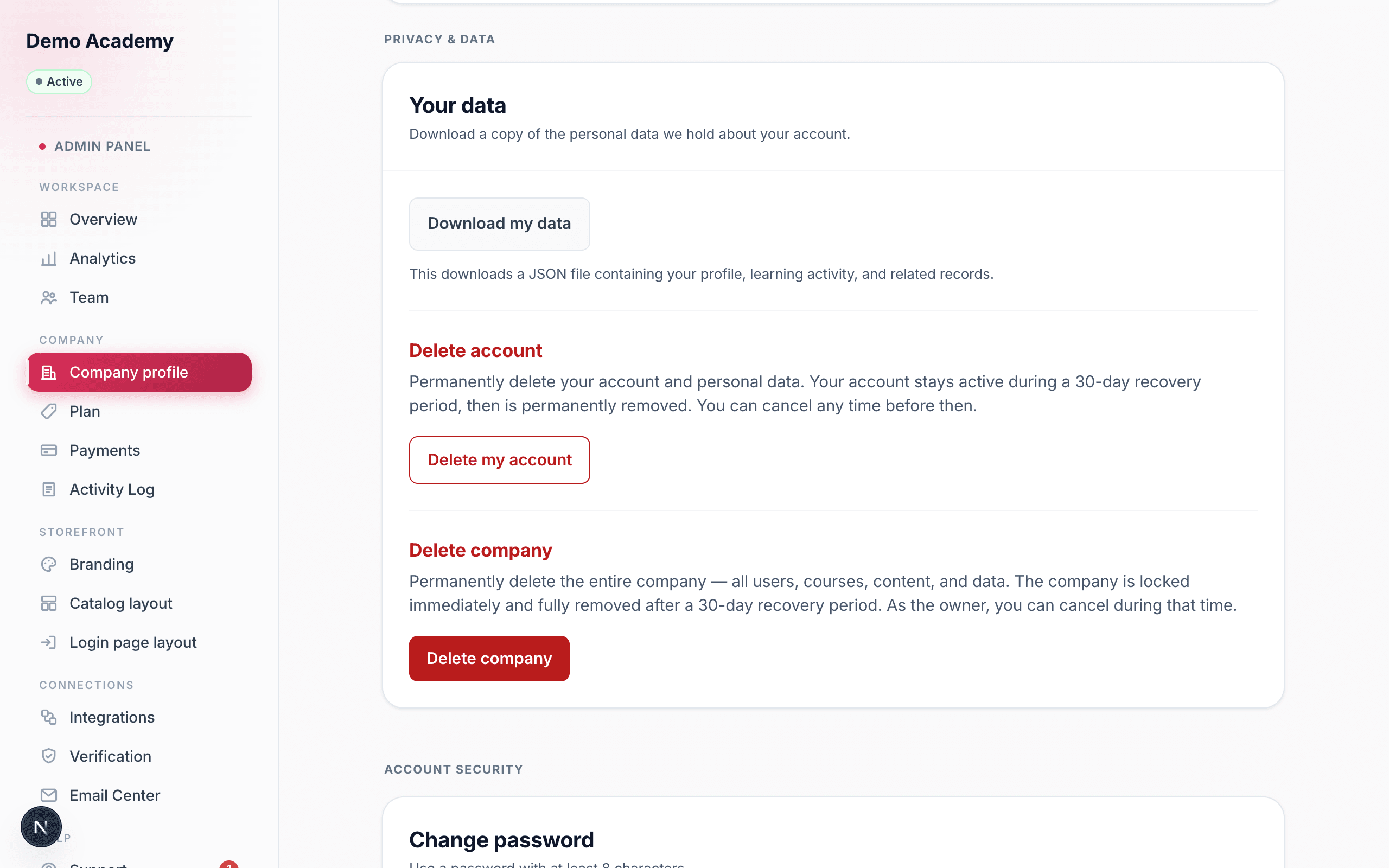
The Privacy & data card gives you a one-click copy of everything Learn 360 holds about your own account. Click Download my data and, after a moment, your browser saves a JSON file named something like learn360-my-data.json. It’s a personal export — the data tied to you, the signed-in user — not a company-wide backup. Inside you’ll find:
- Your profile — name, email, role, and account dates (never your password).
- Learning activity — your course enrollments, series enrollments, and certificates.
- Purchases — any package purchases tied to your account.
- Notifications and your email subscriptions.
- Any feedback and verification documents you submitted, plus your account’s activity log.
Delete your account
Below the data export is the red Delete account section. Clicking Delete my account opens a confirmation asking “Delete your account?” Confirm it and your account is scheduled for deletion — it doesn’t vanish immediately. Instead:
- Your account stays fully active for a 30-day recovery period, and you can keep using it normally.
- The section switches to show the exact date it’s scheduled for, plus a Cancel deletion button — so you can change your mind any time before then and everything simply carries on.
- Only after those 30 days does the removal become permanent. That final step can’t be undone.
Delete your company (owner only)
If — and only if — you’re the company owner, one more red section appears: Delete company. This is the big one: it removes the entire workspace — every user, course, certificate, and all data — not just your login. Because it’s so final, it has an extra guard. Clicking Delete company opens a confirmation that asks you to type your company’s name exactly to prove you mean it; the final button stays disabled until what you type matches. Once you confirm:
- The company is locked immediately for everyone except you — your team and learners can no longer use it while it’s pending deletion.
- It enters the same 30-day recovery period, showing the scheduled date and a Cancel deletion button. As the owner, you can cancel during that window and the company becomes active again for everyone.
- After 30 days, the whole company and all its data are permanently wiped. There’s no way back after that.
Related help
- Manage your team — grant the Account permission so a teammate can edit the company profile.
- Free vs Pro — what the Total users count means for your plan (Pro is $100/mo and lifts the 5-user cap).
- Add your logo & color — the visual side of your company’s identity, separate from name and slug.