Upgrading to Pro unlocks custom branding, your own domain, unlimited learners, and priority support. The whole thing takes about a minute, and everything you’ve already built stays exactly as it is.
Start the upgrade
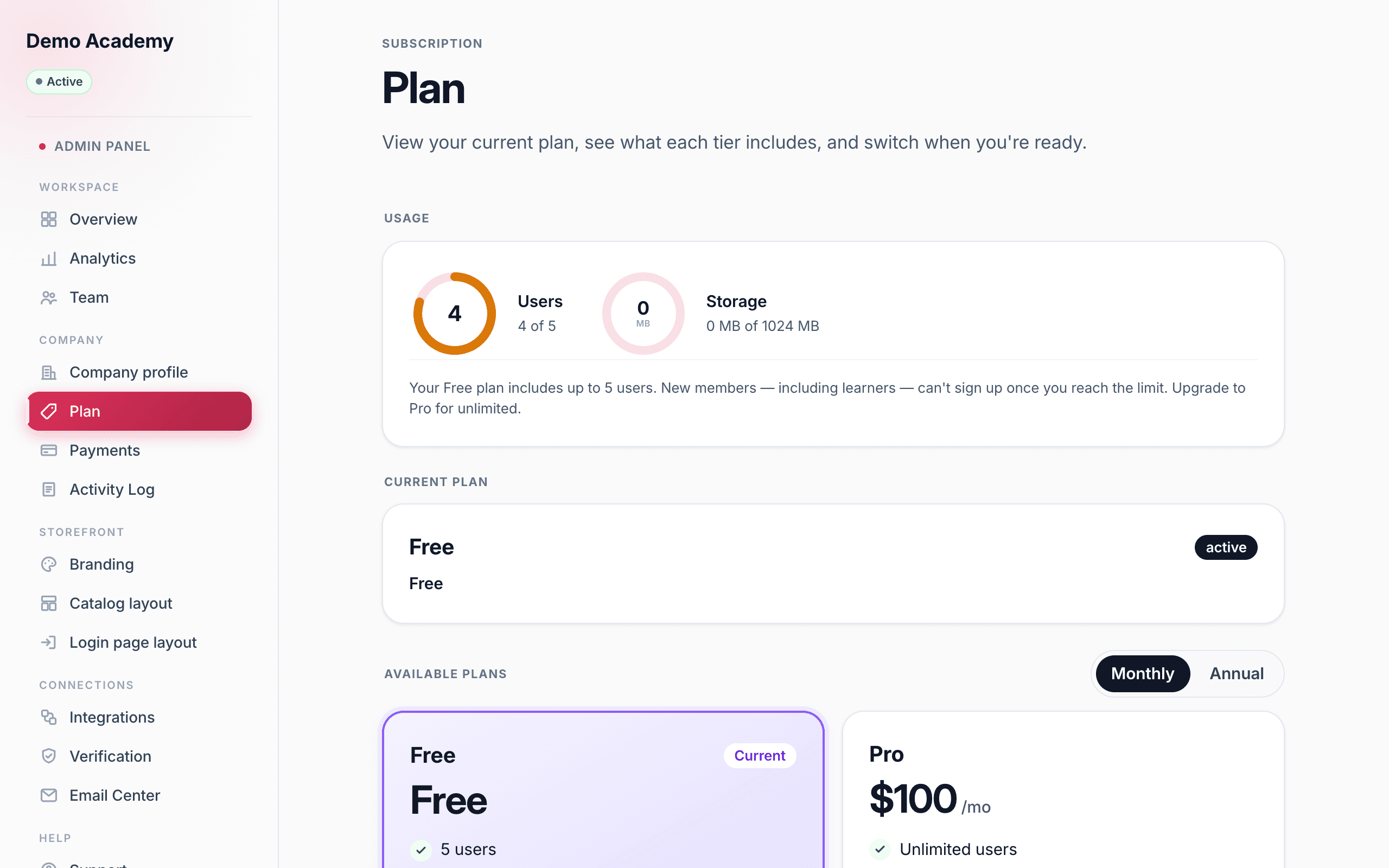
Open Admin PanelPlan — the Plan page. Under Available plans you’ll see Free and Pro side by side, with a Monthly / Annual toggle above them.
- Monthly — $100 a month.
- Annual — the same twelve months billed once as a single yearly invoice.
Pick your billing period, then click Subscribe monthly (or Subscribe annually) on the Pro card.
At the secure checkout
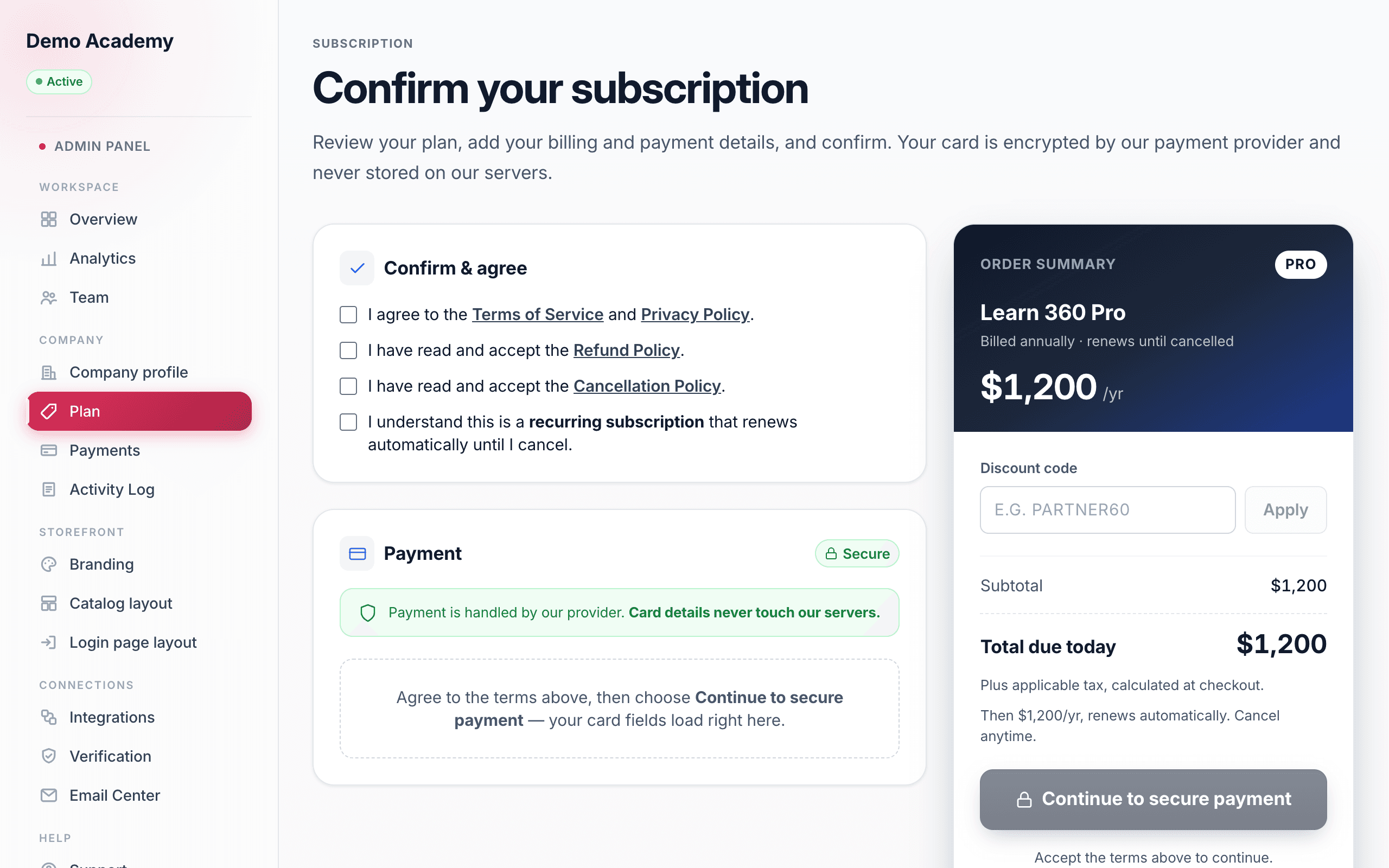
You land on a Confirm your subscription page with three parts:
- Confirm & agree — tick the boxes to accept the terms, refund, cancellation, and recurring-billing policies. The payment fields stay hidden until you do.
- Payment — a secure card box handled by our provider, Paddle. Your card details never touch Learn 360’s servers.
- Order summary — your plan, the total due today, applicable tax, and a discount code field if you have one.
Click Continue to secure payment, the card fields load right there, and after you pay you’ll see “Activating your Pro plan” for a moment before landing back on the Plan page as a Pro customer.
Using a discount code
Discount codes come from Learn 360 — a partner or promo code our team issues and shares with you. There’s no place in your admin panel to create one yourself, so if you don’t have a code, there’s nothing to enter. When someone does give you one, type it exactly as it was sent.
What a code does varies, because each one is set up individually:
- Percent or fixed amount — it either takes a percentage off (say 40% off) or a set dollar amount off.
- First bill or ongoing — some codes only lower your first payment, while others keep applying on renewals, sometimes for a set number of billing periods.
- Expiry and usage limits — a code can stop working after a certain date, or once it’s been redeemed a set number of times.
To use one, find the Discount code box in the Order summary, type the code (it capitalizes on its own), and click Apply or press Enter. If it’s valid the summary updates on the spot: the full price shows with a line through it, a green Discount row appears with the amount off, and Total due today drops. To take a code back off, click the × next to it and the total returns to the standard price.
If a code won’t apply, a short message appears right under the box. The usual ones are “That discount code is not valid,” “That code does not apply to this plan,” “That discount code has expired,” and “That discount code has reached its usage limit.” Check the spelling first; if it still won’t take, go back to whoever gave you the code.
If you upgrade mid-cycle
Charges are prorated. If you switch between monthly and annual partway through a period, the checkout shows a credit for the unused days on your current plan and only charges the difference as Total due today. You’ll always see the exact amount, along with your next billing date, before you confirm.
What switches on
Pro features activate right away:
- Custom logo and brand color, with Learn 360 branding removed.
- Your custom domain.
- Unlimited users and unlimited storage.
- Sending email from your own domain in the Email Center.
- Priority support.
If you were on Free and had users paused for being over the limit, they’re reactivated automatically the moment you go Pro — nothing to restore by hand.
Managing or cancelling Pro
Back on the Plan page, the Pro card gives you Switch to annual/monthly billing (with a proration preview before anything is charged) and Cancel plan. Cancelling doesn’t cut you off immediately: your plan switches to Free at the end of your current billing period, and you keep Pro access until that date. Changed your mind? Resume anytime before then to stay on Pro with no interruption.