A team package lets one person buy access for a whole group — a manager buying a course for their staff, a reseller kitting out a cohort. The buyer purchases a block of seats, invites their own people to fill them, and then tracks everyone’s progress, all from their own learner account. No admin role or company login is needed: if you can buy, you can run a team.
How a team package works
Start to finish, a team package moves through three simple stages:
- Buy — someone purchases the team package and instantly gets their own free access plus a pool of seats.
- Invite — they invite colleagues by email; each accepted invite fills one seat.
- Track — they watch their team’s progress on a dedicated analytics page.
You set the package up; your buyers do the rest themselves.
Step 1 · Someone buys the team package
You create the team package when you set your prices: it’s priced per seat across a fixed number of seats. The buyer purchases it through the normal enroll window (see How learners enroll) — a 10-seat package charges for 10 seats.
The moment payment succeeds, two things happen. The buyer gets their own free enrollment in the course or series — so a 10-seat package actually covers 11 people, the buyer plus ten invitees. And that purchase becomes a “basket” of seats the buyer now manages. Every one of the paid seats is theirs to give away; their own access doesn’t use one up.
Step 2 · The buyer invites their people
As soon as a learner manages at least one team, two new items appear in their My Learning sidebar: My Team and Team analytics. Learners who don’t manage a team never see them.
My Team lists every team they manage as a card, each with a seat meter — “3 of 10 seats used,” “7 available” — and a Manage seats → link. When a team is full, a Full pill appears.
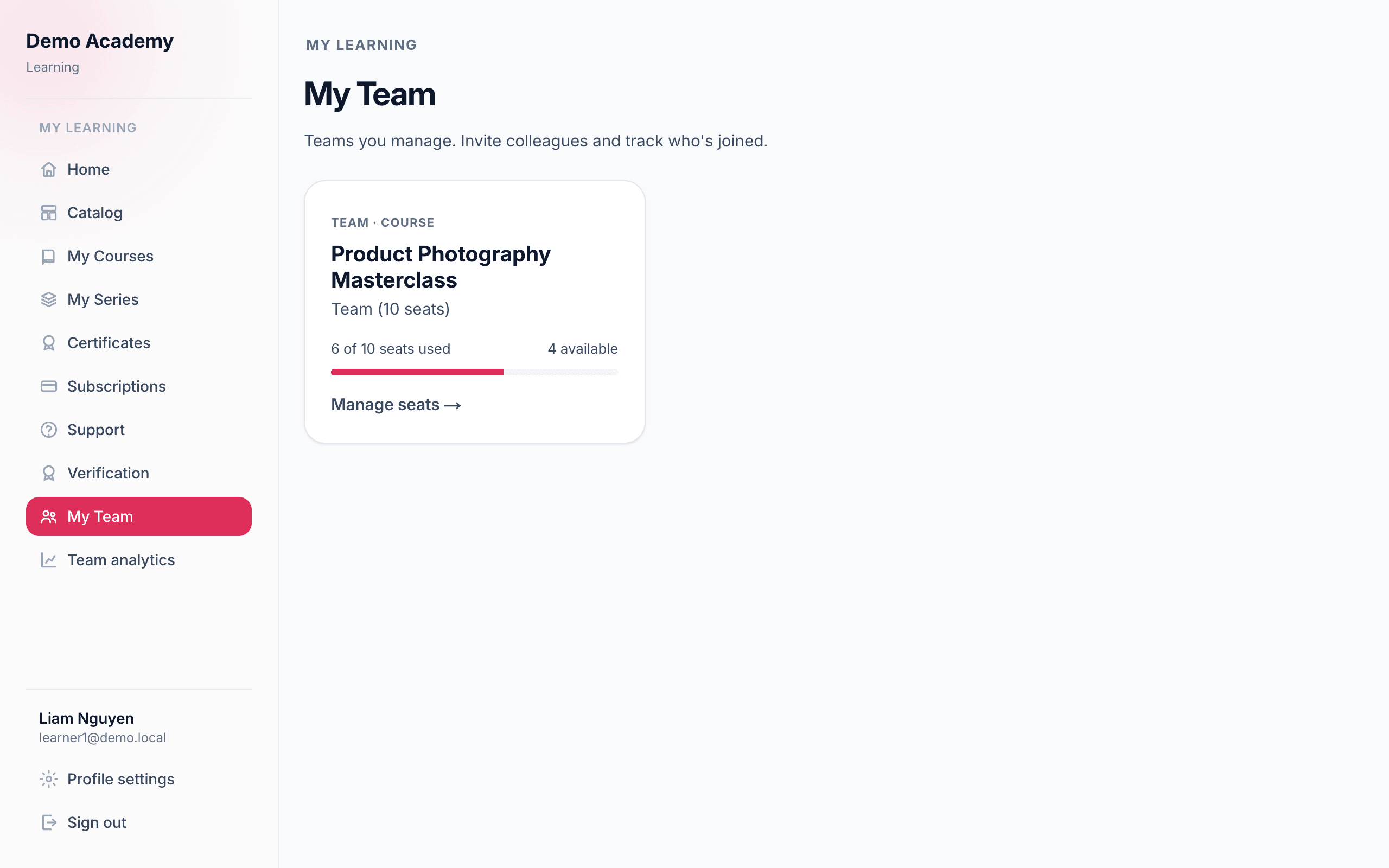
Manage seats opens the team’s detail page. At the top is the seat meter; below it, an Invite colleagues card:
- Email addresses — paste as many as you like, separated by commas, spaces, or new lines. The helper text shows how many seats are still available.
- Message (optional) — a short welcome note included in the invitation email.
- Send invitations — fires an email to each address with a private claim link that expires in 30 days.
The system is friendly about mistakes. If more emails are entered than there are seats, the whole batch is held back with a clear message. Individual addresses that can’t be invited are flagged with the reason — already invited or enrolled, that’s your own email, listed more than once, or not a valid email address — while the valid ones still go out.
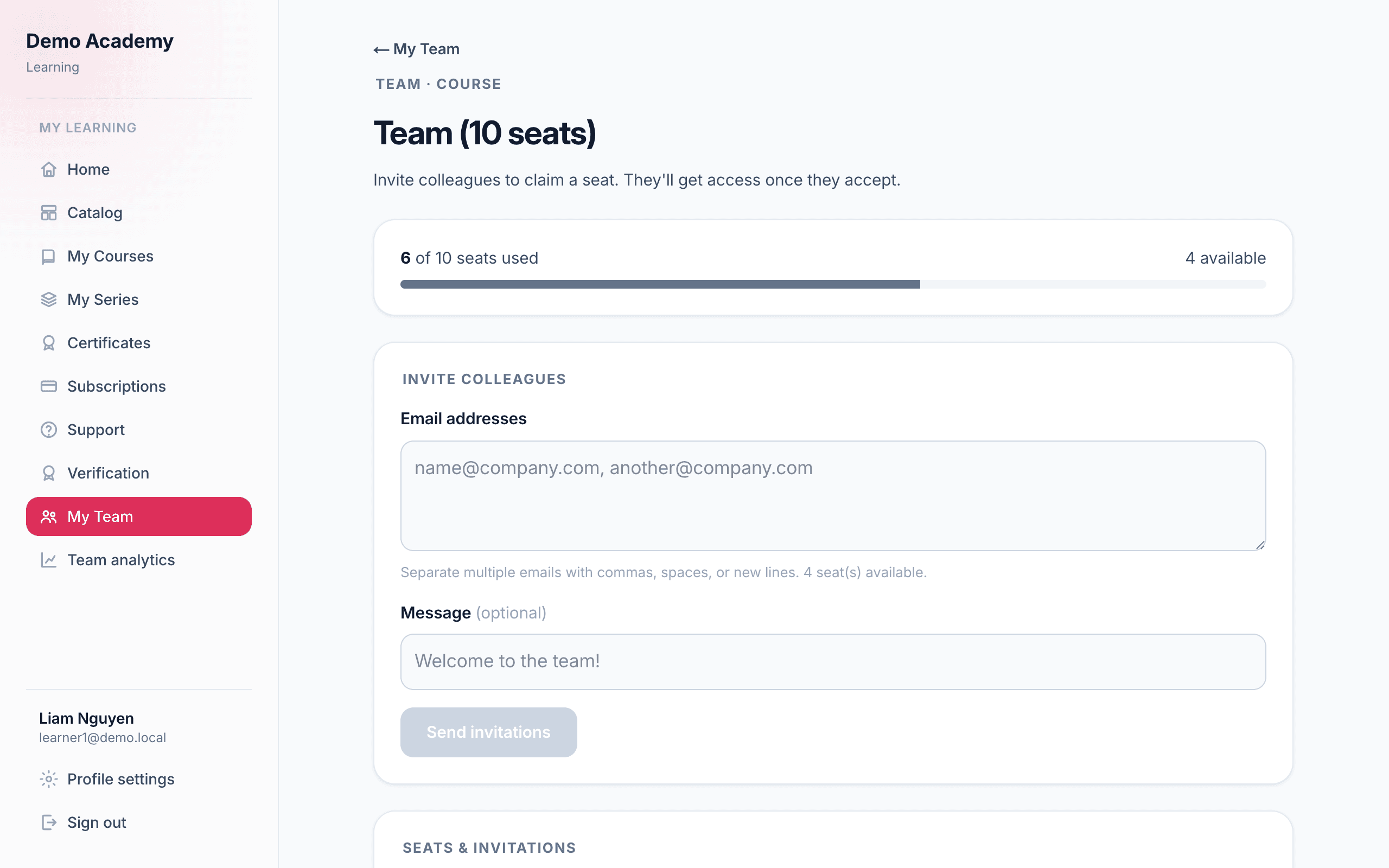
Below the invite box is Seats & invitations — one row per seat with a status pill:
- Joined — the person accepted and is now enrolled.
- Pending — invited, not yet accepted (shows when the invite expires).
- Expired — the 30-day window passed without a claim; the seat is free again.
- Removed — the buyer cancelled the invite or removed the member.
Each row has actions: Resend issues a fresh link with a new 30-day window, and Remove (for a joined member) or Cancel (for a pending invite) frees the seat. Removing someone who has Joined also revokes their access to the course or series — they’re asked to confirm, because it can’t be un-done without a fresh invite.
Step 3 · Each person claims their seat
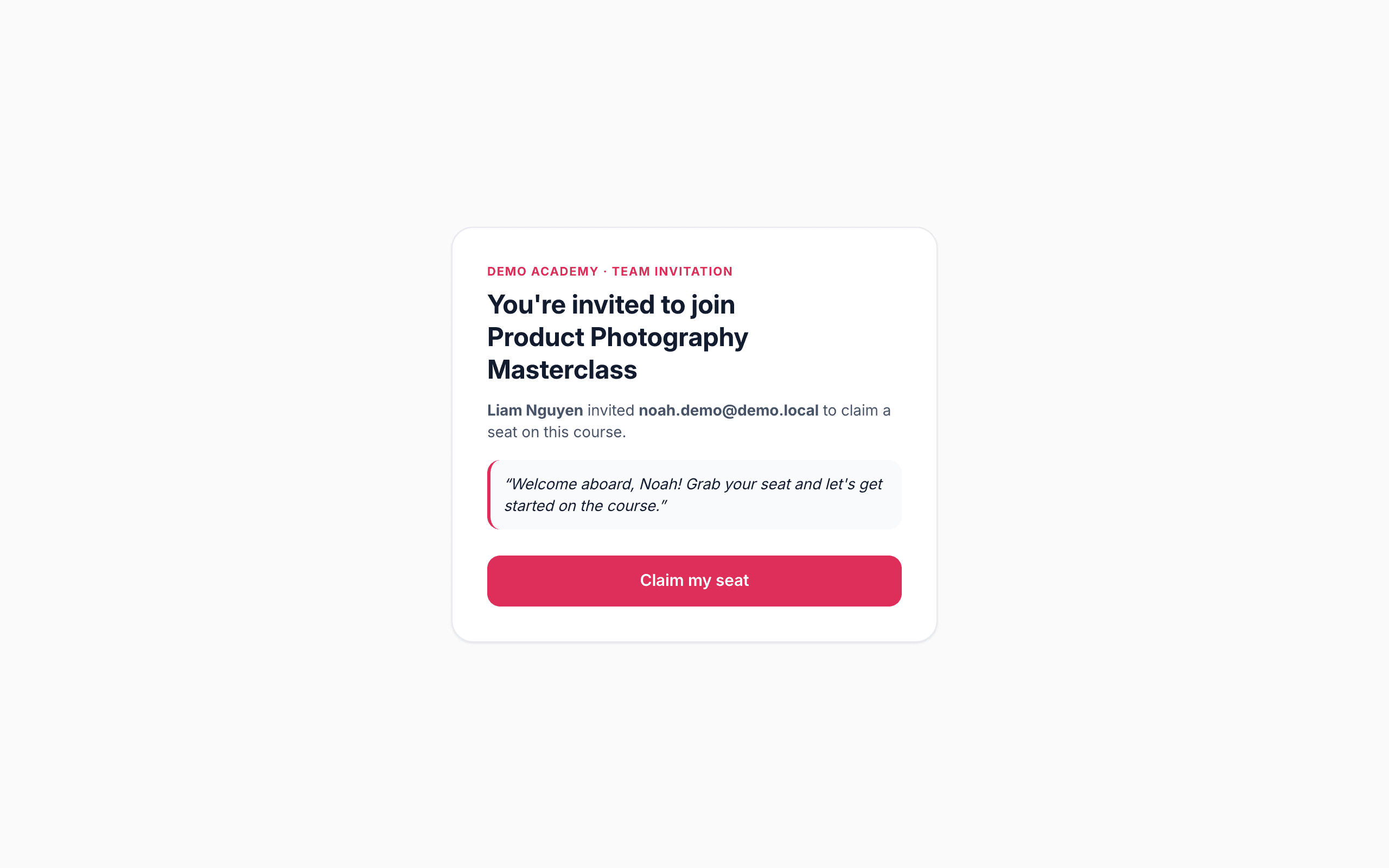
An invitee gets an email with a claim link. Opening it shows them the details before they sign in — who invited them, which course or series, and the buyer’s optional message. To accept, they sign in or sign up with the exact email the invite was sent to, then click Claim my seat — and they’re dropped straight into the course.
If they’re signed in under a different email, they’re warned and offered a Switch account option, because the seat is bound to the invited address. If a link has expired or already been used, the page explains that and points them back to the manager for a fresh invite.
Step 4 · Track your team’s progress
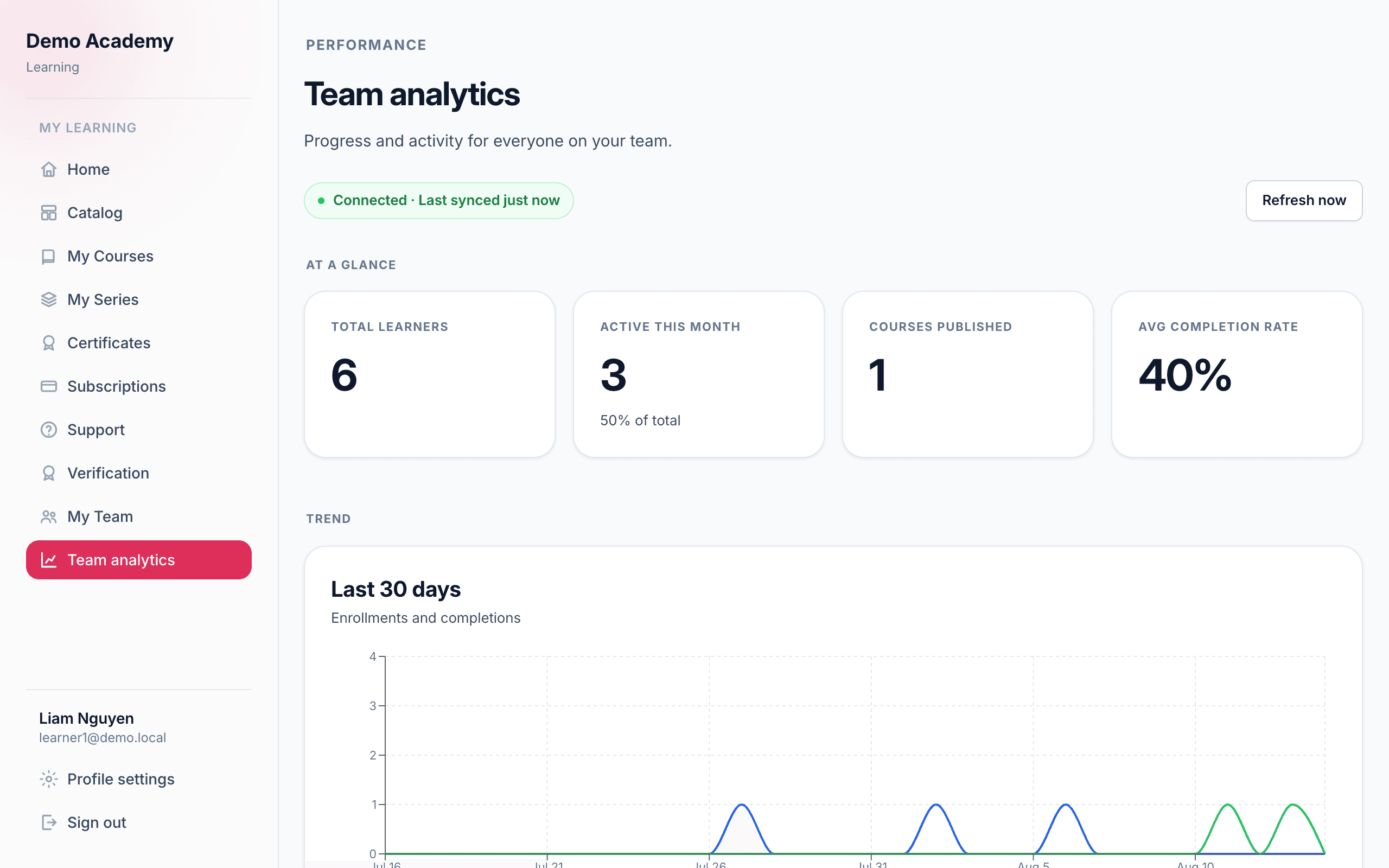
The second new sidebar item, Team analytics, is where the buyer follows how their people are doing. If they manage more than one team, a picker at the top chooses which team to view. Everything on the page is scoped to that team’s members:
- At-a-glance tiles — Total learners, Active this month, Courses published, and Average completion rate, each with a month-over-month change.
- A 30-day trend chart of enrollments and completions.
- Course performance — a sortable table of enrolled counts, completion, average score, pass rate, and average time per course.
- Learners — a row per member (name, email, status, enrolled/completed dates, average score, last active), filterable by name, course, status (Active, At risk, Inactive, New, Invited), recent activity, and completion.
- Recent activity — a live feed of completions, passes, enrollments, and members falling behind.
How seats are counted
A seat only counts as “used” when it’s Joined, or Pending and not yet expired. That means:
- An invite that expires quietly hands its seat back — nothing for the buyer to clean up.
- Cancelling a pending invite frees the seat immediately.
- Removing a joined member frees the seat and revokes their access, so the buyer can hand it to someone else.
The upshot: the buyer can always fill exactly as many seats as they paid for, no more — and if the team is full, they simply remove someone or cancel a pending invite to make room.