If you run your marketing in GoHighLevel (GHL), Learn 360 can send it a live stream of everything your learners do — sign-ups, purchases, completions, certificates, renewals, refunds, and more. Each action arrives in GHL as a webhook carrying the learner’s name, email, and a plain-English tag, so your workflows can fire the right email or automation. One thing never changes: money never moves through GoHighLevel — checkout and payments always stay on your Learn 360 site.
Where to find it
Open Admin PanelIntegrations and click the GoHighLevel card. The page has two tabs: Settings (the connection and what to send) and Courses (enrol links for your GHL funnels).
Step 1 — Connect your webhook
The connection is a one-time setup, and it starts inside GoHighLevel. Open Automation → Workflows, create a workflow (name it something clear like “Learn 360 events”), click Add New Trigger, and choose Inbound Webhook. GHL shows a unique Webhook URL — click to copy it.
Back in Learn 360, paste it into the GHL webhook URL box and click Save. The box expects a URL that looks like https://services.leadconnectorhq.com/hooks/….
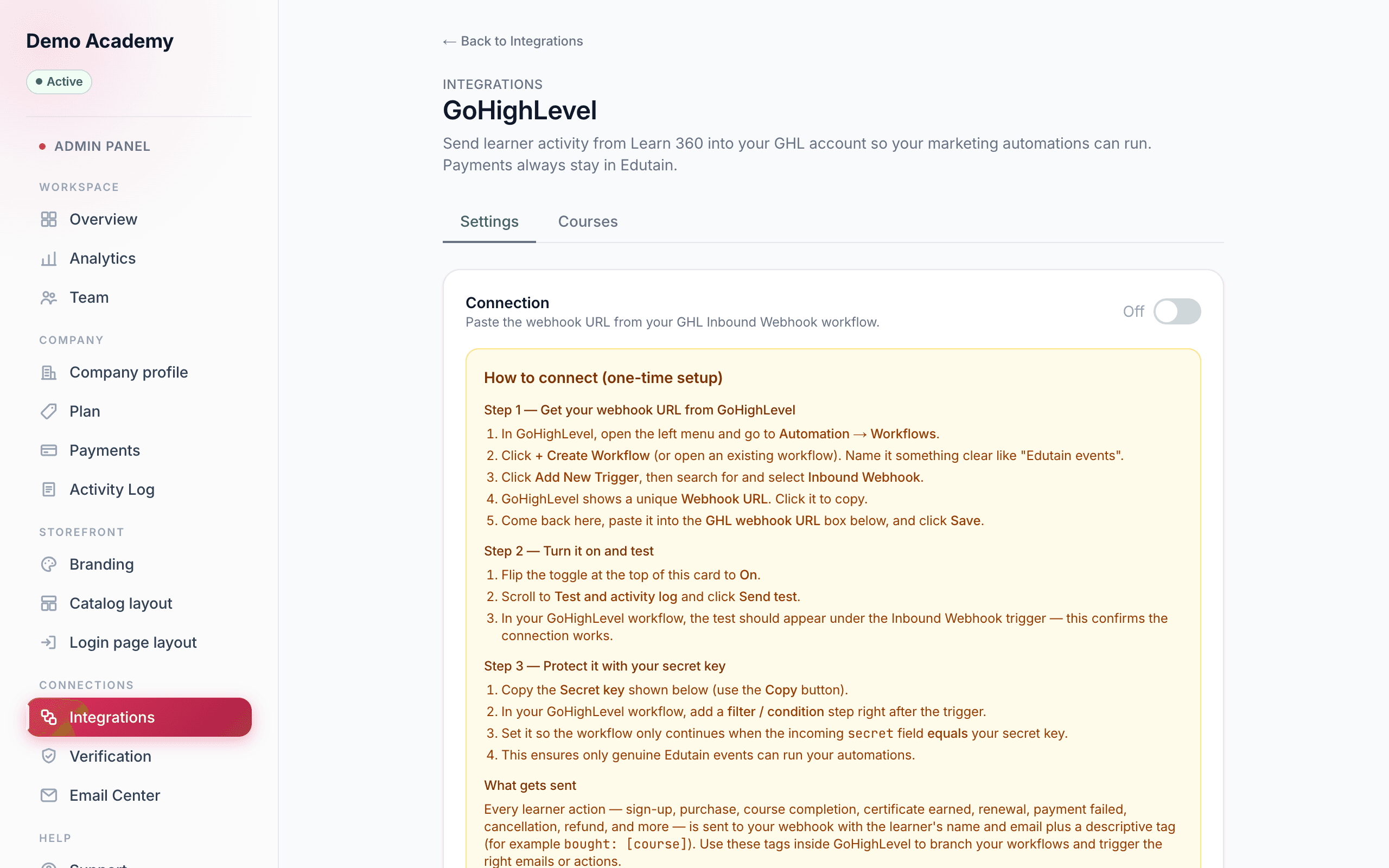
The On / Off switch
The toggle at the top of the Connection card turns the whole integration on or off. Flip it to On once your URL is saved. While it’s Off, nothing is sent and the event toggles below are greyed out — handy when you need to pause the feed without losing any of your settings.
Your secret key
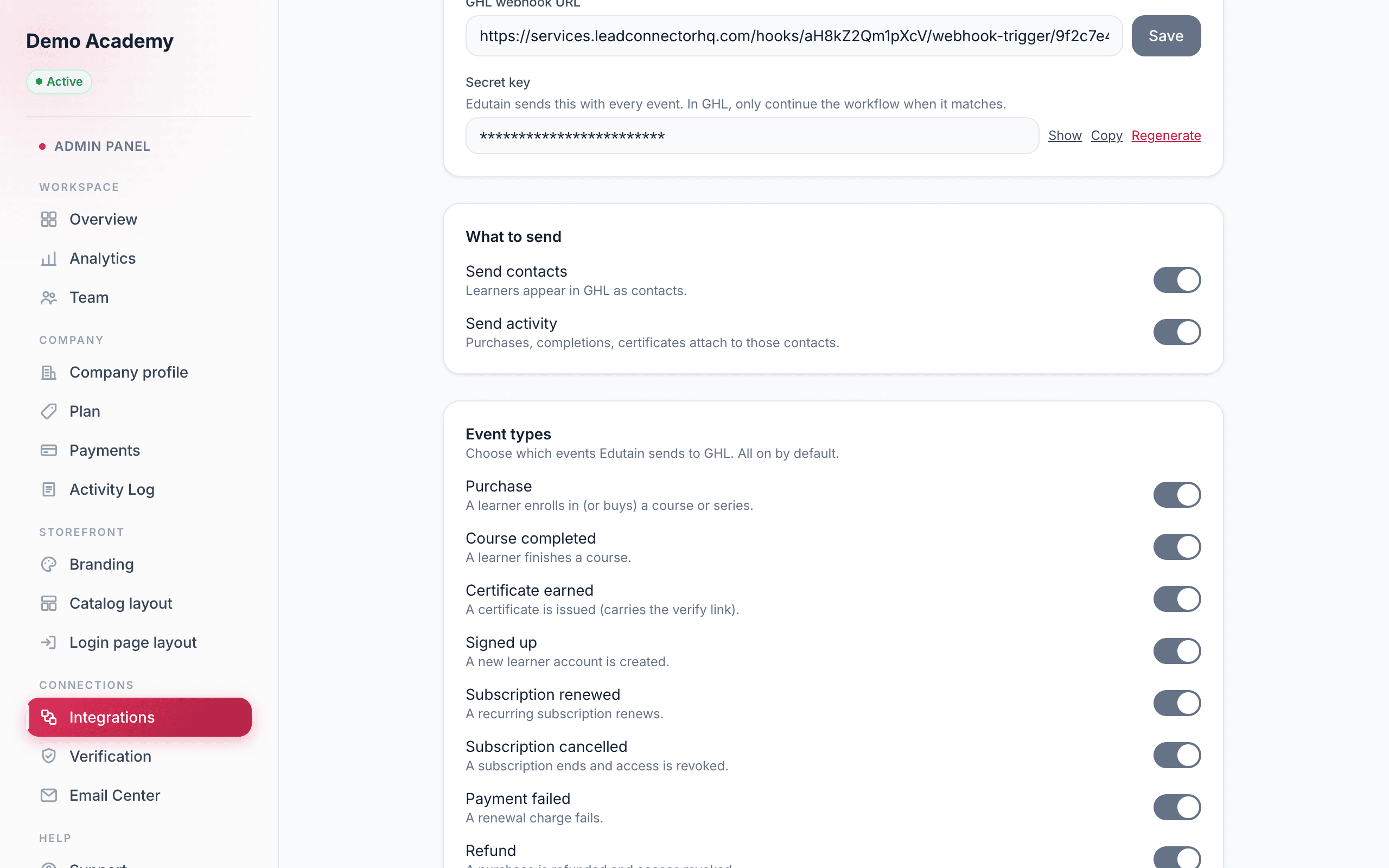
Every event Learn 360 sends includes a secret key — a private value that proves the request really came from you. Use Show to reveal it and Copy to grab it, then in your GHL workflow add a filter / condition step right after the trigger that only continues when the incoming secret field equals your key. That stops anyone else from firing your automations.
Step 2 — Choose what to send
The What to send card has two master switches that decide what actually reaches GHL:
- Send contacts — learners show up in GHL as contacts.
- Send activity — purchases, completions, and certificates attach to those contacts.
The events you can forward
Below that, the Event types card lists every action Learn 360 can push. They’re all on by default; switch off any you don’t want. Toggling a single event controls exactly which of your GHL workflows ever get triggered:
- Purchase — a learner enrolls in (or buys) a course or series. The classic trigger for a welcome sequence.
- Course completed — a learner finishes a course. Great for a “what’s next” upsell.
- Certificate earned — a certificate is issued; the event carries the verify link so you can email it out.
- Signed up — a new learner account is created, even before any purchase.
- Subscription renewed — a recurring subscription renews for another period.
- Subscription cancelled — a subscription ends and access is revoked; use it to start a win-back flow.
- Payment failed — a renewal charge didn’t go through; trigger a dunning reminder.
- Refund — a purchase is refunded and access removed.
- Abandoned checkout — someone started checkout but never paid; nudge them to come back.
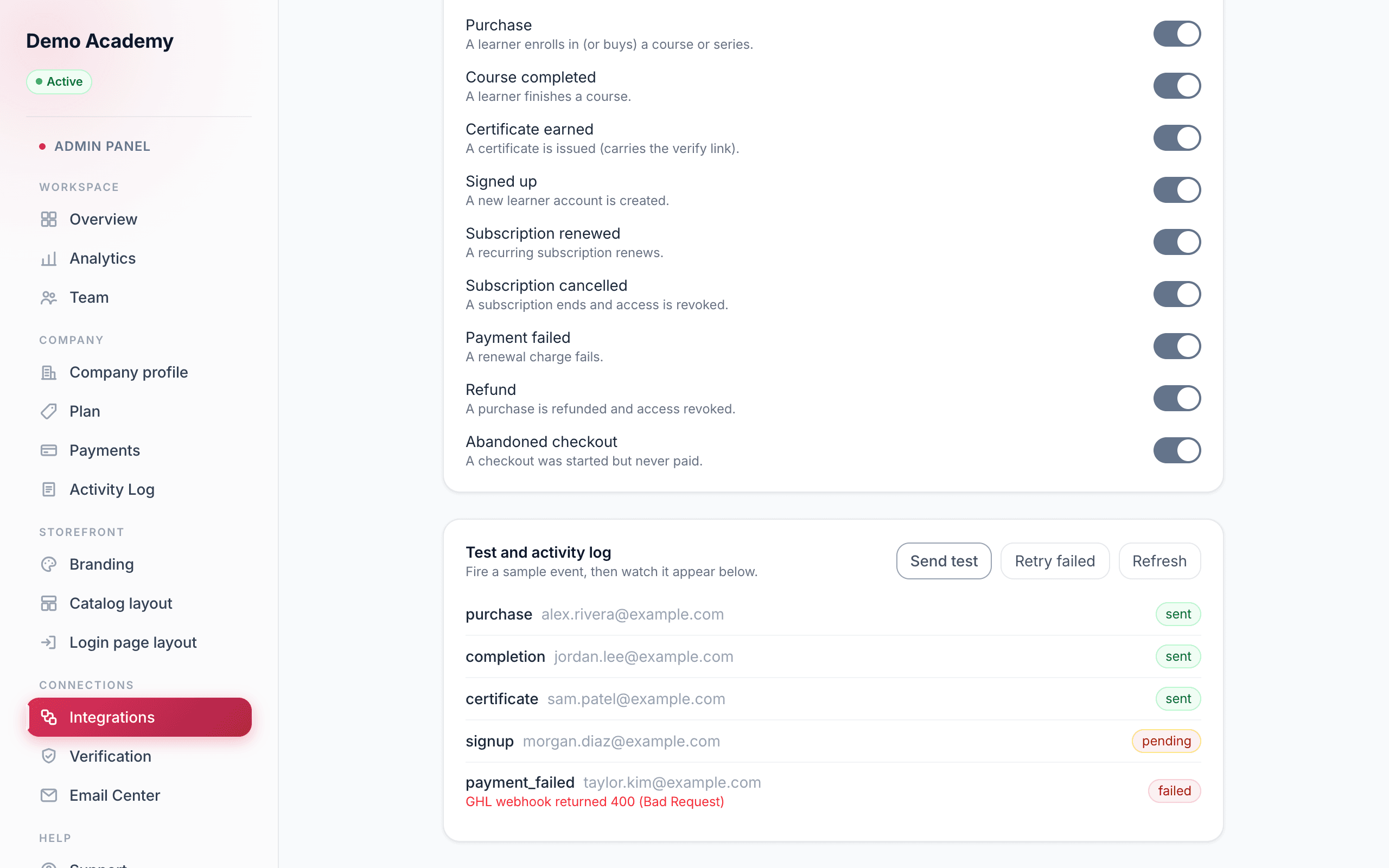
Test, retry & the activity log
The Test and activity log card is where you confirm everything works and keep an eye on the feed.
- Send test fires a sample event to your webhook — it should appear under the Inbound Webhook trigger in your GHL workflow within seconds. (It’s only available while the integration is On.)
- Retry failed re-sends anything that didn’t go through — useful after you’ve fixed a bad URL.
- Refresh reloads the list.
The log below shows recent events with the contact’s email and a status of sent, pending, or failed. A failed row shows the error so you can see exactly what went wrong.
Enrol links for your funnels
The Courses tab turns any published course or series into a ready-made Copy enrol link. Paste it onto the “Enrol now” button of a GHL landing page or funnel. When a visitor clicks it, they land on your Learn 360 site to sign up (or log in) and enrol — and payment is taken there, securely, never in GoHighLevel.
Pair the two halves for a complete loop: the button drives sign-ups from your funnel, and the purchase event flowing back into GHL kicks off the welcome sequence for each new learner.
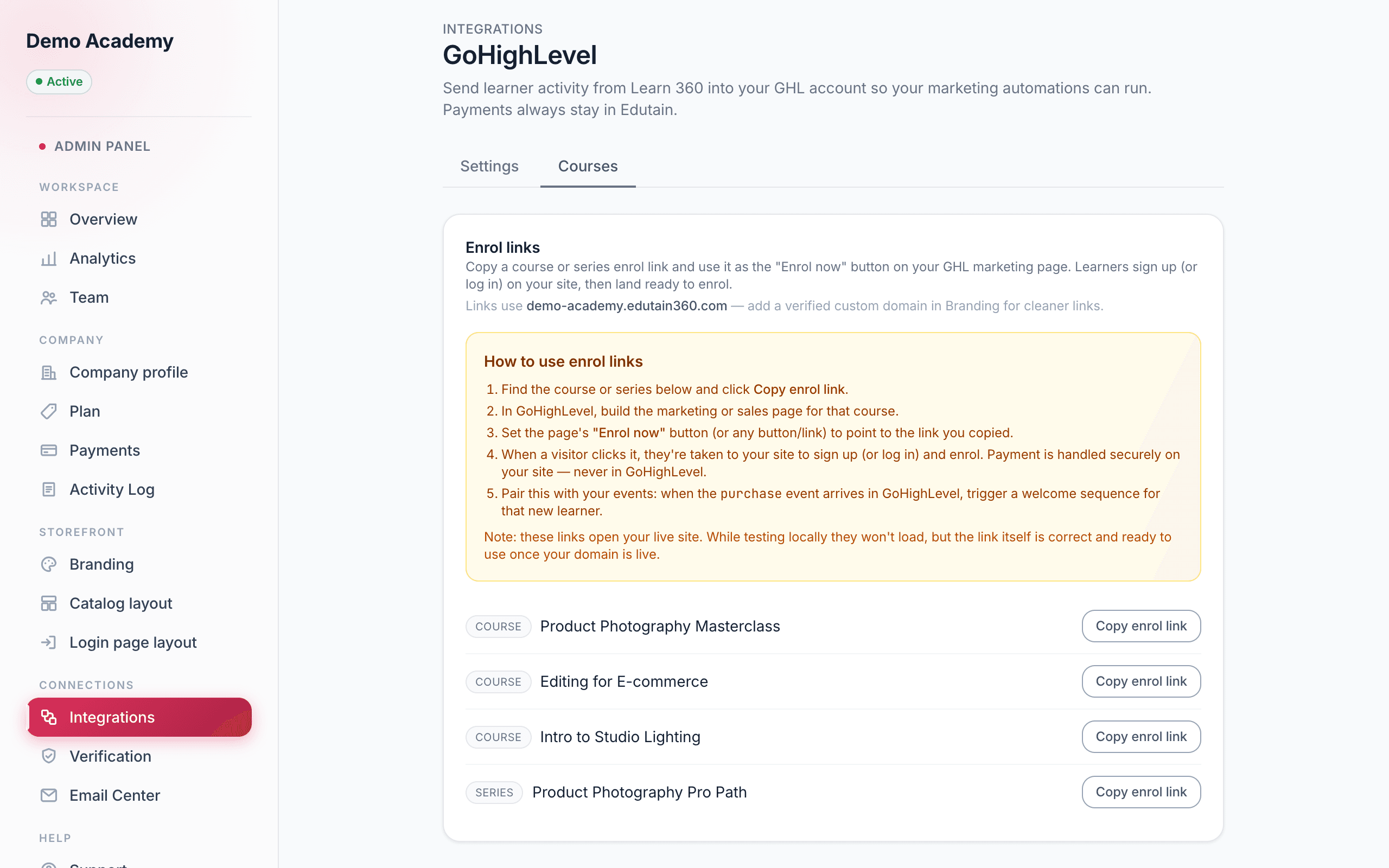
yourname.learn-360.com address. Either way the link works — and once you’re live, pair it with the Email Center to shape the messages new learners receive.