Your logo and brand color are what make the platform feel like yours — they carry through your login page, your catalog, and the portal your learners use every day. You’ll set both in one place: Admin PanelBranding.
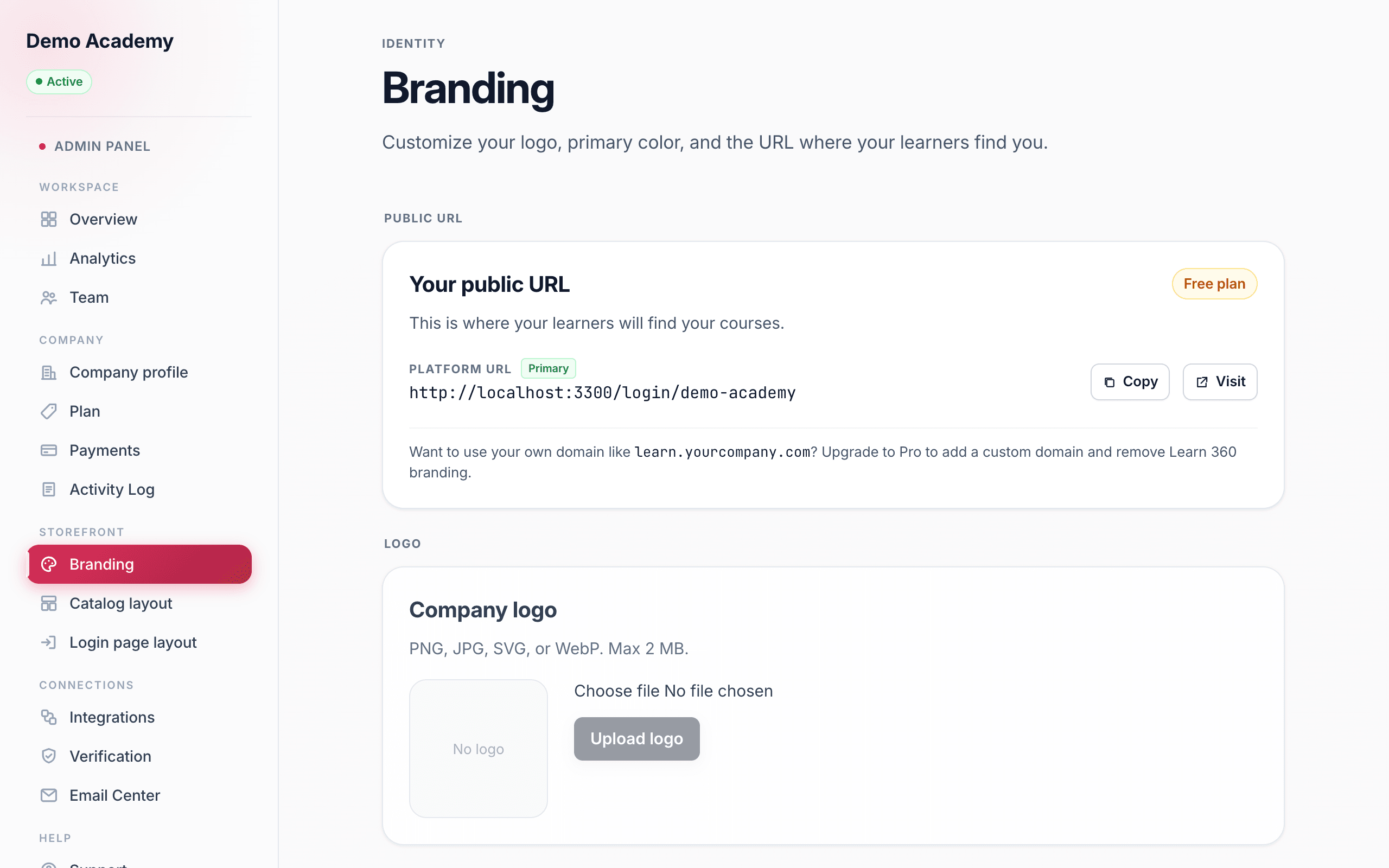
The Branding page is titled Identity and holds four cards, stacked top to bottom: Your public URL, Company logo, Primary color, and Use your own domain. This guide covers the first three. The custom-domain card has its own walkthrough: Connect a custom domain.
Add your logo
In the Company logo card, drop in your mark. Learn 360 accepts PNG, JPG, SVG, or WebP files up to 2 MB — the card states these limits right under the heading. A square or wide horizontal logo both work; the preview box shows exactly how it will sit.
- Go to Admin PanelBranding.
- In the Company logo card, click Choose file and pick your image. A preview appears in the 128-pixel box on the left.
- Click Upload logo. (The button stays greyed out until you’ve selected a file, so nothing happens by accident.)
Once saved, your logo shows up at the top of your dashboard, on your branded login page, across your catalog, and in the learner portal. To change it, upload a new file — it replaces the old one. To take it down entirely, click Remove logo and confirm; your pages fall back to a text company name until you upload a new one.
Set your primary color
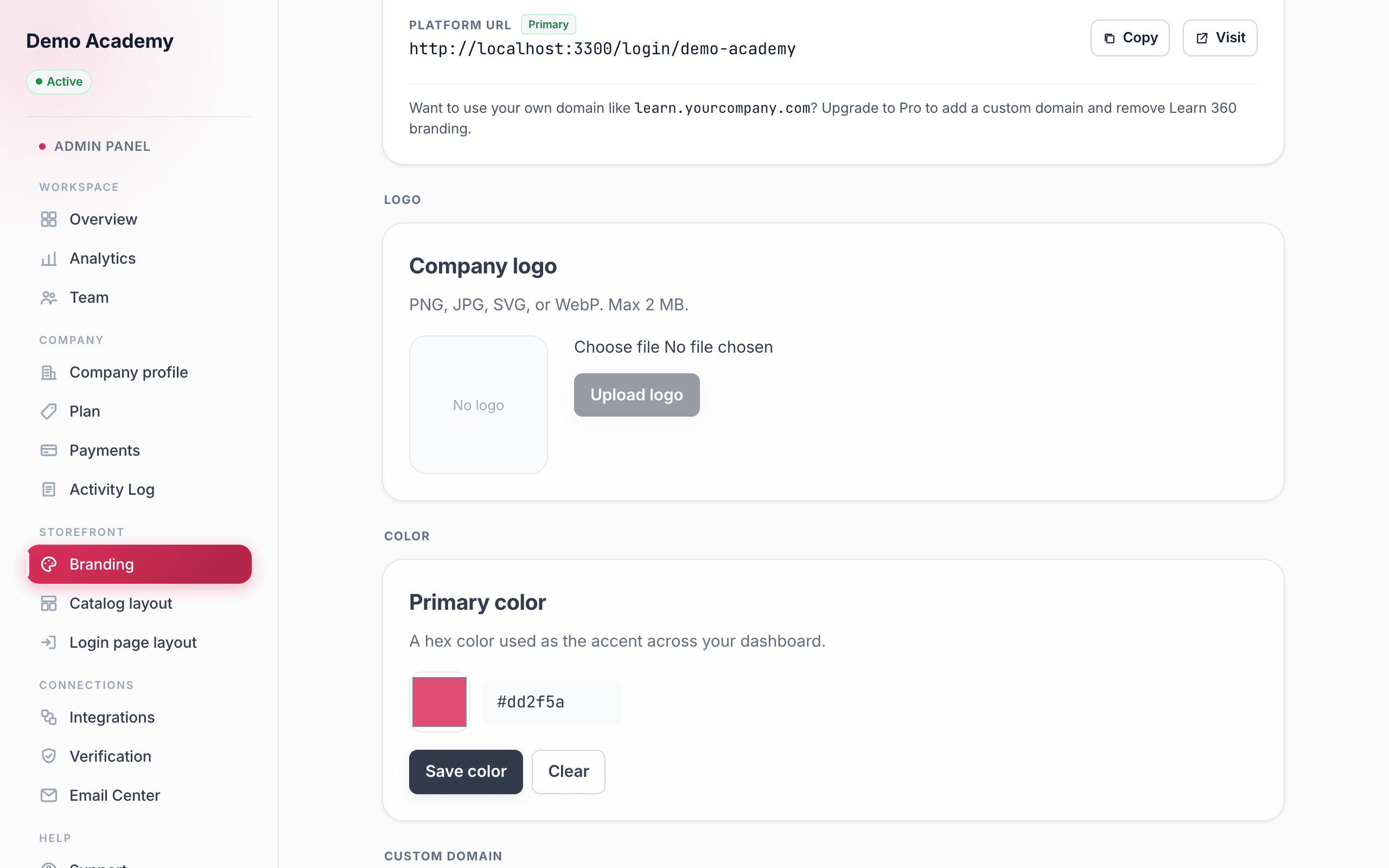
Your Primary color is the accent used for buttons, links, and highlights across your dashboard, storefront, and learner portal — the one color that ties everything to your brand. The card gives you two ways to set it, and they stay in sync:
- The color swatch on the left opens your browser’s native color picker — good for eyeballing a shade.
- The hex field next to it takes an exact code like
#1e293b— best when your brand guide gives you a precise value to paste.
When it looks right, click Save color. To go back to the platform default, click Clear (this button only appears once you’ve set a custom color).
Your public URL
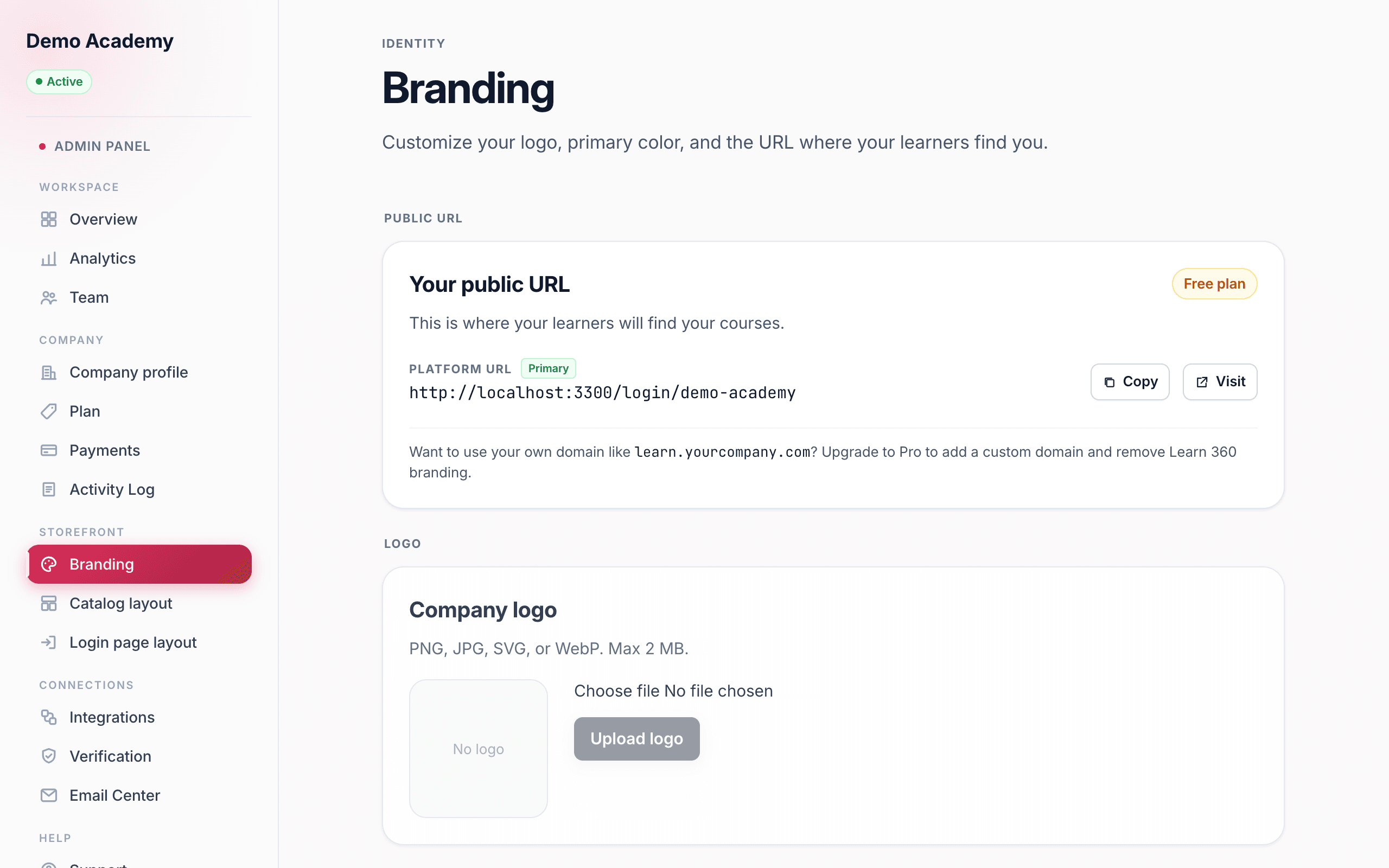
The top card, Your public URL, is the address learners use to reach your login page — something like app.learn-360.com/login/your-company. Each URL row has a Copy button (to grab the link for an email or your website) and a Visit button (to open it in a new tab and see what learners see).
If you connect a custom domain and verify it, that address moves to the top of this card and is tagged Primary, while the platform URL stays listed as a backup. Until then, the platform URL is your primary link. See Connect a custom domain to set your own address, or Your storefront & links for the full picture of where to share it.
If branding looks locked
On the Free plan the logo, color, and domain cards appear slightly dimmed, and clicking any of them opens an Upgrade to a paid plan window. Choosing View plans takes you to Admin PanelPlan, where you can move up. Nothing you type is lost — once you upgrade, the cards unlock and save normally.
Not sure whether you need it yet? Compare the tiers in Free vs Pro, or jump straight to Upgrade to Pro.