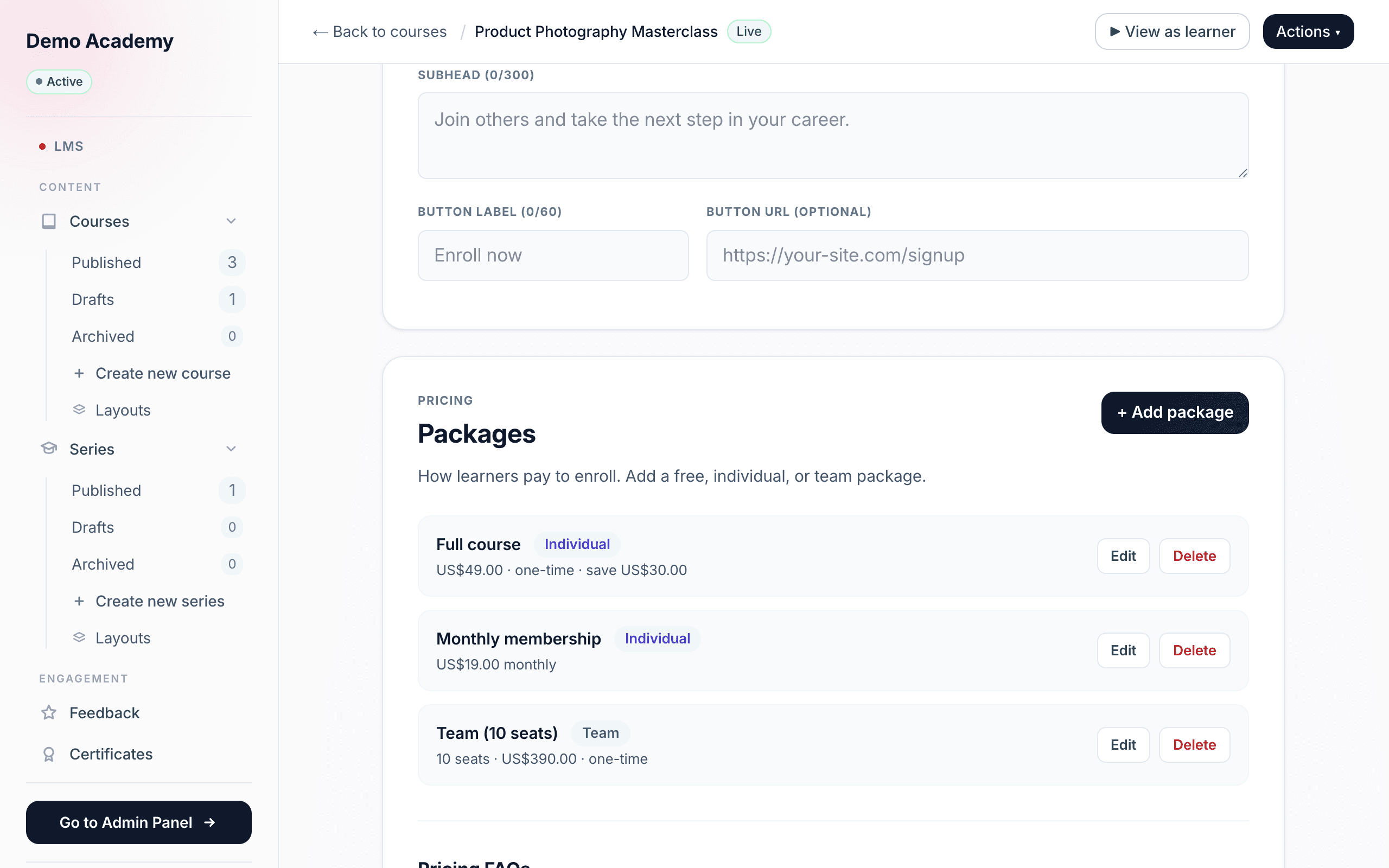
You price your work with Packages. A package is a way for a learner to pay to enroll, and you set them right in the builder — open a course under LMSCourses, go to the Course basics page, and find the Packages panel (a series has the same panel on its own basics page). Each package belongs to one course or one series.
Click + Add package to open the package editor. You can add as many packages as you like — a course with no packages simply can’t be enrolled in, so add at least one.
The three package types
Every package is one of three types, chosen with a toggle at the top of the editor:
- Free — no payment; the learner enrolls instantly. Choosing Free turns pricing off entirely. Great as a lead magnet or for internal training.
- Individual — one buyer buys access for themselves. This is the standard “buy the course” package.
- Team — one buyer buys a block of seats and invites their own people. It’s priced per seat, and the buyer gets their own access free on top of the seats they hand out. Team packages have a whole flow of their own — see Sell to teams.
Name, description & what’s included
Every package, whatever its type, shares three fields that shape the card a buyer sees at checkout:
- Package name — e.g. “Full access.” Left blank, it saves as “Untitled package.”
- Description — a short tagline, e.g. “Designed for small teams.”
- What’s included — a list of feature bullets (“Certificate included,” “Lifetime access”) shown as ✓ ticks on the buyer’s card. Add as many as you like with + Add feature.
Fixed price vs subscription
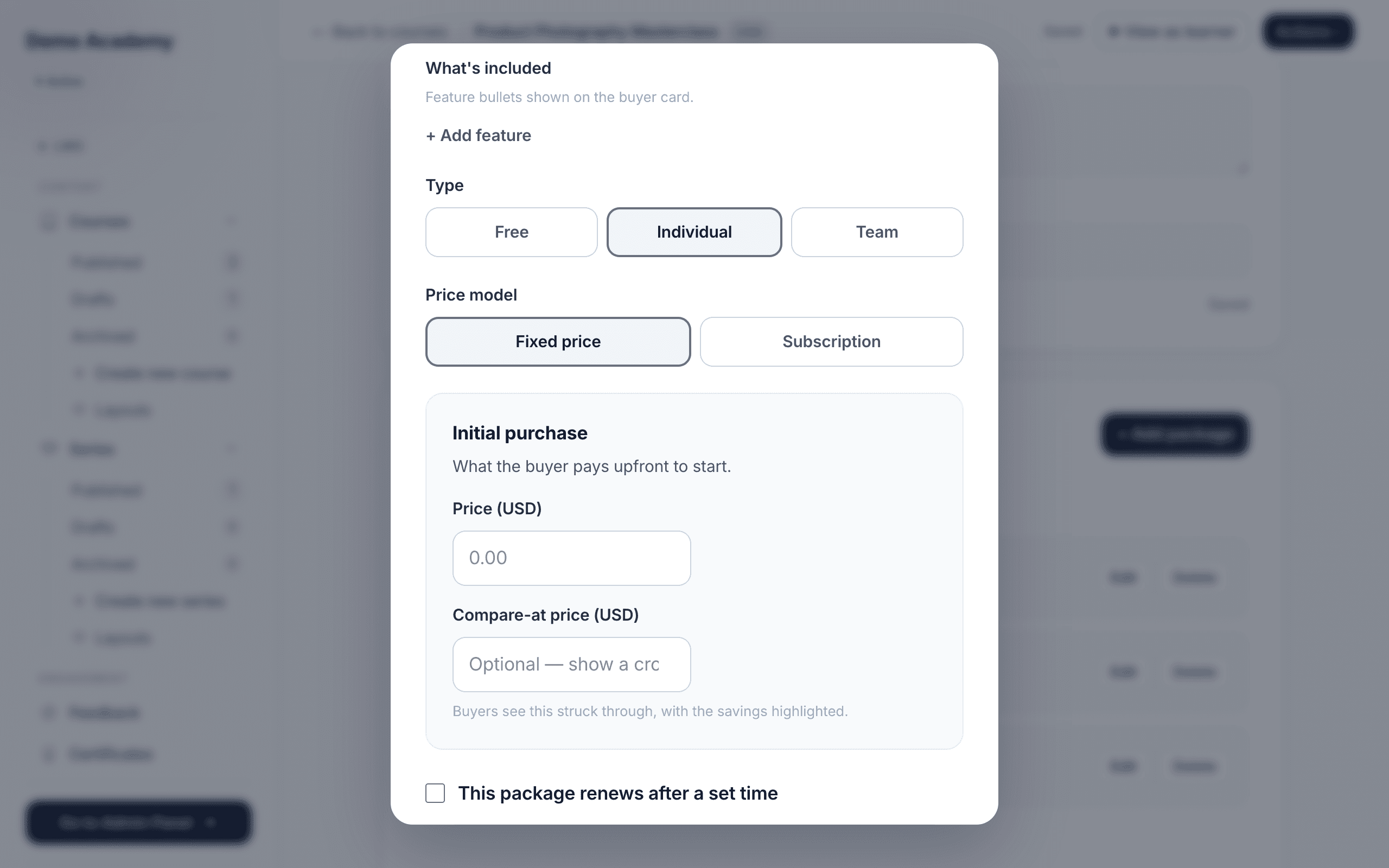
For Individual and Team packages you then pick a price model: a Fixed price or a Subscription.
Fixed price
A fixed price is what the buyer pays upfront under the Initial purchase heading:
- Individual shows a single Price (USD) field.
- Team shows Price per seat (USD) and Number of seats — the total charge is per-seat × seats.
- Compare-at price (USD) is optional. Set it higher than your real price and the buyer sees the compare-at struck through with the savings highlighted — the classic “was $99, now $49” framing.
By default a fixed price is a one-time purchase with lifetime access. Tick “This package renews after a set time” to change that: access then expires and the buyer pays again to continue. A Renewal block appears where you set Renew every (months) and an optional Renewal price (or Renewal price per seat for team) — leave the renewal price blank to charge the same as the initial price. This is how you make something that looks like a one-time price but quietly re-bills, say, once a year.
Subscription
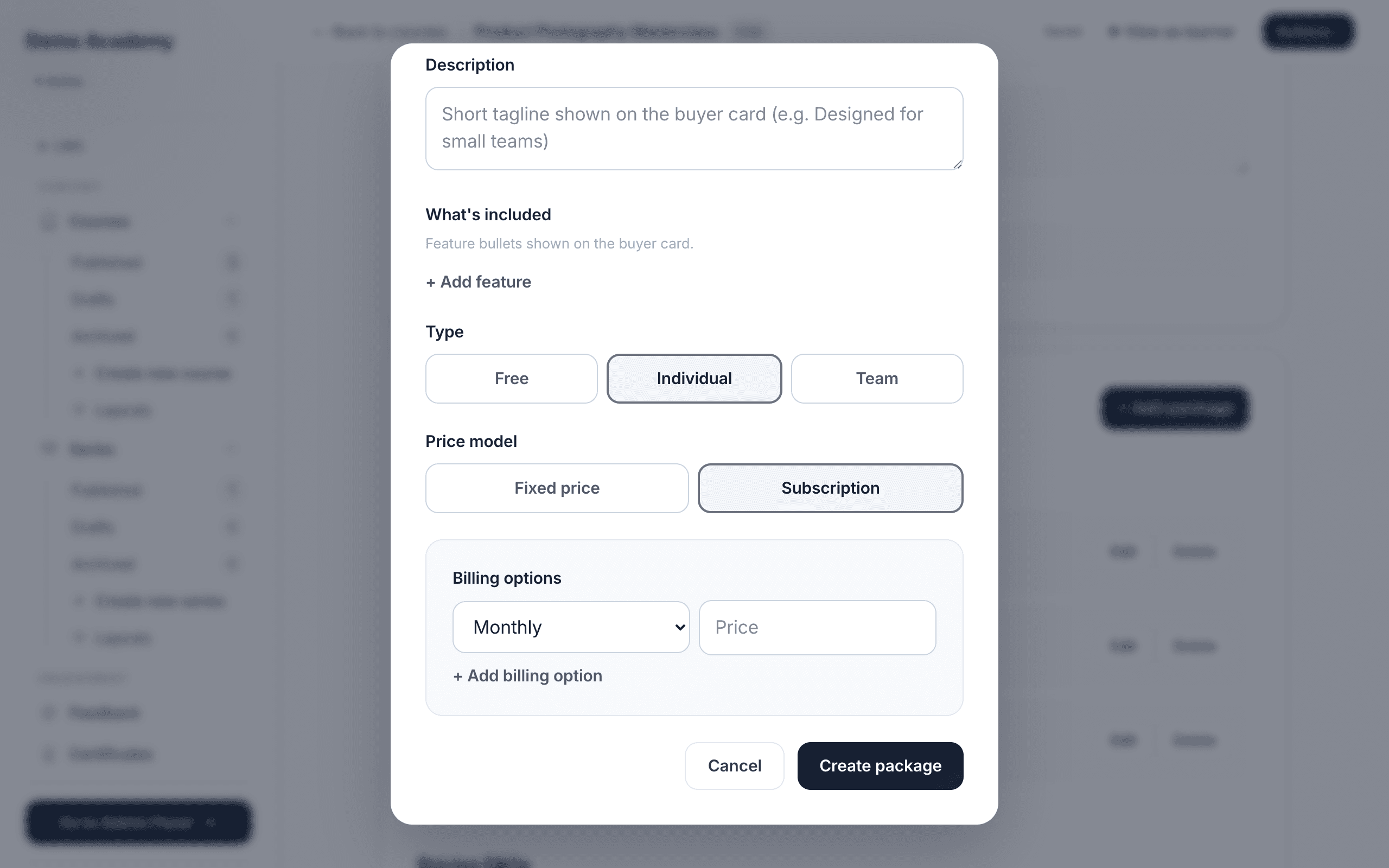
A subscription bills on a repeating schedule. Under Billing options you add one or more intervals, each with its own price:
- Monthly, Every 3 months, Every 6 months, or Yearly.
- Use + Add billing option to offer more than one interval at once — for example monthly and yearly, so buyers can pick. Each interval can only be added once.
- For a Team subscription you also set Number of seats, and every interval price is per seat.
Team packages
A team package is always priced per seat × a fixed number of seats, and the buyer gets their own access free — so a 10-seat package covers 11 people. The buyer then invites their team and tracks everyone’s progress from their own account. That end-to-end flow has its own guide: Sell to teams.
Changing a price only affects new buyers
When you edit an existing package, a shield banner reminds you: changing the price only affects new buyers. Everyone who already bought keeps exactly what they signed up for — an existing subscriber is never re-charged a different amount. This is deliberate: silently changing what someone already agreed to pay is the kind of thing that triggers chargebacks and gets a payment account frozen, so Learn 360 simply never does it.
Deleting a package
Every package row has a Delete button next to Edit. Clicking it opens a confirm box headed “Delete this package?” that warns the package will be permanently removed and that this can’t be undone. Confirm with Delete package and the package record is gone for good — this is the one action in the panel with no undo and no trash to fish it back out of, so only do it when you mean it.
Just like changing a price, though, deleting a package doesn’t touch anyone who already bought it. A learner’s access is tied to the course itself, not to the package they paid through — so removing the package only removes the pricing option going forward. Every existing learner keeps their enrollment and carries on exactly as before; the only thing that disappears is the ability for new people to enroll through that particular package.
Reading the price summary
Back in the Packages panel, each package row shows a plain-English summary of what you configured, for example:
- Free — for a free package.
- $49.00 · one-time, or with a discount · save $20.00, or with renewal $49.00 · then $39.00 every 12 mo.
- $9.00 monthly · $90.00 yearly — for a subscription with two intervals.
- 10 seats · $490.00 · one-time — for a team package.
Pricing FAQs at checkout
At the bottom of the panel is Pricing FAQs — optional questions and answers that appear inside the enroll window when a buyer is deciding. They’re perfect for reassurance: “Can I get a refund?”, “Can I add more seats later?”, “Do I keep access forever?” Add a question and answer, repeat as needed, then click Save FAQs.
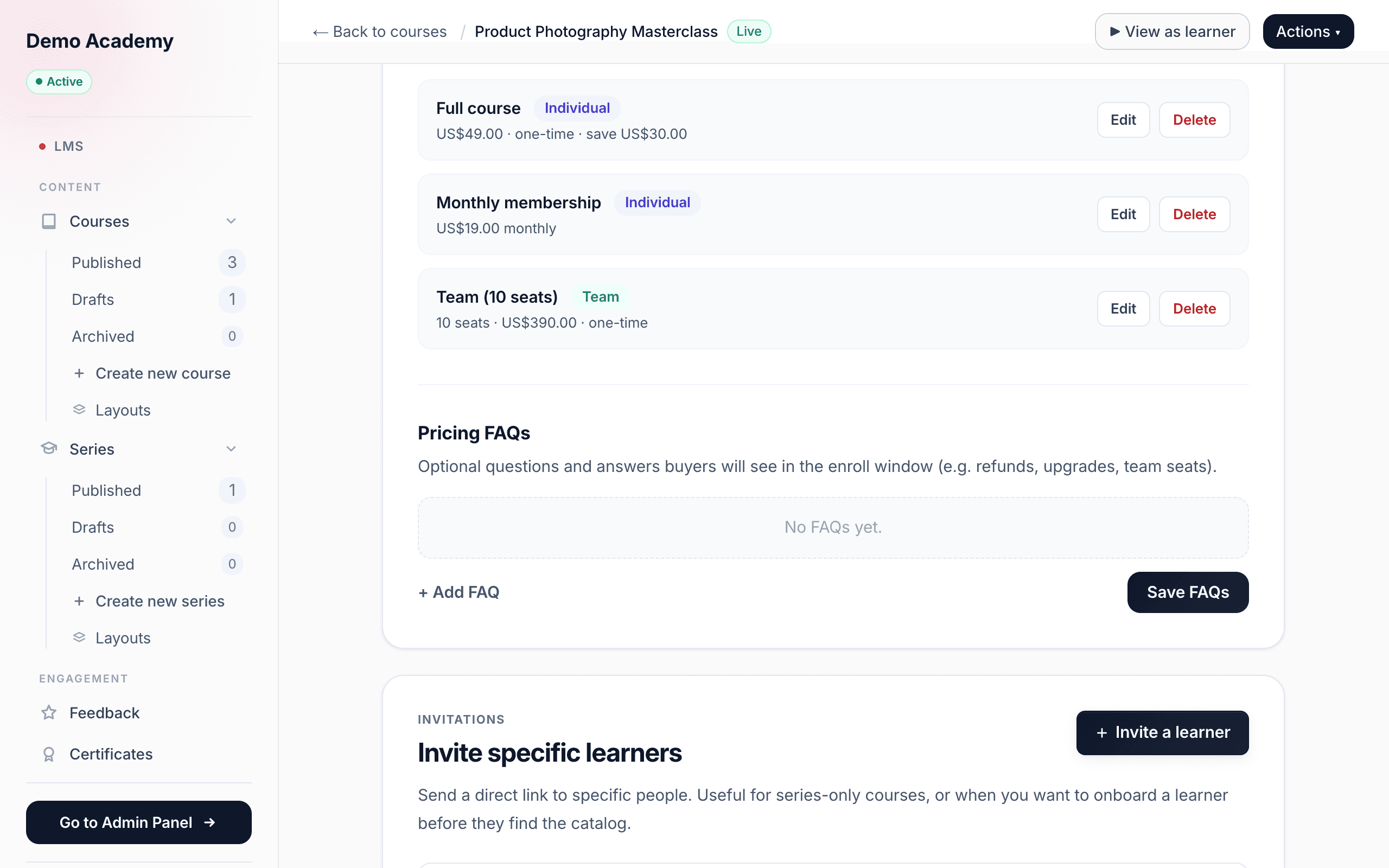
You can stack packages on one course — say a Free taster, an Individual one-time price, and a Team package — and let learners choose at checkout. When your pricing is set, publish the course so people can buy it.