Creating your account also creates your workspace — your own private corner of Learn 360, with its own web address. It takes about two minutes.
Step 1 — Open the sign-up page
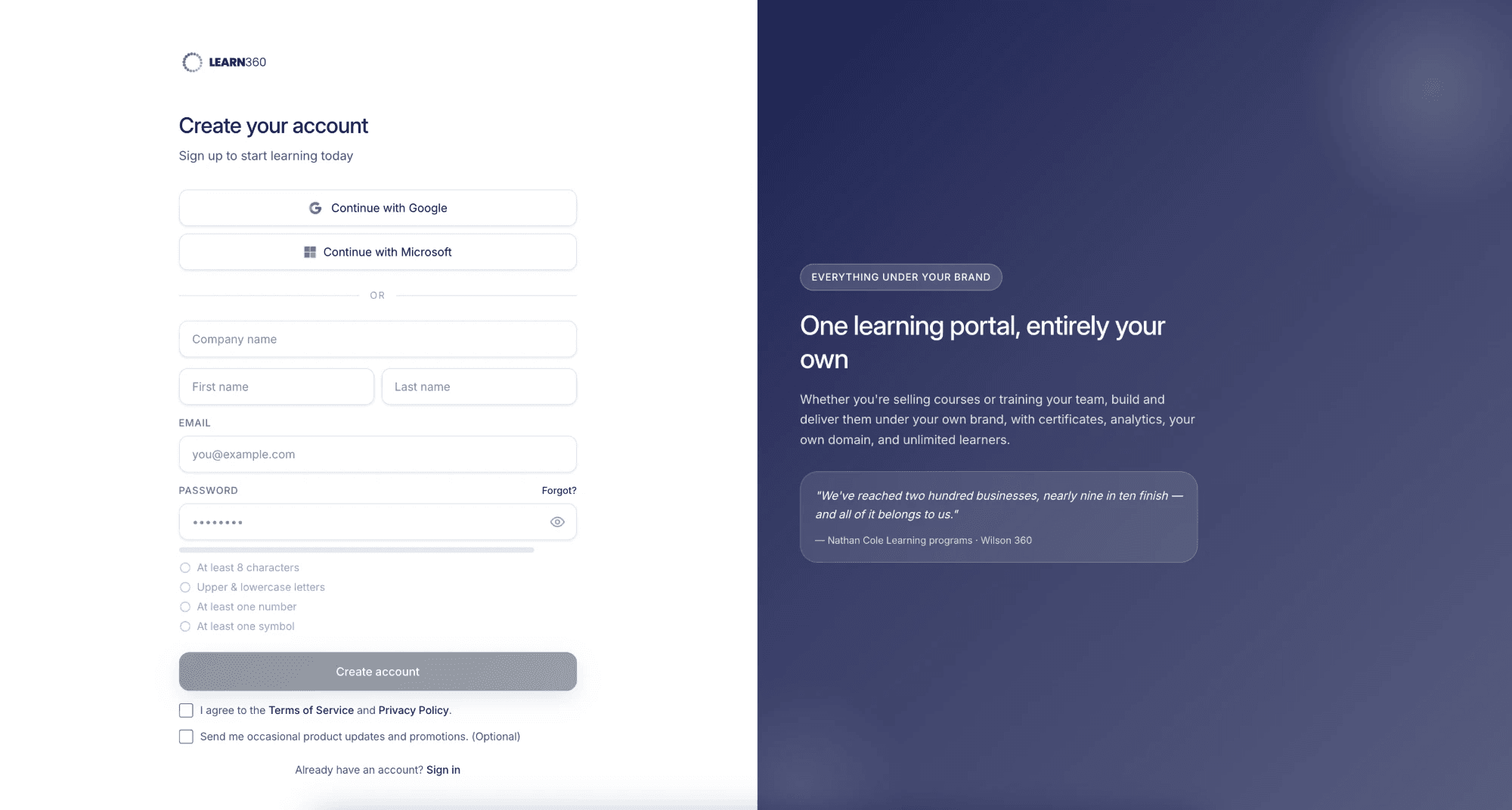
Go to app.learn-360.com and click Get started. You’ll land on the Create your account screen.
Step 2 — Fill in your details
Enter:
- Company name — this becomes the name of your academy (you can change how it’s displayed later).
- Your first and last name.
- Your email address.
- A password — the checklist on screen shows when it’s strong enough.
Tick the boxes to accept the terms, then click Create account.
Step 3 — Verify your email
If you’re asked to verify, we’ll email you a short code. Enter it to confirm your address and activate your account.
Step 4 — You’re all set
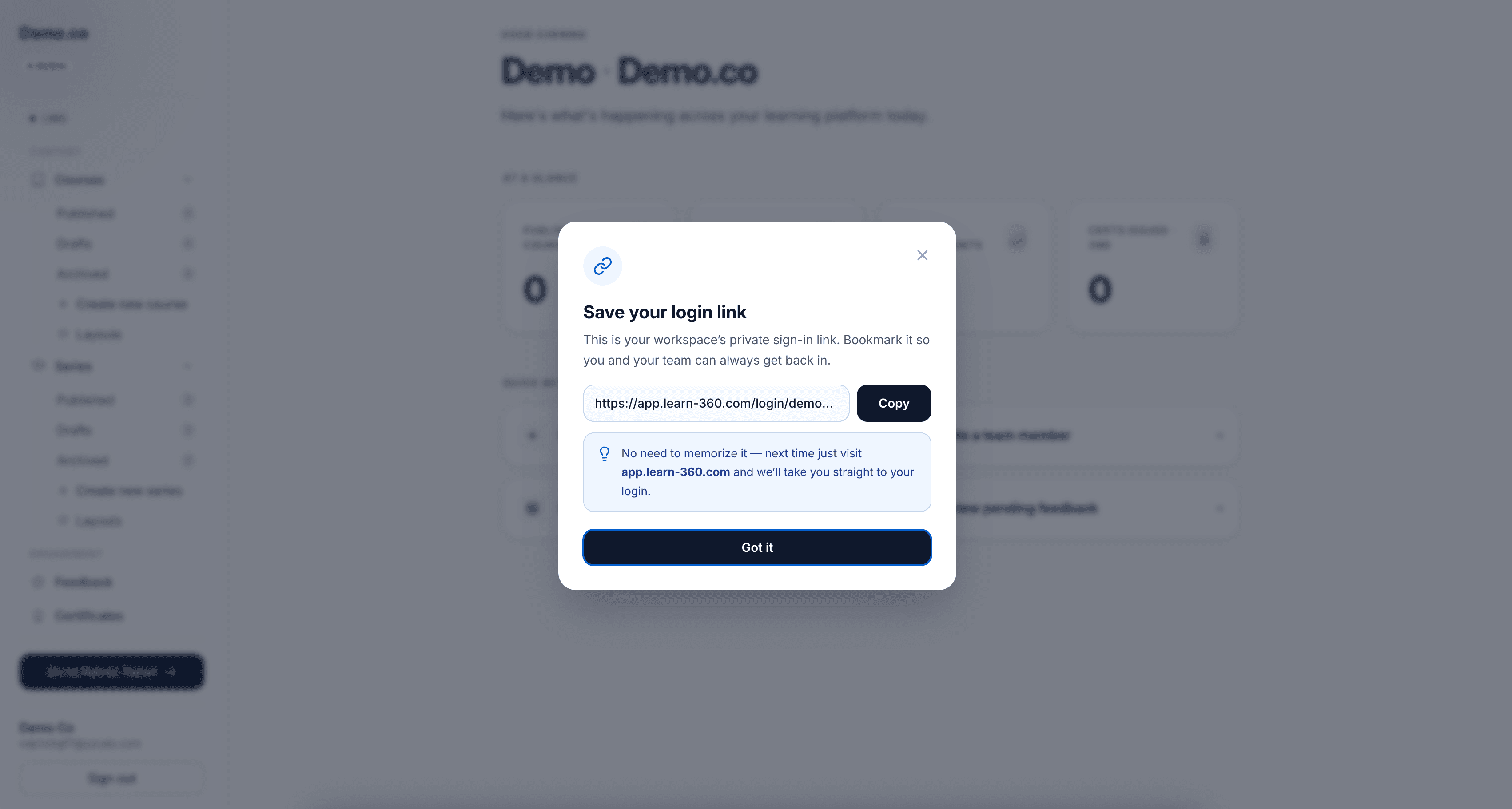
You’ll see a You’re all set screen with your private login link. It looks like this:
app.learn-360.com/login/your-company
This is the address you’ll use to sign in from now on. Click Copy to save it somewhere safe, then choose Continue to your dashboard.
Signing back in
To return later, just visit your login link (app.learn-360.com/login/your-company) and enter your email and password. Once you connect a custom domain, you’ll be able to sign in from your own web address too.
Next, get your bearings in A tour of your dashboard.