Learn 360 gives your learners two places to talk: an always-on course discussion thread that sits at the bottom of every lesson, and an optional Community Thoughts activity you can drop into a lesson to gather answers around a single prompt. This article covers how learners use both day to day, and every control you have as a moderator to keep the conversation healthy.
Who can moderate
Moderator powers come from one permission: the ability to manage courses. That means:
- You, the owner — owners can do everything, always.
- Teammates with the Content permission — the Content permission explicitly includes “moderate discussions across all courses.” See Manage your team for how to grant it.
Everyone else — your learners — sees the same thread but only gets the everyday buttons (post, reply, edit their own, delete their own, and flag). The extra moderator items only appear for people who can manage the course.
How learners use the course discussion thread
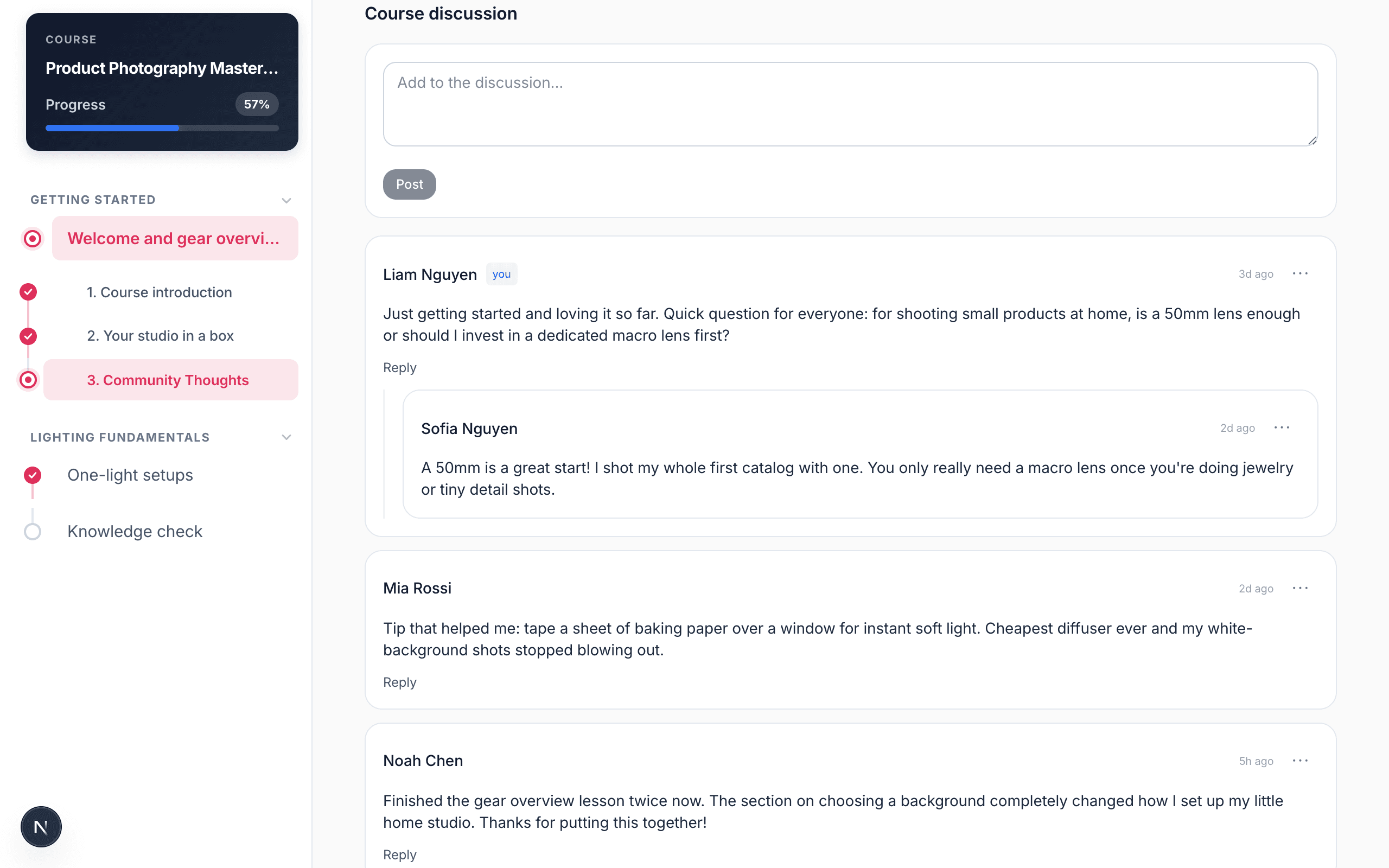
The course discussion thread is a shared conversation attached to the whole course. It shows up as a Course discussion section at the bottom of every lesson, so wherever a learner is in the course, the same running thread is one scroll away. Here’s what a learner can do:
- Post a comment. A box at the top reads “Add to the discussion…” — they type and hit Post. Their name is always attached (the course thread has no anonymous option).
- Reply to a comment. Each top-level comment has a Reply link that opens a “Write a reply…” box. Replies are one level deep only — you can reply to a comment, but not to a reply. Once a comment gathers more than three replies, the extras collapse behind a Show N more replies link to keep things tidy.
- Edit or delete their own post. On any post they wrote, the “⋯” menu offers Edit and Delete. Deleting leaves a small “[deleted]” placeholder so the thread doesn’t lose its shape.
- Flag someone else’s post. On posts they didn’t write, the menu shows Flag — that’s how they quietly ask you to take a look. More on that below.
The flag-and-review loop
Flagging is how your community points you at a problem without any drama. Here’s the whole loop:
- A learner flags a post. Any enrolled learner can flag any post that isn’t their own. It’s silent — the author isn’t told, and the post stays visible for now. Each flag just bumps a counter (a post can be flagged by several people).
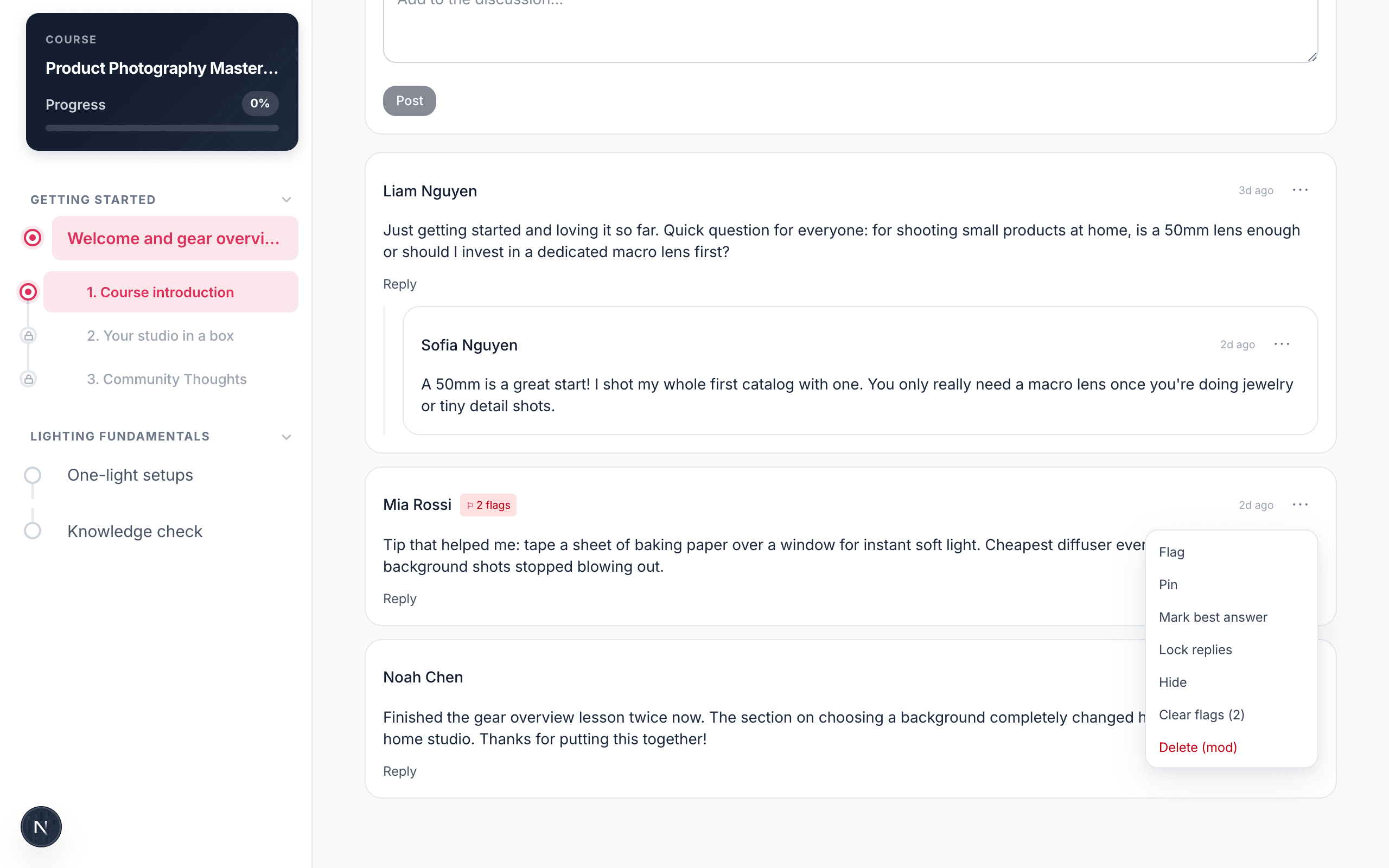
- Only moderators see the count. A red ⚐ N flags badge appears on the post for you, but never for regular learners. That’s your signal to take a look.
- You decide what to do. Open the post’s “⋯” menu and choose the right action — usually Hide or Delete if it breaks the rules, or Clear flags if the post is actually fine and the flags were a false alarm.
Every moderator action
When you can manage the course, the “⋯” menu on each post grows a full set of controls. Here is every one of them and exactly what it does.
Pin a post
Pin hoists a post to the top of the thread and gives it an amber highlight and a 📌 Pinned badge. Use it for the announcement, the ground rules, or the one question everyone keeps asking. Choose Unpin to send it back into the normal timeline. You can pin more than one post; all pinned posts float to the top.
Mark a best answer
Mark best answer gives a post a green outline and a ★ Best answer badge — perfect for flagging the reply that actually solved the problem so the next learner finds it fast. Unmark best removes it.
Lock replies on a post
Lock replies freezes a single post: the Reply link disappears, existing replies stay readable, and a 🔒 Locked badge appears. It’s the gentle way to say “this thread has run its course” without deleting anything. Unlock replies reopens it. (This locks one post; locking the whole thread is covered further down.)
Hide a post
Hide takes a post out of your learners’ view entirely — they simply stop seeing it — without deleting it. You still see it, marked with a red Hidden badge, so you can change your mind. Unhide brings it straight back. Reach for Hide when something needs to come down now but you want the option to restore it.
Clear flags
When a post was flagged but is genuinely fine, Clear flags (N) resets its counter to zero and removes the flag badge. Nothing else changes — the post stays exactly where it is. This item only appears while a post has at least one flag.
Delete any post
On your own posts the menu says Delete; on anyone else’s it says Delete (mod). Either way the post is replaced with a small “[deleted]” placeholder so replies keep their place, and it can no longer be edited or replied to.
Turning the whole thread on, off, or locked
There are two different course-level switches, and it’s worth being clear about how they differ.
The on/off setting (the everyday control)
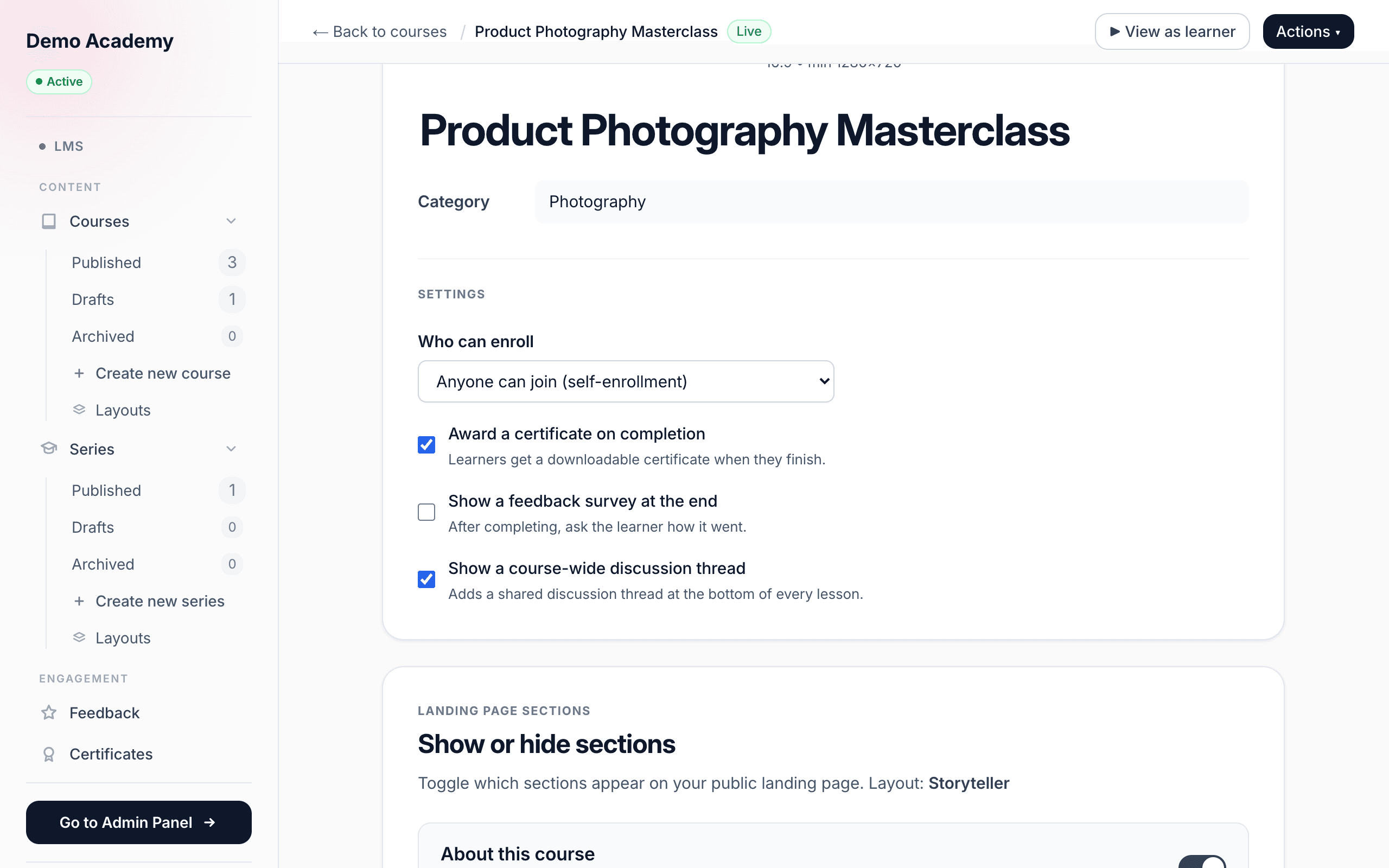
Whether the course discussion thread exists at all is a course setting. Open LMSCourses, click into your course, go to its Settings, and find Show a course-wide discussion thread (“Adds a shared discussion thread at the bottom of every lesson”). Tick it on to give the whole course a thread; untick it and the Course discussion section disappears from every lesson. This is the control you’ll actually use to open or close discussion for a course.
The locked state (frozen, but still readable)
Separately, a thread can be locked. A locked thread is not hidden — every existing post stays readable, and you can still moderate them — but no one can add a new comment or reply. Learners see a 🔒 Locked badge and the note “This thread has been locked by a moderator. Existing posts are visible but new posts are not allowed.” It’s the read-only archive mode: keep the good history, stop new chatter.
Community Thoughts (the Q&A activity)
Community Thoughts is a lesson activity you add from the builder (see Add lessons & activities). Instead of a general catch-all thread, it poses one prompt you write and invites every learner to answer it in a shared stream — a “what does everyone think?” wall. Learners read each other’s responses and can add their own; every response shows the author’s real name and how long ago it was posted (no anonymous posting here).
The one special touch: when a response comes from your company’s admin account, it’s stamped with a blue Official badge, so learners can instantly tell the authoritative answer from peer opinions.
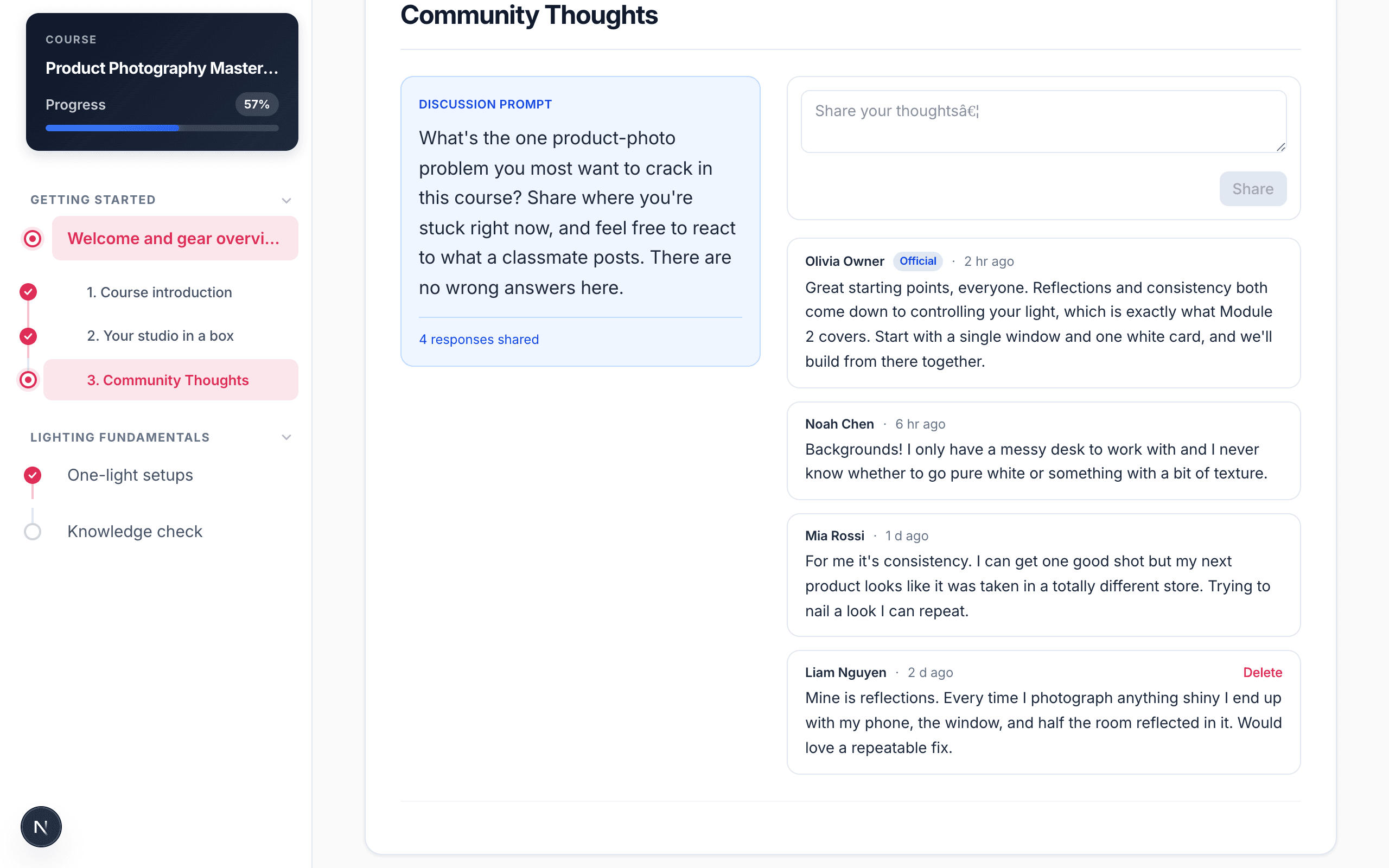
Community Thoughts posts live in the same system as discussion posts, so they’re moderated too — but the visible control here is deliberately lighter. Each response shows a Delete button for its author and for moderators, with the confirmation “Delete this post? This cannot be undone.” The richer menu — pin, best answer, lock, hide, clear flags — belongs to the course discussion thread; in Community Thoughts your day-to-day tool is removing a response that doesn’t belong.
A note on the old “Discussion” activity
If you’ve been with Learn 360 a while, some older courses may still contain a standalone Discussion activity. It’s deprecated — the builder now marks it “Deprecated activity” and recommends the two replacements above: the course-wide discussion thread (the Settings toggle) and Community Thoughts. Existing Discussion activities still work and can still be moderated with the same “⋯” menu, but when you’re building something new, use the course thread or Community Thoughts instead.
Where to go next
- Manage your team — grant the Content permission so a teammate can moderate on your behalf.
- Add lessons & activities — where the Community Thoughts activity comes from.
- Preview as a learner — see the thread exactly as your learners do before you open it up.