Your Support desk works two ways at once, and that’s the key thing to understand before you touch it. First, it’s where you answer tickets that your learners raise. Second, it’s where you open tickets to the Learn 360 support team when you need help running your academy. Both live on the same page. Behind the scenes, Learn 360’s team monitors and backstops every ticket in your workspace — the ones your learners send you and the ones you send us — so nothing slips through.
Take Maria, who runs a baking academy on Learn 360. A student emails, “my video won’t play.” Maria answers that herself from her Support desk. Later, Maria can’t work out why a payout looks off, so she opens her own ticket to the Learn 360 team from the exact same page. This article walks through both.
Open the Support desk
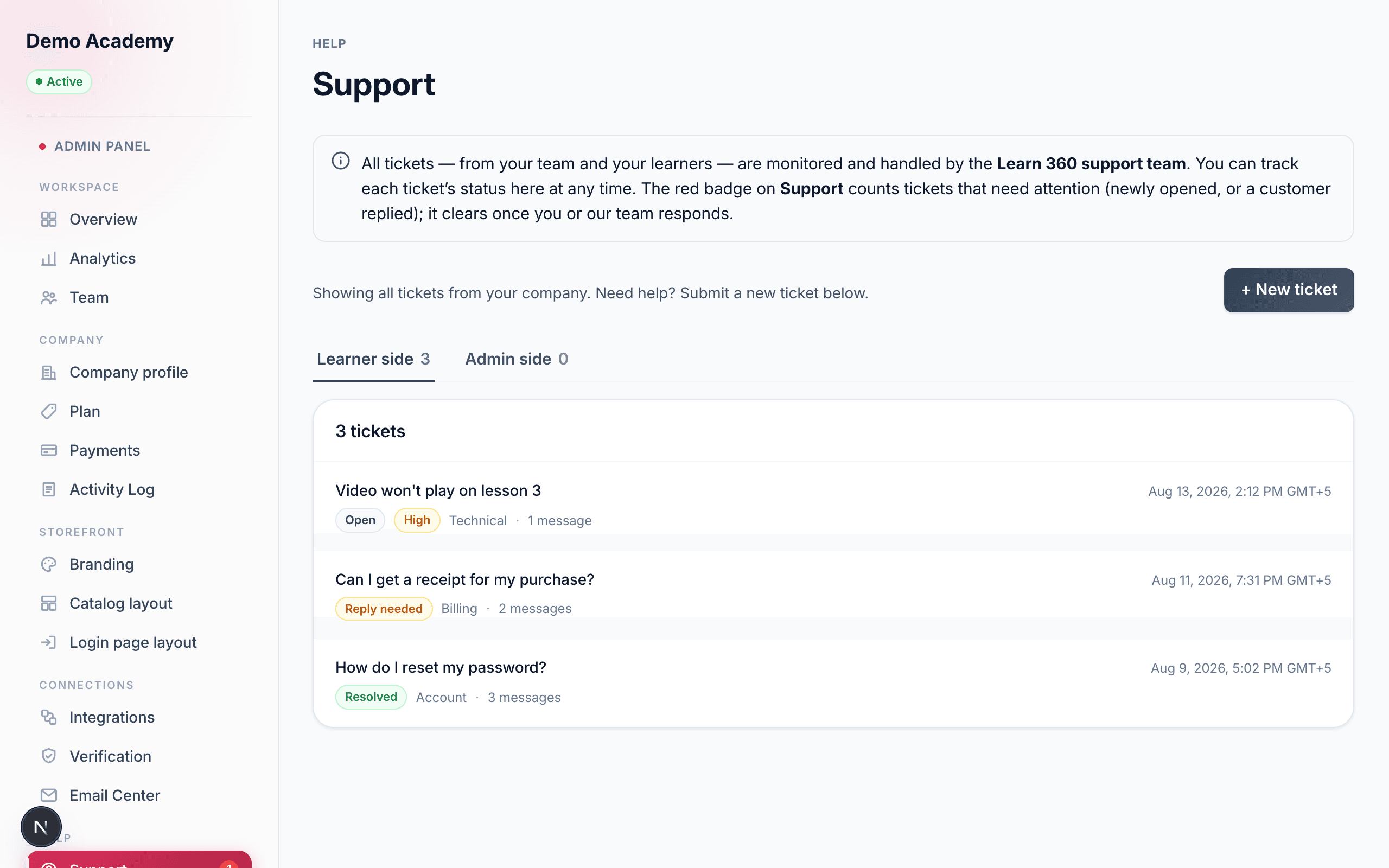
Go to Admin PanelSupport. The page is headed Support, with a short info note reminding you that all tickets — from your team and your learners — are monitored and handled by the Learn 360 support team, and that you can track each one’s status here at any time.
Who can reach this page depends on their permissions. There are two Support permission levels, and they do very different things:
- View support tickets (
support.view) — can open the desk and read every ticket and thread, but the reply box is replaced with “You don’t have permission to reply to this ticket.” This level is read-only. - Reply to support tickets (
support.manage) — everything above, plus the reply box, so this person can actually answer learners.
Owners always have both, no matter what. To hand either level to a teammate, see Manage your team and tick the Support permission.
support.manage).Learner side vs Admin side
At the top of the desk are two tabs that split your tickets by who opened them:
- Learner side — tickets your students raised. This is the tab you spend most of your time in, answering the people taking your courses. It’s the tab that opens by default.
- Admin side — tickets you or your team raised to the Learn 360 support team. This is where your own conversations with us live.
Each tab shows a small count next to its name, so you can see at a glance how many are on each side. Switching tabs simply filters the same list — nothing is created or moved.
The ticket list
Whichever tab you’re on, tickets appear newest-activity-first (the most recently updated float to the top). A header line tells you how many tickets are in view (“7 tickets”), and each row shows:
- The subject the person typed, and the last-updated time on the right.
- A status pill (explained just below).
- A priority pill — but only when it’s not the everyday Normal. Normal shows nothing; Low, High, and Urgent each show a coloured tag.
- The category (Billing, Technical, Account, Feature request, or Other) and a message count for the thread.
The status pill is the important one. You’ll see one of five:
- Open — brand new; nobody has replied yet.
- Reply needed — the ball is in the customer’s court. On a learner’s ticket that means the learner needs to reply next; on your own ticket to Learn 360 it means you need to reply.
- Support working — a reply just came in and it’s now on the support side’s plate (yours, for a learner ticket; Learn 360’s, for your own ticket).
- Resolved — marked solved, but still reopenable (more on this below).
- Closed — finished and locked; no more replies.
Click any row to open its full thread.
Open a thread and reply to a learner
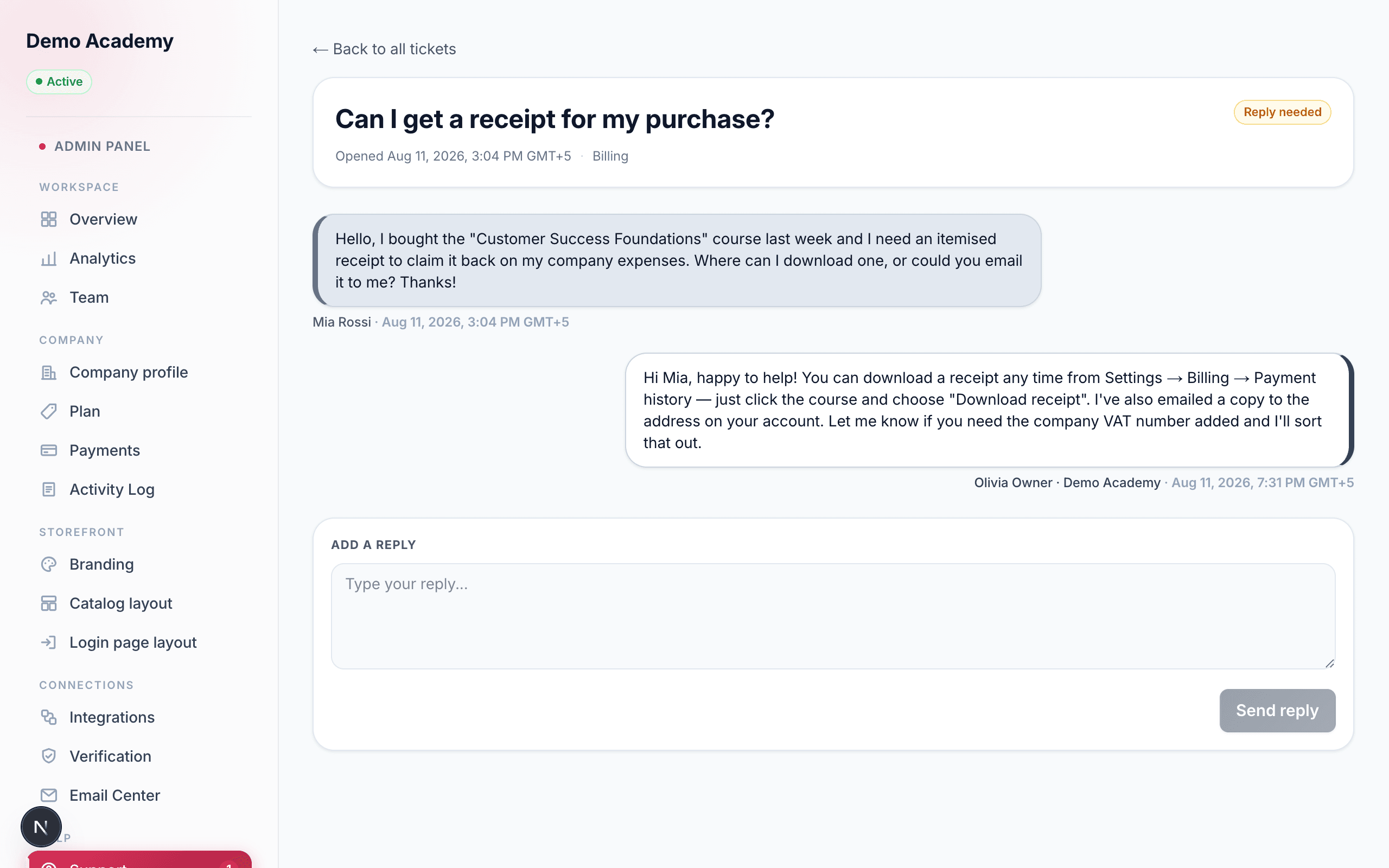
Opening a ticket shows the whole conversation. At the top you get the subject, the current status pill, when it was opened, its category, and its priority (if it’s not Normal). Below that, the messages run top to bottom as chat bubbles: your learner’s messages sit on the left, and support-side replies (yours or Learn 360’s) sit on the right with a coloured accent. A ← Back to all tickets link sits above it all.
Each bubble is signed so you always know who said what:
- A learner shows by their own name.
- You or your admins show as your name next to your academy’s name, so a learner can see it came from your team.
- The Learn 360 support team shows under a support-team name rather than an individual agent’s — the specific person handling it is kept private.
To answer, scroll to the Add a reply box at the bottom, type your message, and click Send reply. The button stays disabled until you’ve typed something, and briefly reads “Sending…” while it saves. Your reply appears instantly in the thread.
Open your own ticket to Learn 360
This is the other half of the desk. When you need help — a billing question, something not behaving, anything at all — click + New ticket at the top of the Support desk. A short form opens:
- Subject — a brief summary (up to 200 characters).
- Category — pick the closest of Billing, Technical, Account, Feature request, or Other.
- Describe the issue — the details: what happened, what you expected, and any error messages.
Click Submit ticket and Learn 360 drops you straight into the new thread, ready for our team to pick up. This ticket lands on your Admin side tab, and you reply to us in the exact same way a learner replies to you.
What advances on its own, and what only Learn 360 controls
A lot of the desk runs itself, and a few things are deliberately out of your hands. Knowing which is which saves confusion:
- Status advances automatically. You never set it by hand. Every time someone replies, the status flips on its own: a support-side reply (you answering a learner, or Learn 360 answering you) moves it to Reply needed; a customer reply (a learner, or you on your own ticket) moves it to Support working.
- Priority is set only by Learn 360’s team. Every ticket starts at Normal. Low, High, and Urgent can only be applied by the Learn 360 team — there’s no control for it on your side.
- Marking a ticket Resolved or Closed is only done by Learn 360’s team. You can reply all day, but you can’t flip a ticket to Resolved or Closed yourself from the admin desk.
- Category is locked after creation. Whoever opens the ticket picks it once, and it stays that way for the life of the ticket.
Closed vs Resolved — an important difference
These two look similar but behave very differently, and it’s worth being precise:
- Resolved is not a dead end. A resolved ticket still has its reply box. If you (or the learner) reply, it reopens automatically — the status flips straight back to Support working or Reply needed. So if a “solved” problem comes back, just reply on the same thread.
- Closed is final. On a closed ticket the reply box disappears and you see “This ticket is closed. Open a new ticket if you need further help.” You cannot reply to a closed ticket at all.
The Support badge in the sidebar
Next to Support in the Admin Panel sidebar you’ll sometimes see a small red badge. It counts the tickets that are waiting on a reply from the support side — the newly Open ones and the ones a customer just replied to (Support working) — across both the Learner side and Admin side together. The moment you or the Learn 360 team responds, that ticket drops out of the count, so the badge clears itself. Think of it as your “needs attention” nudge; it refreshes on its own while you work.
Where this fits
Support tickets are only for help conversations. To manage who can reach the desk and reply, use Manage your team. To understand the learner’s own view of raising a ticket, see The learner experience. And if a support question turns out to be about a charge or refund, that lives on a different page — see Income, transactions & refunds.