Once your courses are live, your academy is a small set of public web pages. Knowing which address is which — and which ones to actually put in your marketing — makes it easy to send people straight to the right place. Every link below works on your Learn 360 address today, and swaps to your own web address the moment you connect a custom domain.
Your login page
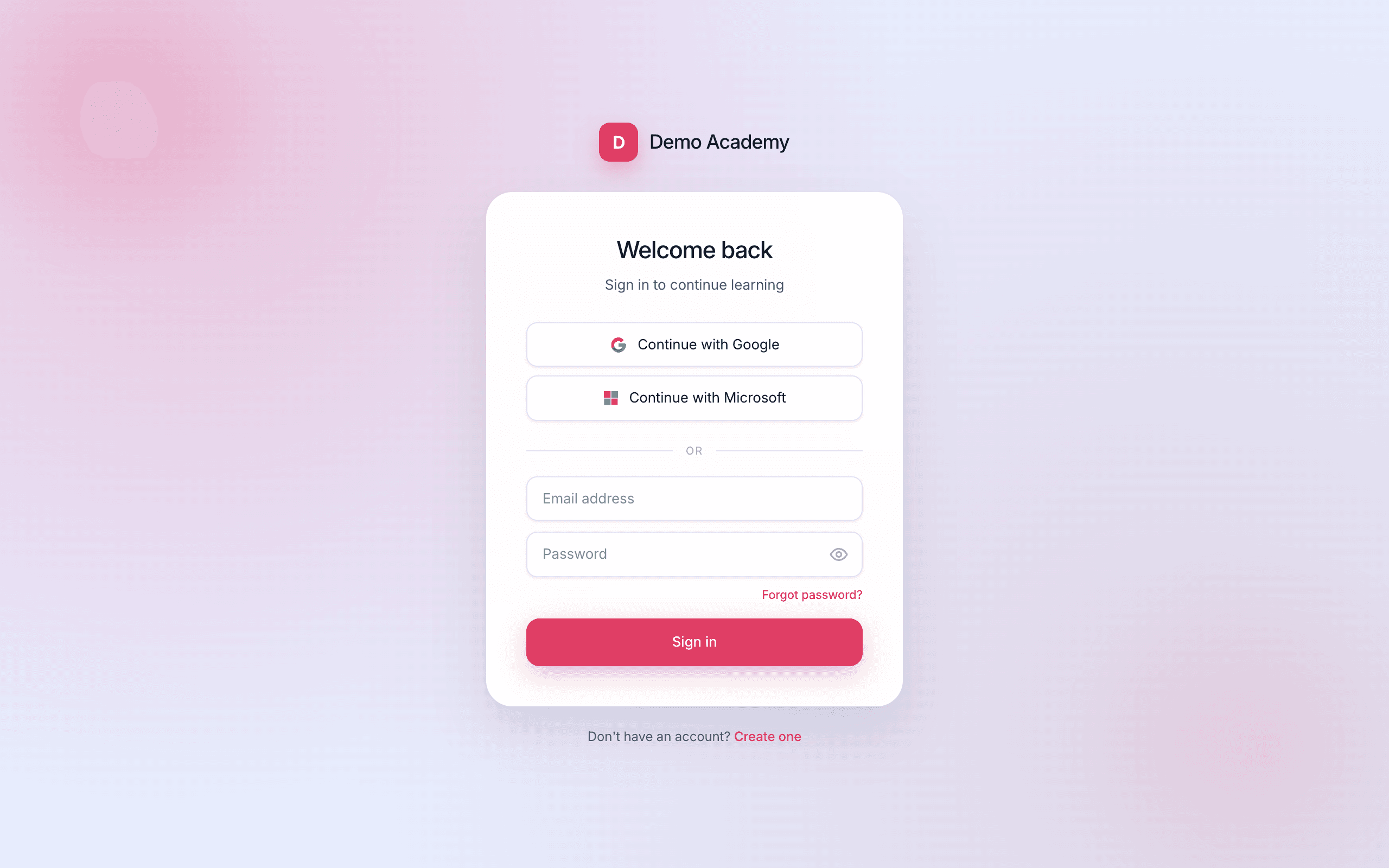
Learners sign in — and brand-new learners create an account — at your login page:
app.learn-360.com/login/your-company
The your-company part is your company’s handle. This is the page that carries your logo and brand colour, in whichever design you picked under Login page layout. From here a learner can sign in, switch to Create account, use Forgot password, or continue with Google, Microsoft, or Apple. Once you’ve connected a custom domain, learners reach the same page at your own address, e.g. learn.yourcompany.com.
Your catalog
Your catalog is the public storefront where visitors browse everything you offer. It lives at:
app.learn-360.com/catalog
The catalog appears in whichever layout you chose — the browsable Marketplace grid or the more structured Academy — under Catalog layout. If you haven’t picked one yet, it defaults to Marketplace and still shows all your published courses and series.
app.learn-360.com/catalog?tenant=your-company. Once you’ve connected a custom domain, that detail disappears — it’s simply learn.yourcompany.com/catalog. You can also embed the catalog inside an existing website; see Design your storefront.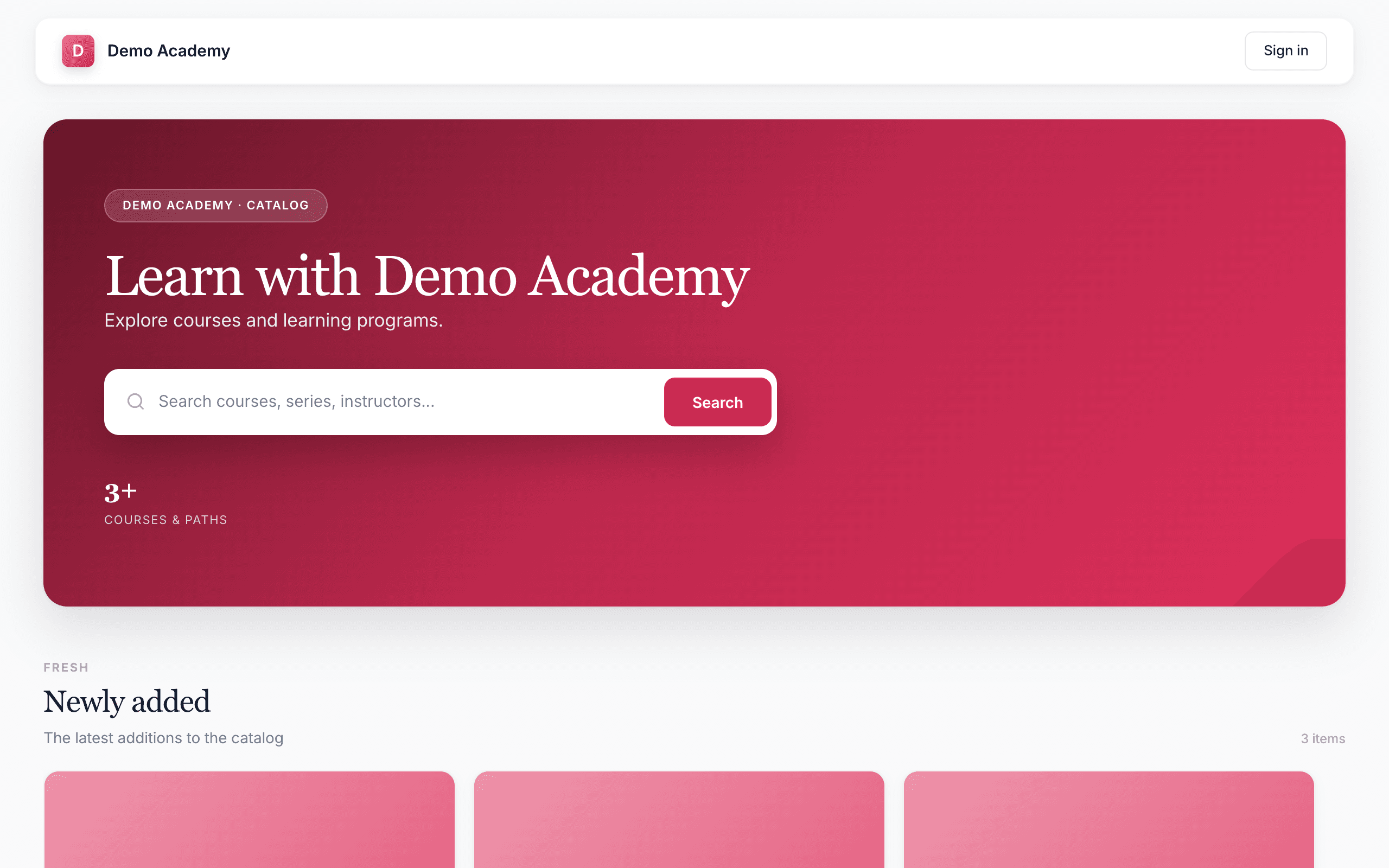
Course & series pages
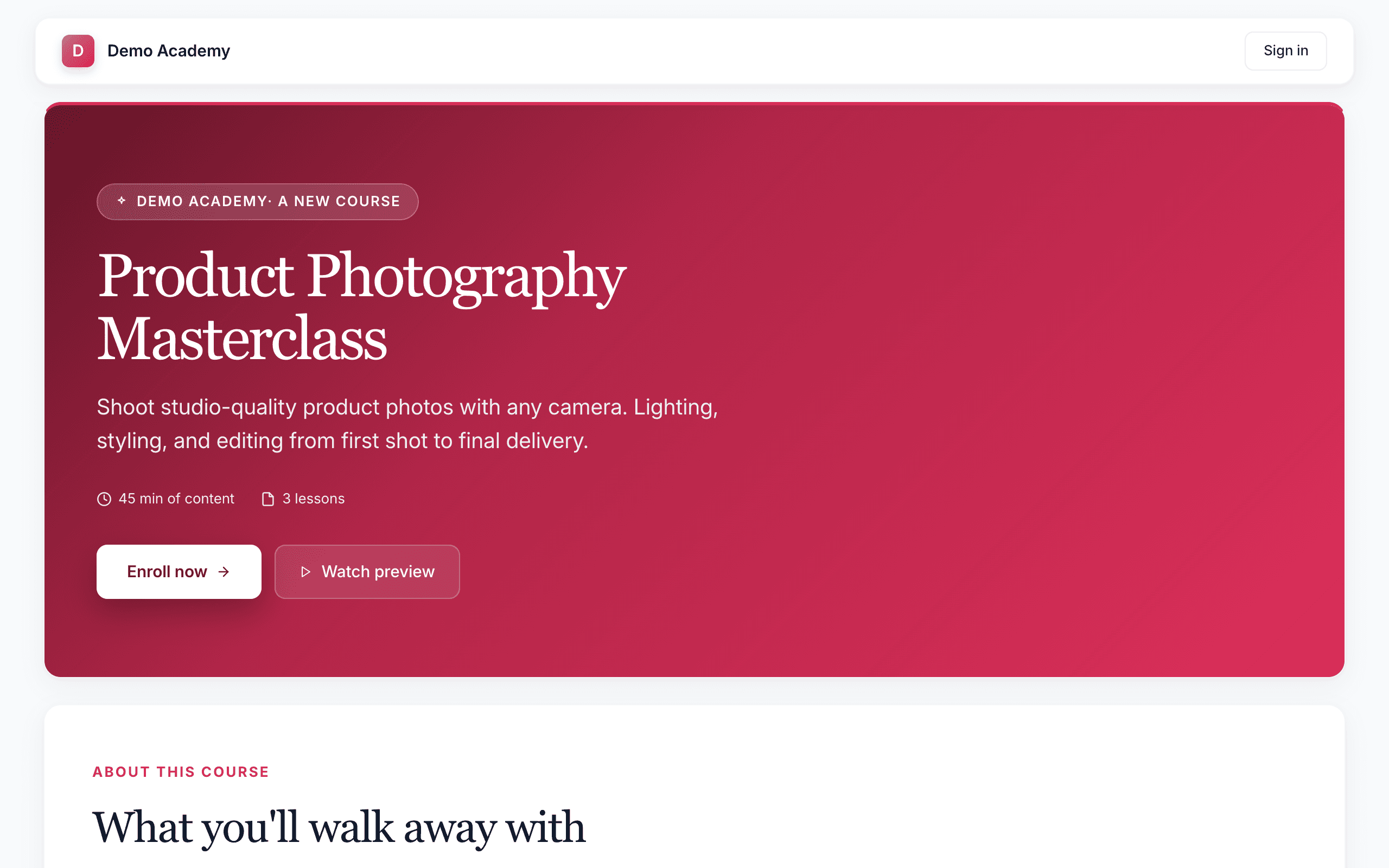
Every course and every series also has its own landing page — a single, focused page with a buy or enroll button:
- A course:
app.learn-360.com/c/<course-id> - A series:
app.learn-360.com/s/<series-id>
The address ends in the course’s or series’ ID rather than a name. The easiest way to grab the exact link is from the builder: click ▶ View as learner (or the preview pane’s Pop out) to open the real page in a new tab, then copy the address — just drop the ?preview=… part. On these pages, learners click Enroll to join free or buy; the details are in How learners enroll.
The learner portal
After signing in, learners land in their portal — their home for My courses and My series, certificates, subscriptions, and their profile. You don’t hand out a link to the portal; learners simply reach it by signing in. What it looks like from their side is covered in The learner experience.
Which links to share
Match the link to the goal:
- Selling one course → share its
/c/…page. Buyers land on the exact course, one click from checkout. - Promoting a program or bundle → share the series
/s/…page. - “Browse everything we offer” → share your
/catalog. Best for your website nav, a “Courses” button, or a link in bio. - Helping returning learners sign back in → share your
/login/your-companypage (or tell them to bookmark it). - Private or invite-only cohorts → skip public links and add people by email instead — see Invite specific learners.
/c/… course link converts better than the whole catalog because the visitor arrives on the exact thing your ad or email promised.