A quiz checks what learners have understood — and, when you want it to, it can gate the rest of a lesson until they pass. A quiz is one of the activity types you add inside a lesson, so it lives right alongside your text, video, and PDF activities. This guide walks the whole quiz editor: the quiz-wide settings, the three question types, every field on a question card, exactly how a score is calculated, and what the learner sees.
Add a quiz to a lesson
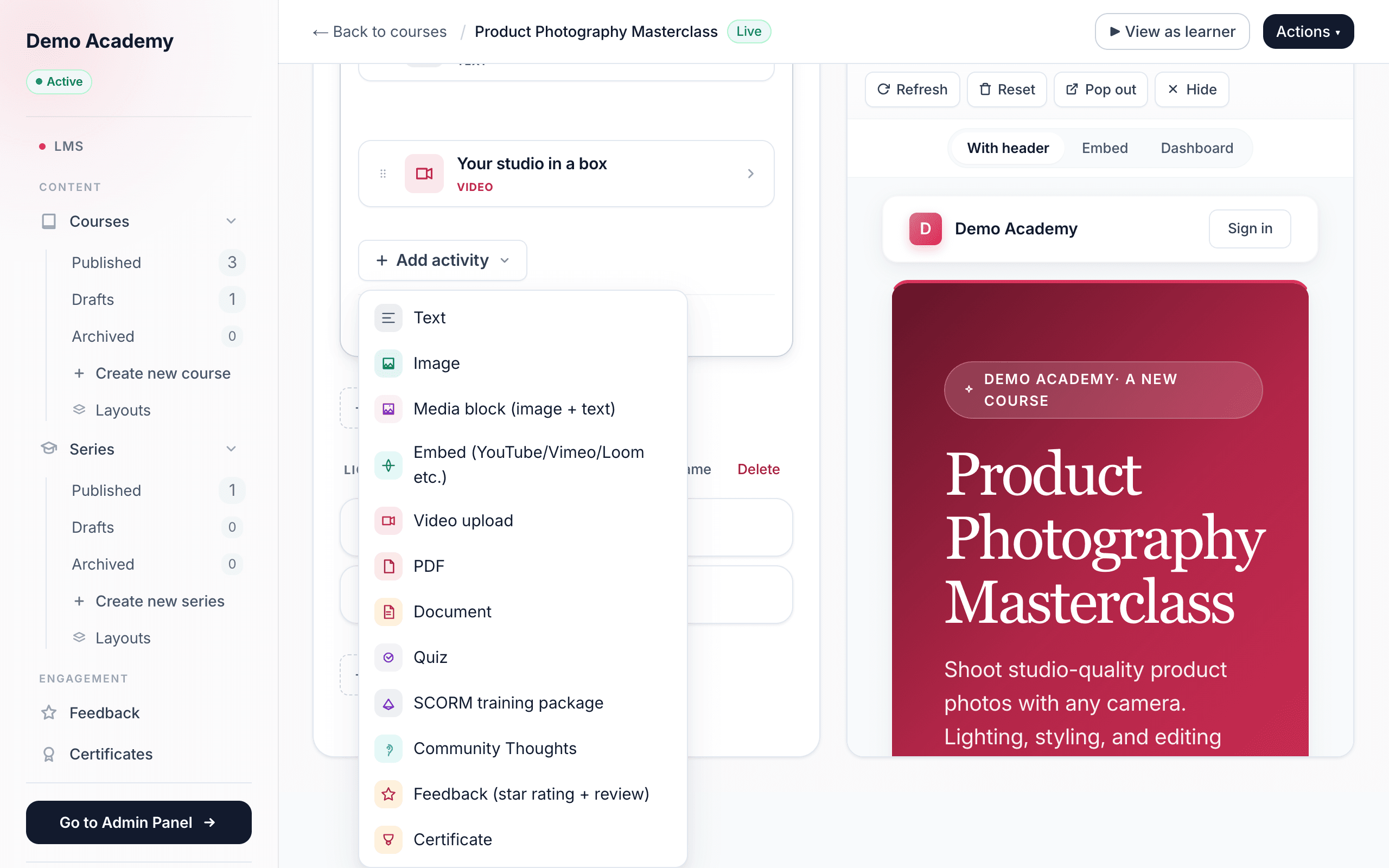
Quizzes are built on the content step of the course builder. Open LMSCourses, open a course, and go to its content step (the header reads Step 2 of 2 · Course content). Inside a lesson, click Add activity and choose Quiz. That drops an empty quiz into the lesson.
Now click the quiz card. That opens the full-screen quiz editor, which has two parts: the settings at the top (rules for the whole quiz) and the questions below it. Quizzes are just one activity type — for the rest of the activity picker and lesson setup, see Add lessons & activities.
Quiz settings
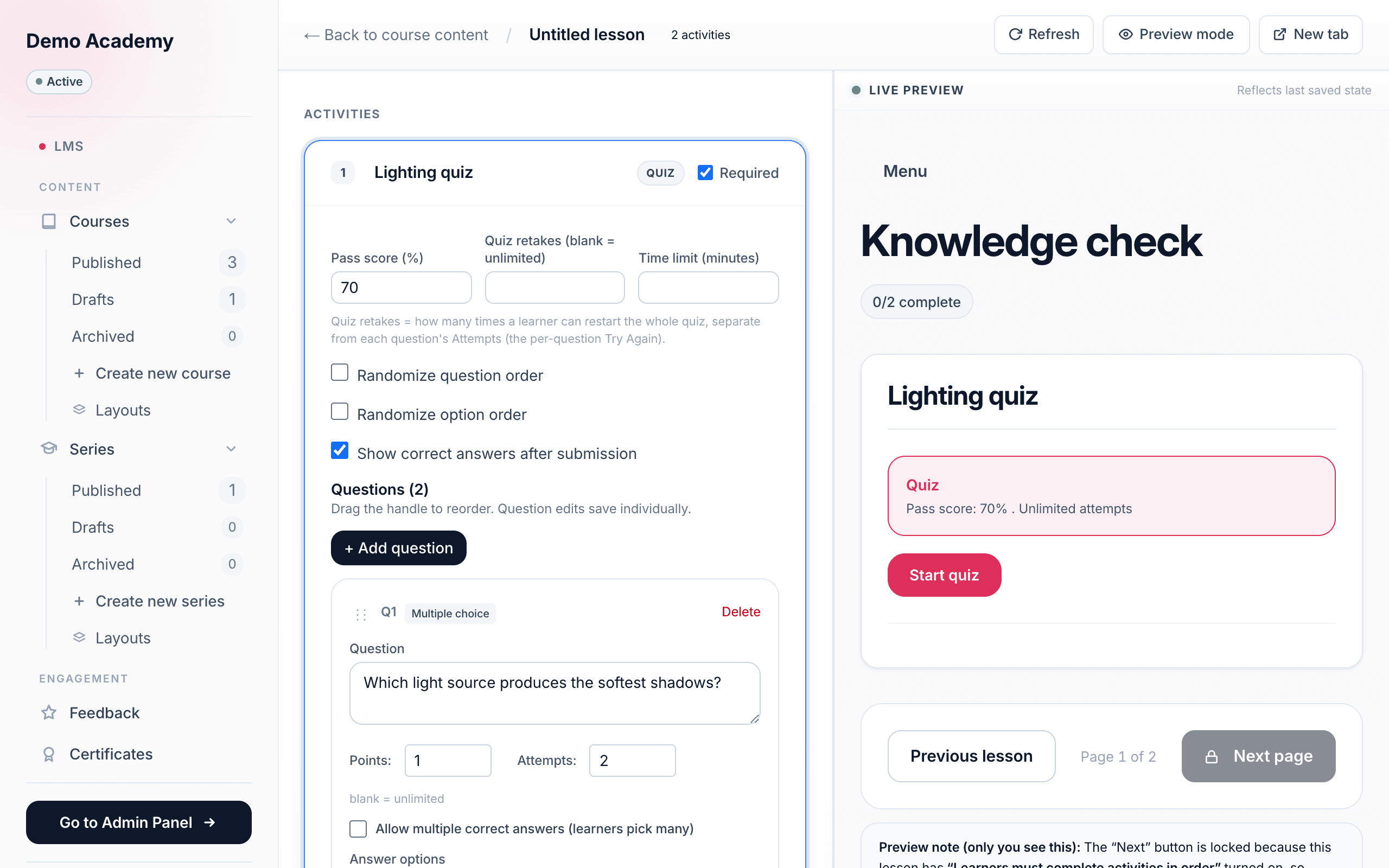
The top of the quiz editor holds settings that apply to the whole quiz. They autosave as you change them.
Pass score (%)
The percentage a learner must reach to pass — it defaults to 70. A learner passes the moment any one of their attempts scores at or above this number. A pass score of 0 means simply submitting an answer counts as passing, which is handy for a low-stakes check you don’t want to block anyone.
Quiz retakes
Labelled Quiz retakes (blank = unlimited) — how many times a learner may restart the whole quiz after their first go. Leave it blank for unlimited restarts. Set it to 2 and a learner gets three runs in total (the first attempt plus two retakes); when they run out they see “No retakes remaining.” Once a learner passes, the quiz locks — any further attempt is refused with “You have already passed this quiz.”
Time limit (minutes)
Puts a countdown on each quiz run; leave it blank for no limit. The remaining time is shown and counted down in the learner’s player.
Randomize question order & Randomize option order
Two independent checkboxes. Randomize question order shuffles the sequence of questions for each learner. Randomize option order shuffles the answer choices within each question. Turn both on to make it harder for learners to swap answers by position (“the answer is C”).
Show correct answers after submission
On by default. Controls whether, after a learner submits, they can see which questions they got right and wrong. Turn it off and a learner who fails won’t be shown which answers to fix — useful when the same quiz is a graded gate and you don’t want the answer key leaking after a failed attempt.
Question types
Below the settings, click + Add question and pick a type. There are three:
- Multiple choice — the learner picks one correct answer from a list of options you write. Flip on Allow multiple correct answers to let them pick several (details below).
- True / False — a ready-made pair of options, True and False; you just tick which one is correct. The option text is fixed — you can’t rename them.
- Short answer — the learner types a free-text answer. Important: short answer is not auto-graded (see How scoring works).
Questions save individually as you edit, and you can drag the handle on each card to reorder them. Deleting a question asks you to confirm, since it can’t be undone.
Build a question
Each question is a card. Every field autosaves about a second after you stop typing, and a Save question button appears if you’d rather save right away.
The question & its points
Question is the prompt the learner reads. Points (default 1) is how much the question is worth toward the score — weight an important question higher by giving it more points, or set it to 0 so it doesn’t affect the total.
Attempts — the per-question “Try Again”
Attempts caps how many times a learner can try that one question before the final answer is revealed. Leave it blank (shown as ∞) for unlimited tries. While attempts remain and the learner answers wrong, they get the Try again feedback and can have another go; once they run out of attempts — or get it right — the answer locks in. This is the Storyline-style retry loop inside a single quiz run, and it’s separate from the whole-quiz Retakes setting above.
Answer options (multiple choice & True / False)
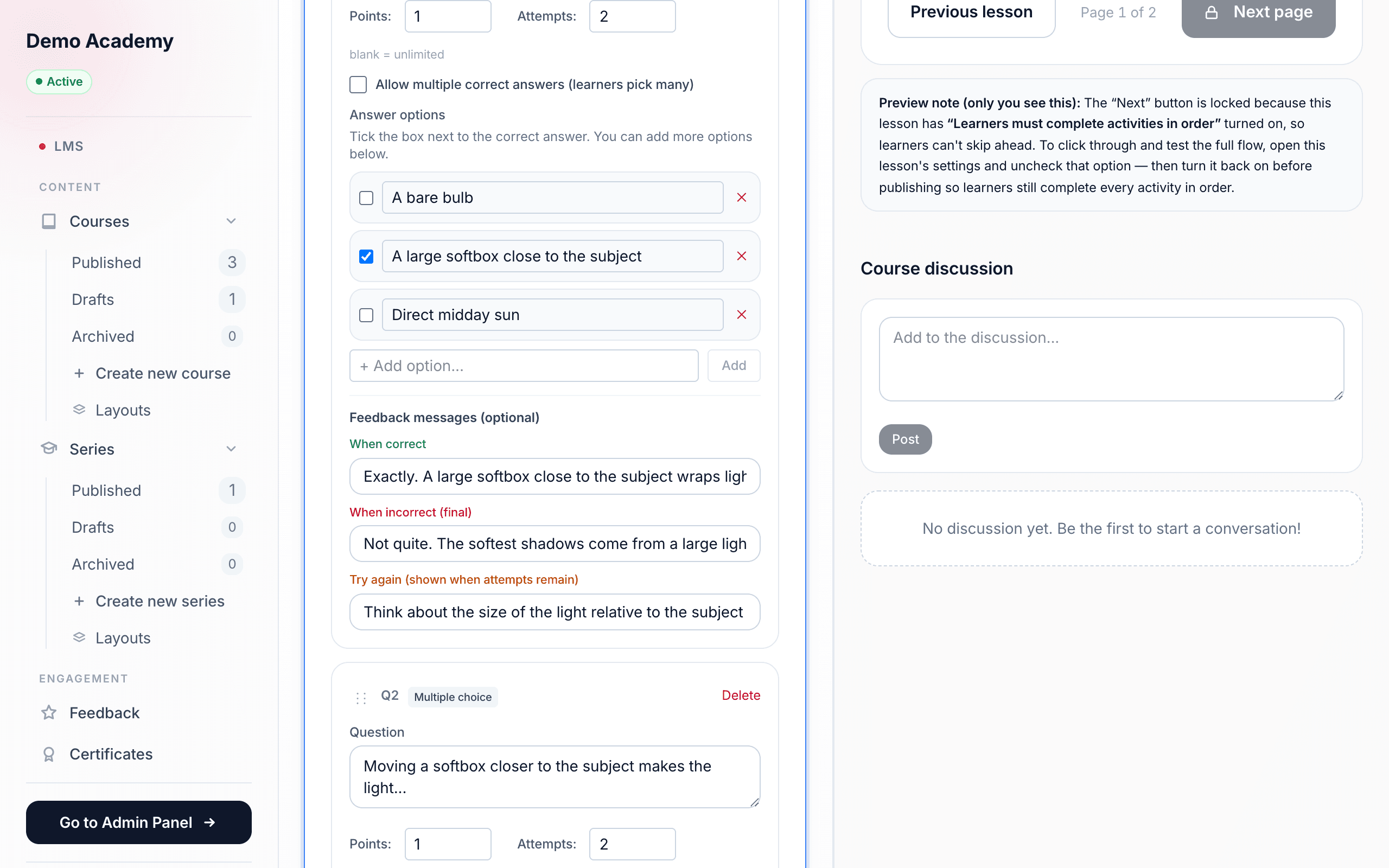
Tick the box next to the correct answer. For multiple choice, add as many options as you like with + Add option and remove any with the ✕. Turn on Allow multiple correct answers (learners pick many) to mark more than one option correct — the learner then ticks every answer they think applies and, as the scoring rules explain, must get the exact set right. For True / False the two options are provided; you only choose which one is correct.
Reference answer (short answer only)
Short-answer questions have a Reference answer (optional) field — a note to yourself, such as the ideal answer. It’s a hint for your own grading and is never shown to learners.
Per-question feedback
Each question has three optional feedback messages that appear to the learner as they answer:
- When correct — shown when they get it right, e.g. “Exactly right! Well done.”
- When incorrect (final) — shown when they’re wrong and out of attempts, e.g. “Not quite — the correct answer is shown above.”
- Try again (shown when attempts remain) — shown when they’re wrong but still have a try left, e.g. “That’s not it — give it another try!”
These turn a plain test into a teaching moment. The Try again message only appears while a learner still has attempts left; if you leave Attempts unlimited, they keep getting Try again and never reach the final-incorrect message.
How scoring works
When a learner submits, Learn 360 scores that attempt as a percentage: the points they earned divided by the total points on the quiz, rounded to a whole number. They pass if that percentage is at or above your Pass score.
What earns points
- Multiple choice and True / False are graded on an exact match. The learner earns a question’s full points only if the options they selected are exactly the set you marked correct — every correct option ticked and no incorrect ones. There is no partial credit: getting three of four right on a multi-answer question earns zero for that question.
- Short answer always scores zero automatically — it is never machine-graded — but its Points still count toward the quiz total.
What learners see
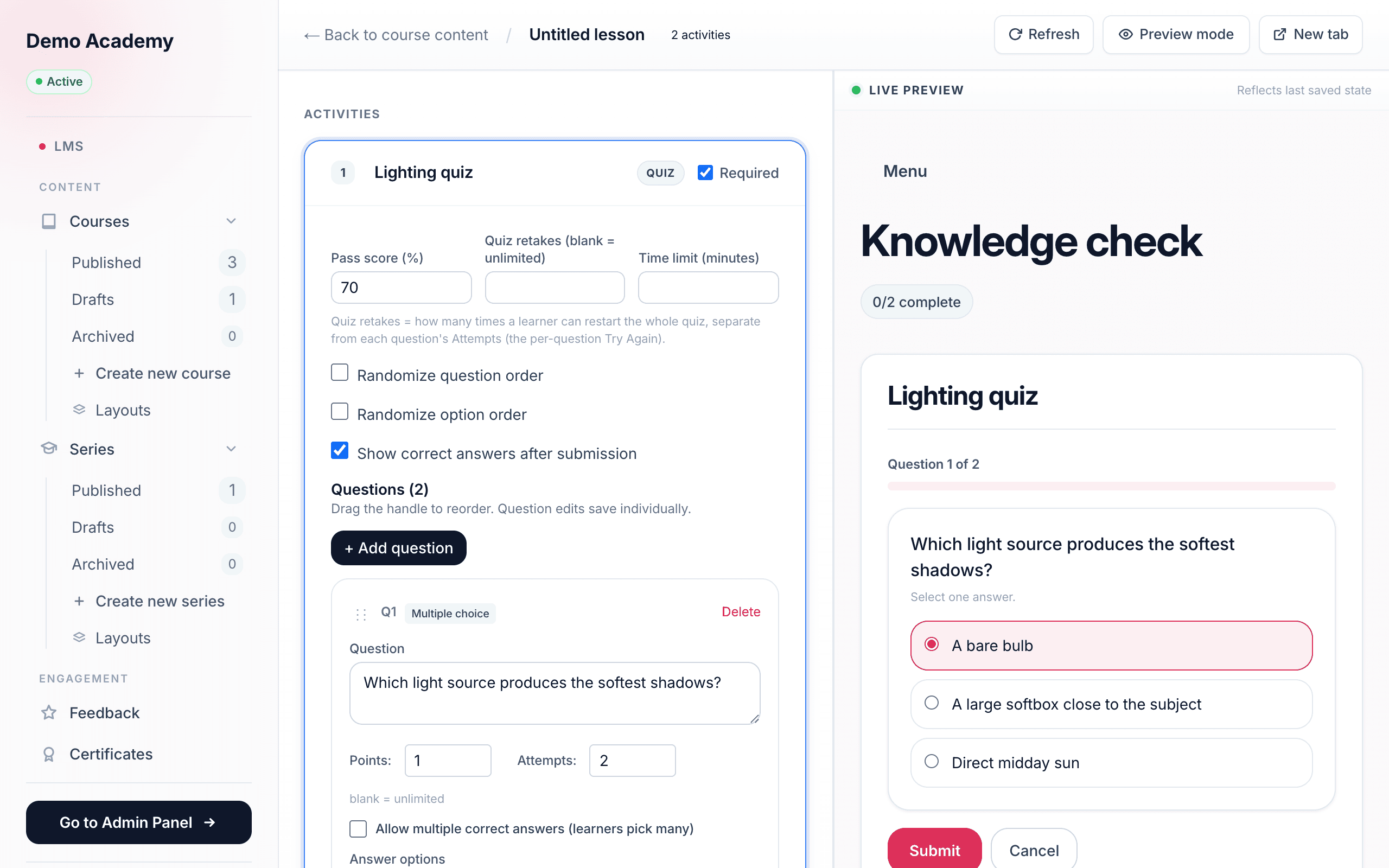
In the lesson player, the learner works through the questions one at a time. For each one they choose or type an answer and submit it. If you set an Attempts limit and feedback, they get instant feedback — a Try again nudge while tries remain, or the correct / incorrect message once the answer locks in. When they finish, they submit the quiz and see their score against the pass mark: passed or not passed.
If Show correct answers is on, they can then review which questions were right and wrong; if it’s off and they failed, that breakdown is hidden. They can restart the whole quiz up to your retake limit, and once they pass, the quiz is done. You can try all of this yourself in the live Preview as learner pane beside the builder — see Preview as a learner and The learner experience.
Knowledge check or graded gate
The same editor gives you two very different tools depending on how you set it up.
- Knowledge check — reinforce a lesson’s key points without gate-keeping. Set a low or zero pass score so answering counts as clearing it, leave retakes unlimited, keep Show correct answers on, and lean on the per-question feedback to teach. The goal is learning, not filtering.
- Graded gate — require a passing score before the learner moves on. Make the quiz a Required activity in a lesson set to Learners must complete activities in order, so the activities after it stay locked until the learner passes. Set a meaningful pass score, cap Retakes so it’s a real assessment, add a Time limit if it’s a test, and consider turning Show correct answers off so a failed attempt doesn’t hand out the answer key. (Those lesson-level order and requirement settings live in Add lessons & activities.)