Your dashboard has two workspaces. Knowing which is which makes everything else easy to find.
Admin Panel vs LMS
A button at the bottom of the sidebar switches between them:
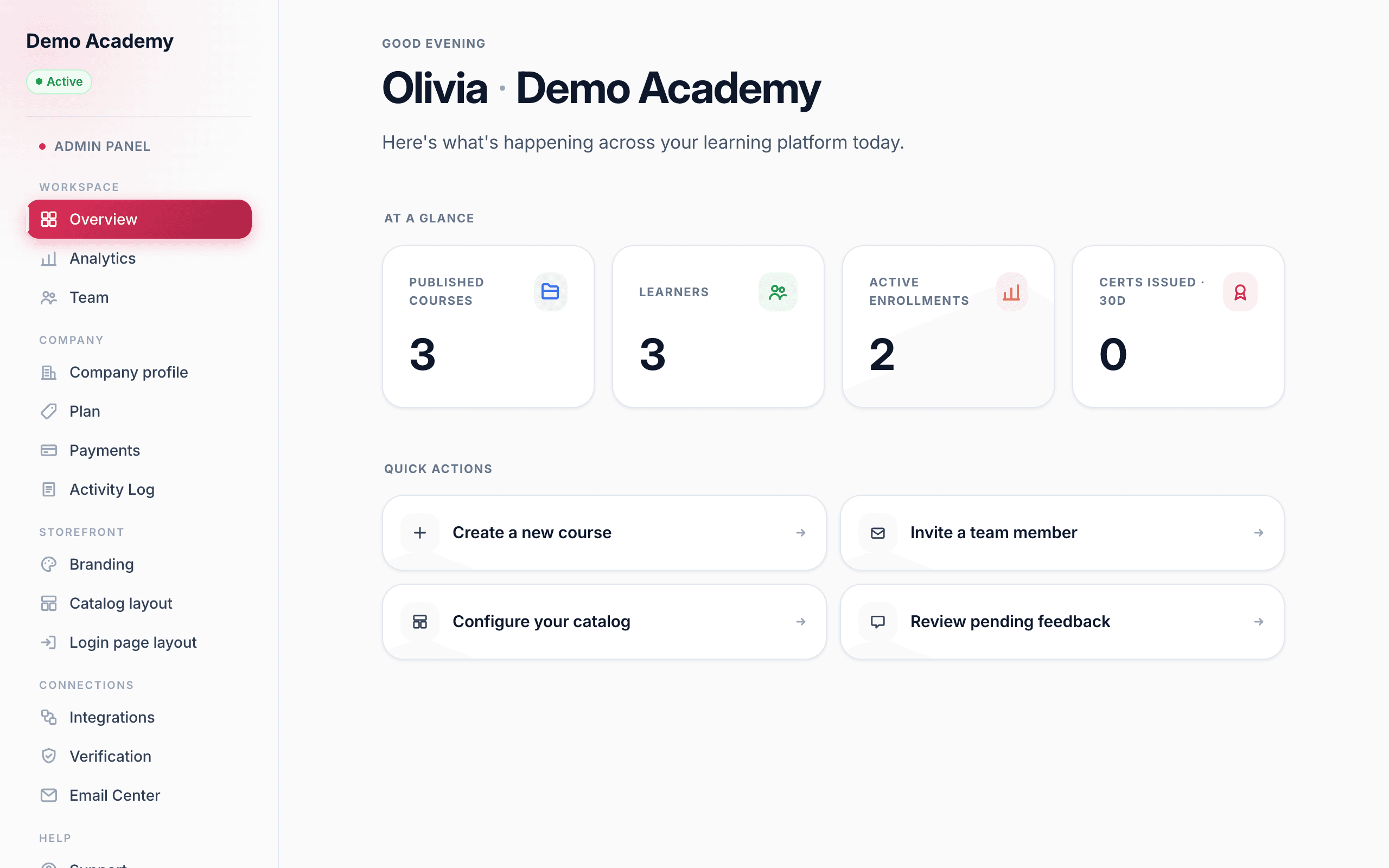
- Admin Panel — the business side: your brand and domain, payments, plan and billing, team, and integrations.
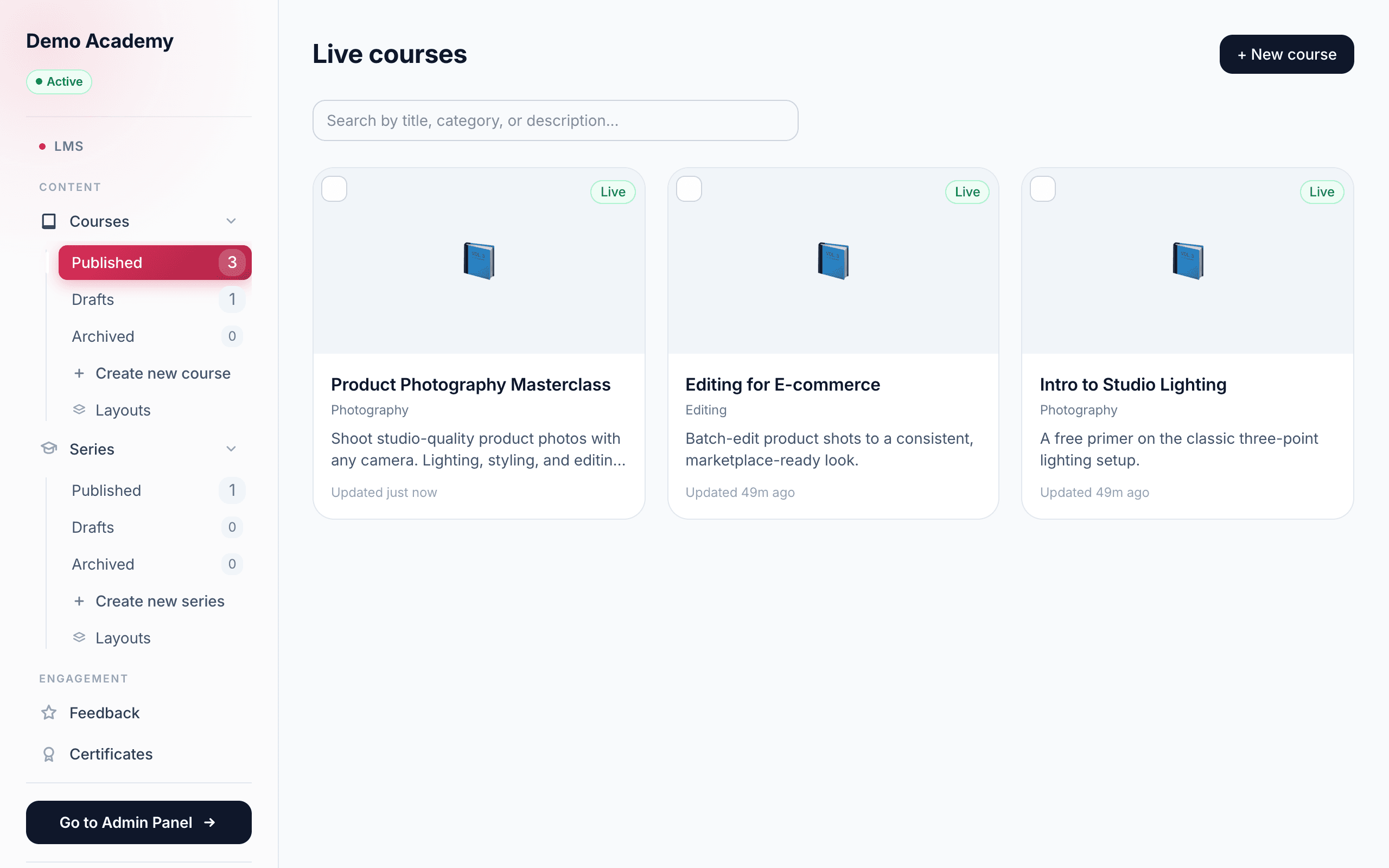
- LMS — the teaching side: your courses, series, quizzes, feedback, and certificates.
Look for Go to LMS or Go to Admin Panel to jump between them at any time.
app.learn-360.com/dashboard
What’s in the Admin Panel
Grouped in the sidebar, you’ll find:
- Overview — a snapshot of your workspace, with quick actions.
- Storefront — Branding, Catalog layout, and Login page layout.
- Company — Payments, Plan, and Company profile.
- Workspace — Team and Analytics.
- Connections — Integrations, Email Center, and your Activity Log.
For example, you’ll set up your logo and domain under Admin PanelBranding, and connect a payment processor under Admin PanelPayments.
What’s in the LMS
- Content — your Courses and Series, each split into Published, Drafts, and Archived.
- Engagement — Feedback and Certificates.
app.learn-360.com/dashboard/lms/courses/published
Start from the Overview
When you log in you land on the Overview page. It shows your key numbers at a glance and offers quick actions like Create a new course, Invite a team member, and Configure your catalog — handy shortcuts while you’re getting set up.
Now that you know your way around, follow your launch checklist to get live.