Once someone has access, they get their own learner portal — a clean, branded space that carries your logo and color, with no trace of Learn 360. It has two halves worth knowing well: the portal (a sidebar of tabs where learners find their courses, certificates, and account), and the lesson player (where the actual learning happens). This guide walks through both, tab by tab and screen by screen, so you know exactly what your students see.
A branded portal of their own
After a learner signs in, they land in the portal. Down the left is a sidebar under the heading My Learning. At the top it shows your logo (or company name); at the bottom it shows the learner’s name and email, a Profile settings link, and a Sign out button. The tabs in between are the heart of the portal:
- Home — a personalized landing page.
- Catalog — everything they can enroll in.
- My Courses and My Series — what they’re enrolled in now.
- Certificates — what they’ve earned.
- Subscriptions — any recurring plans they pay for.
- Support — a help desk for reaching you.
- Verification — a document check, if you require one.
Two more tabs — My Team and Team analytics — appear only for a learner who has bought a team package and is managing seats for other people. Everyone else never sees them.
The sidebar, tab by tab
Home
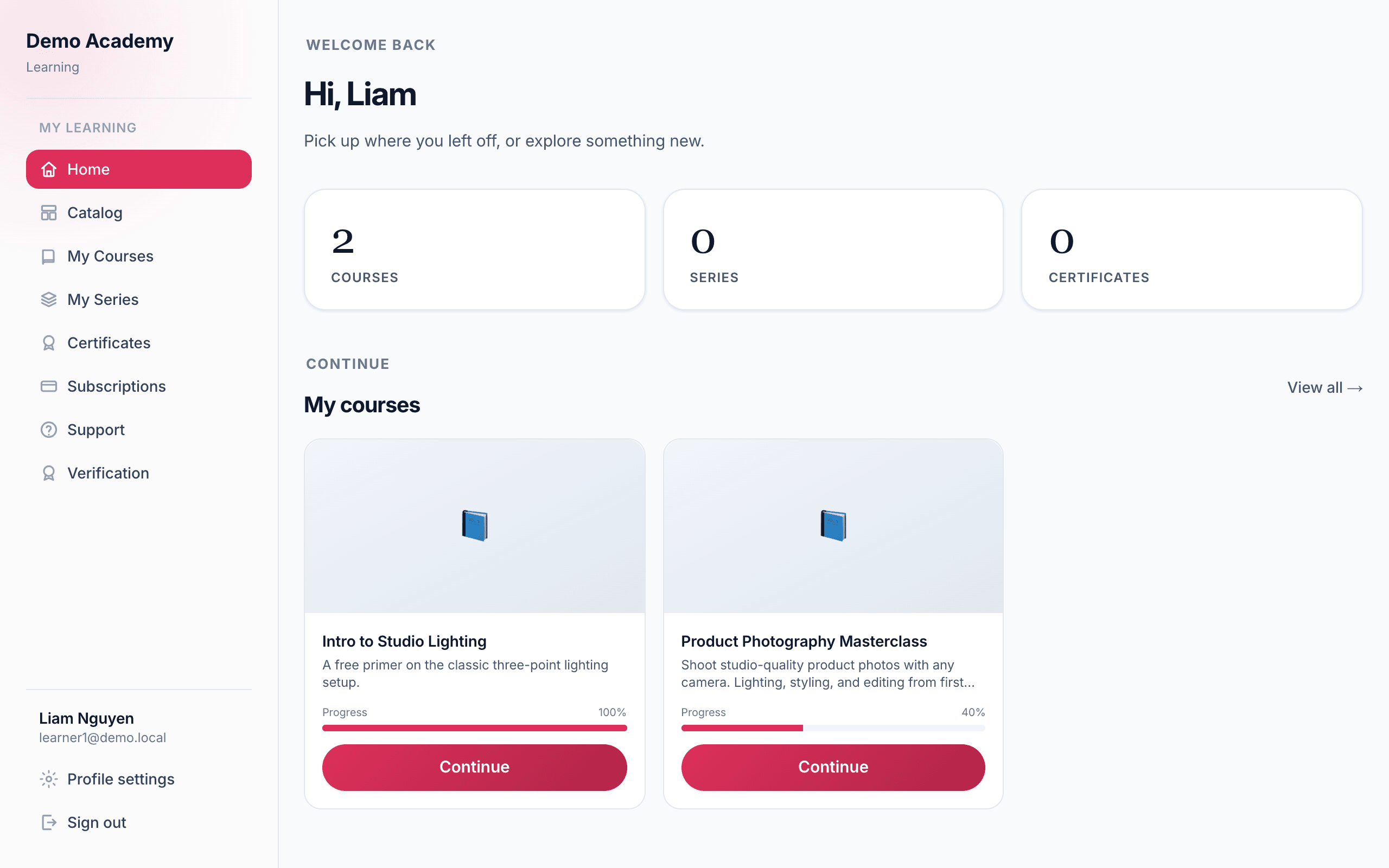
The Home tab greets the learner by name and helps them pick up where they left off. At the top sit three clickable stat cards — Courses, Series, and Certificates — each a shortcut to that tab. Below, a Continue area shows the first few courses and series they’re part way through, each with a progress bar and a Continue (or Open series) button that drops them straight back into the next lesson. If they haven’t enrolled in anything yet, they see a friendly nudge to Browse the catalog.
Catalog
The Catalog is your storefront, shown inside the portal. Learners can search by title, instructor, or topic, browse the sections you’ve arranged (featured picks, most popular, newest, learning paths), and open any course or series to read its full landing page. Each card shows the cover, an estimated length, a rating, and the price — a green Free for free courses, or the amount for paid ones. Anything they’re already in is marked with a green ✓ Enrolled badge. Clicking a card is how self-enrollment begins — that whole flow is covered in How learners enroll.
My Courses
A grid of every standalone course the learner is enrolled in. Each card shows the cover, a Progress percentage with a bar in your brand color, and a Continue button that opens the next lesson. If they’re not enrolled in anything, a line points them back to the catalog.
My Series
The same idea for series — the multi-course programs a learner is working through. Each card carries a purple Series badge, an overall progress bar, and an Open series button. A series’ progress is measured by how many of its courses are finished, so completing a whole course moves the bar.
Certificates
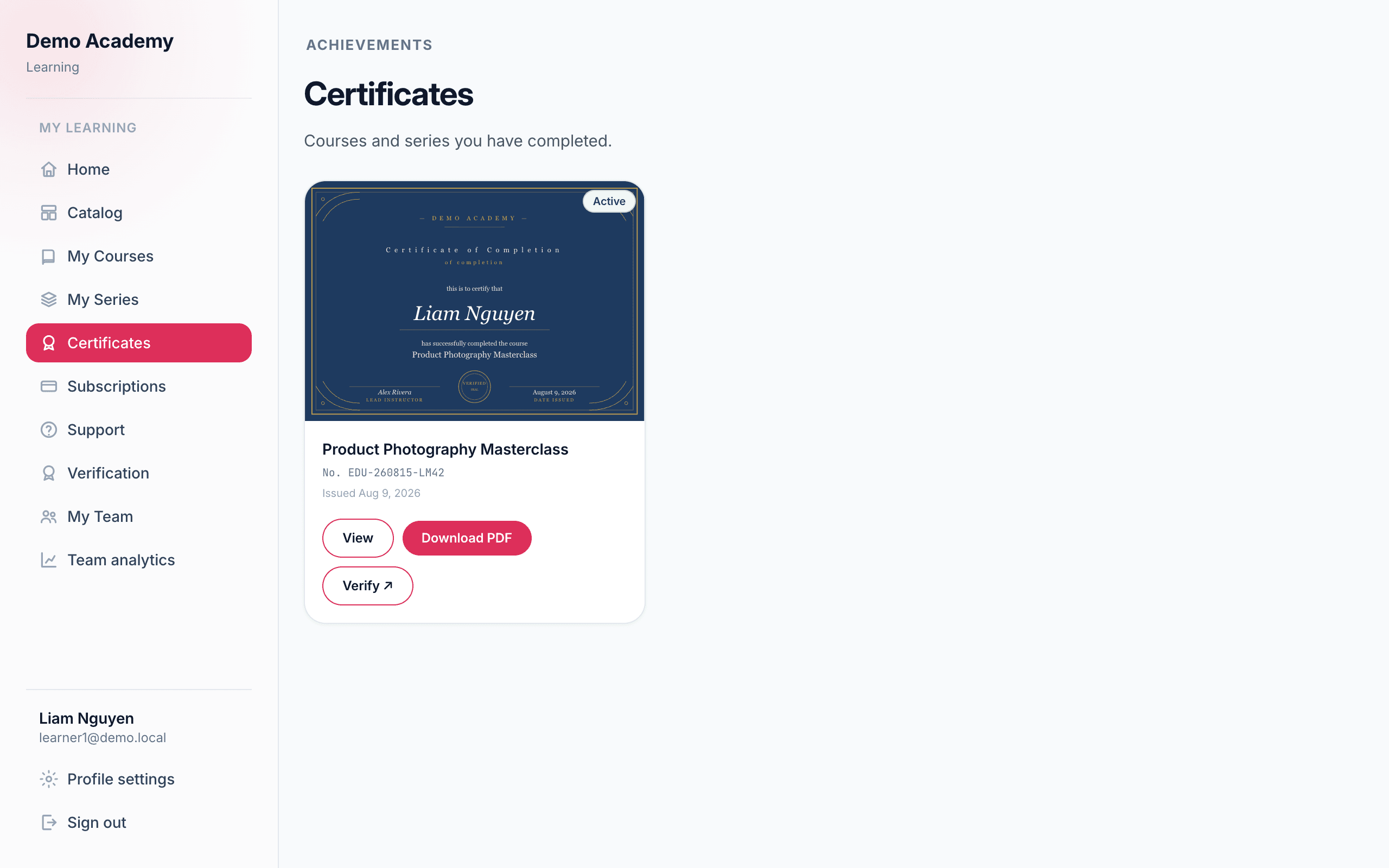
Every certificate a learner earns lands here, rendered as the real, designed certificate — not a generic icon. Each one carries a status pill: Active (green), Expiring soon (amber, within a week of an expiry date), Expired, or Revoked. For each certificate the learner can:
- View — open the full-size certificate and its details (number, recipient, course, issuing organization, issue and expiry dates).
- Download PDF — save a print-ready copy.
- Verify — open the public verification page for that certificate number, so anyone (an employer, say) can confirm it’s genuine.
- Share on LinkedIn — from the detail view, add it straight to their LinkedIn profile, pre-filled with the name, your organization, the dates, and the verify link.
Certificates are their own topic on the authoring side — see Award certificates for how you design and issue them.
Subscriptions
If any of your packages bill on a recurring basis, learners manage those plans here. Each subscription shows the course or series, the price and interval, and a status pill:
- Active — with the line “Renews {date}.” and a Cancel subscription button. Cancelling keeps access until the end of the paid period.
- Cancels soon — access continues until a set date, then ends. If the plan runs on Stripe, a Resume subscription button lets them undo the cancellation before that date. PayPal cancellations are final, so the learner is told to subscribe again from the course page instead.
- Payment paused — the last charge didn’t go through. It is not a cancellation; the learner is asked to update their payment method, and the system keeps retrying automatically.
Support
A built-in help desk where learners open tickets and you reply. They click New ticket, give it a Subject, pick a Category (Billing, Technical, Account, Feature request, or Other), and describe the issue. Each ticket carries a status — Open, Reply needed, Support working, Resolved, or Closed. A ticket may also carry a Low, High, or Urgent priority pill — that’s set by the support team as they triage, not something the learner chooses (a normal-priority ticket simply shows no pill). When you reply, a red badge appears on the Support tab so the learner notices; it clears once they reply back. A learner can reopen a Resolved ticket simply by replying — but a Closed ticket is final, so they’d start a new ticket instead.
Verification
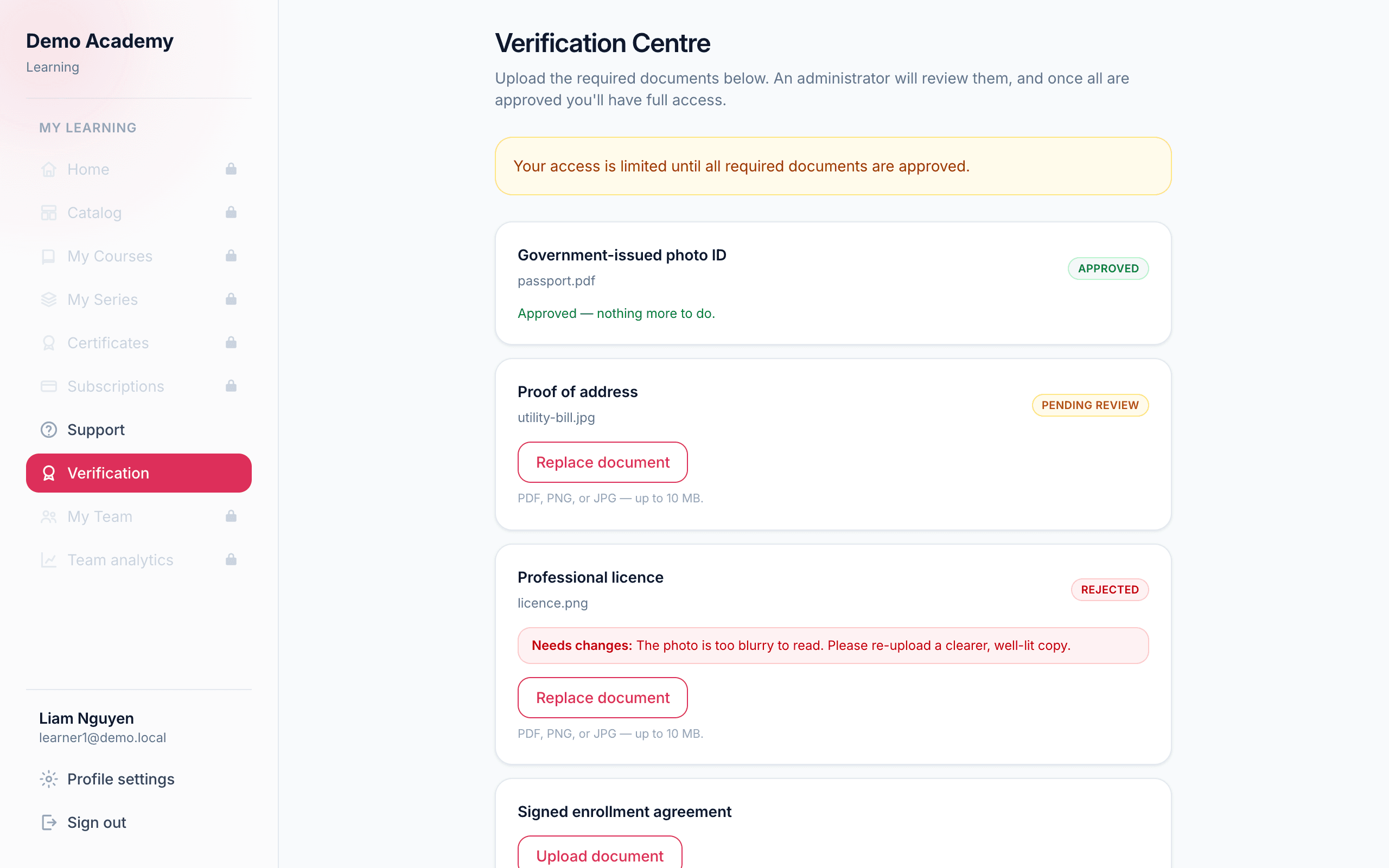
Some academies need to confirm who a learner is before letting them in — proof of ID, a licence, a signed form. When you turn this on, the Verification tab becomes a checklist of required documents. For each one the learner uploads a PDF, PNG, or JPG (up to 10 MB), and an administrator reviews it. Each slot shows Pending review, Approved, or Rejected (with a note on what to fix and a chance to re-upload). Once a file is uploaded, its name appears under the slot, and the learner can click that filename to preview the document in a pop-up viewer without leaving the tab.
Profile settings
Reached from the Profile settings link at the bottom of the sidebar. Here a learner can:
- Update their name — the name shown across their courses and on certificates. Their email is shown read-only; changing it is an admin action.
- Change their password — enter the current one, then a new one (at least 8 characters).
- Download their data — export a file of their profile and learning activity.
- Delete their account — this schedules deletion with a 30-day recovery window; they can cancel any time before then.
My Team & Team analytics
These two tabs appear only for a learner who has bought a team package — for example, a manager who purchased ten seats for their department. My Team is where they invite colleagues to those seats and track who has joined; Team analytics is a full dashboard of that group’s progress. Because this is really a selling-and-managing feature, it lives in its own guide: Sell to teams.
Inside a lesson: the lesson player
When a learner opens a course and clicks Continue learning, the portal sidebar gives way to the lesson player — the screen where they actually watch, read, and answer. It’s built to keep people moving forward without ever feeling lost.
The course outline
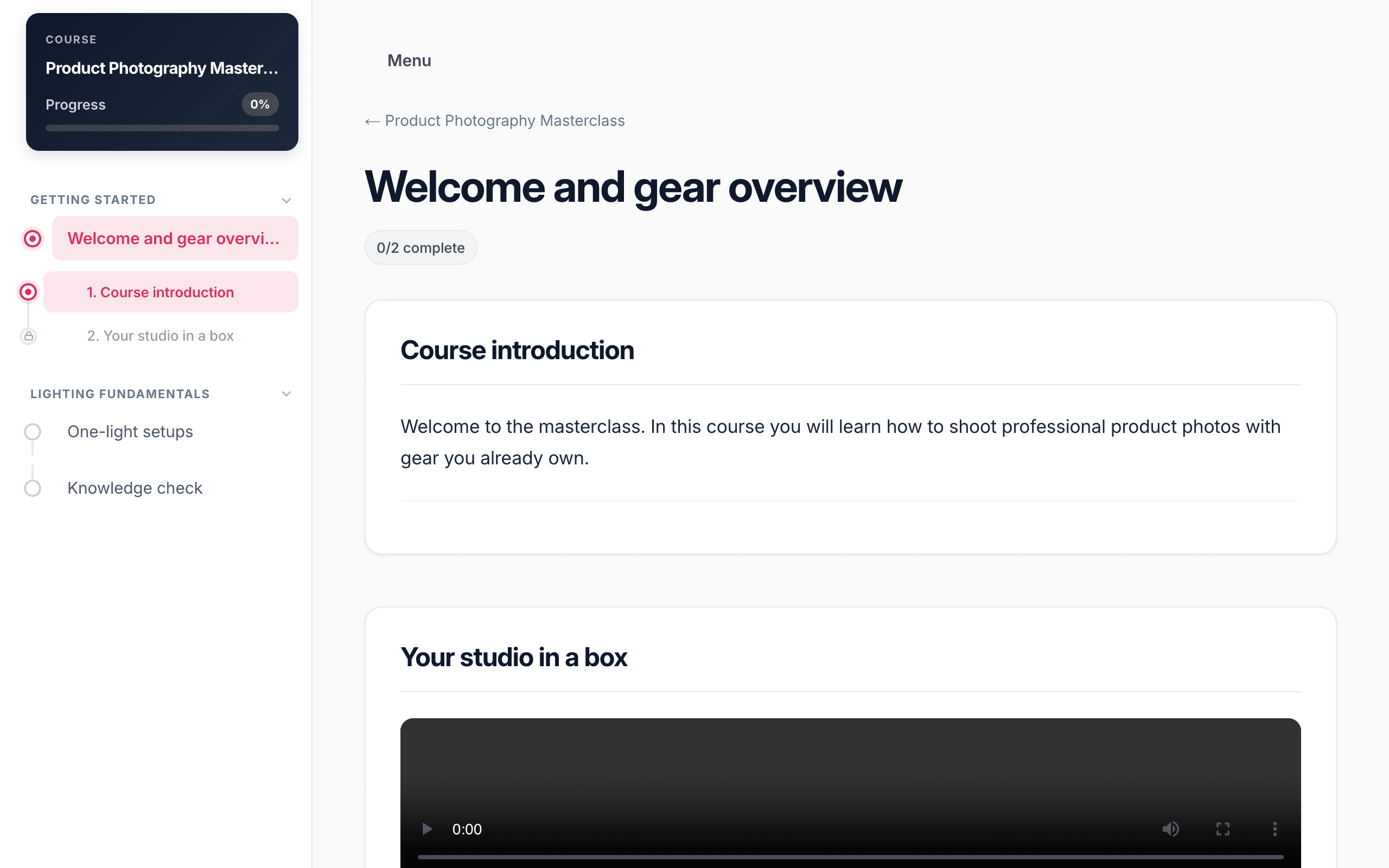
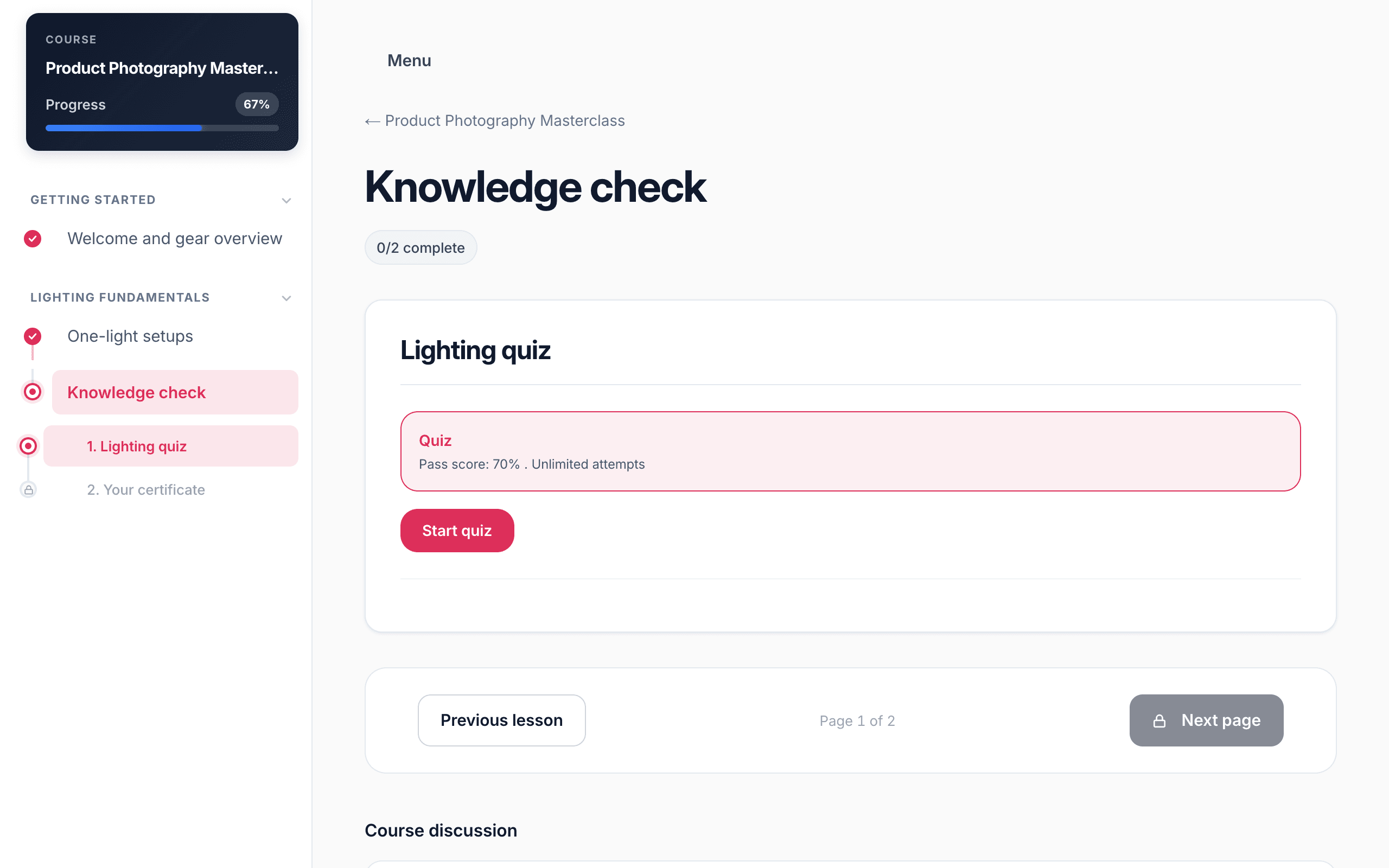
On the left, the player shows the whole course as an outline: a Progress bar at the top, then each section and lesson. A small dot marks each lesson’s state — a checkmark for done, a highlight for the current one, and a padlock for anything not yet unlocked. The active lesson expands to list its numbered activities. Inside a series, the outline instead shows the series’ child courses, so learners can move between them without leaving the player.
Pages, and moving through them
A lesson is made of activities (a video, some text, a PDF, a quiz, and so on), which you group into pages. Everything on a page stacks vertically, and learners move with the Previous page / Next page buttons along the bottom (or with the arrow keys, or a swipe on a phone). At the very start, “Previous page” becomes Previous lesson; at the very end it becomes Next lesson — or, in a series, Next course and finally Finish. Any activity you marked as optional carries an Optional pill.
How an activity gets marked complete
Progress is tracked automatically — there’s no “mark as done” button for the learner to remember. How an activity completes depends on its type:
- Reading and images (text, images, image-with-text blocks) complete when the learner clicks Next to move on.
- Video completes once they’ve watched enough of it (90% by default). If you enabled it, they can’t skip ahead — dragging past the furthest point they’ve watched snaps back with a gentle note.
- PDF completes once they’ve read far enough through it (80% of pages by default).
- Downloadable file — a document you attach for the learner to download completes the moment they click Open document to grab it. The player even says so: “Clicking download will mark this activity complete.”
- Embeds either complete on view, or — if you set a timer — after the learner has spent the required number of seconds on them.
- SCORM lessons open right inside the lesson (with a Fullscreen button for packages that display best full-screen) and complete on their own terms — the SCORM package itself decides when it’s done and reports that back, using the completion criteria it was built with.
- Quiz completes when they pass (see below).
- Discussions and Q&A complete once the learner has posted (and, if required, replied to a few classmates).
A finished activity shows a ✓ Completed tag, and the player nudges the selection to the next one. When every activity in a lesson is done, the lesson shows ✓ Lesson done.
Taking a quiz
A quiz activity opens on a start card that shows the pass score, any time limit, and how many attempts are allowed, plus a history of past attempts. The learner clicks Start quiz and answers one question per screen — multiple choice, select-all, or short answer. If you allowed it, they get instant feedback after each question (Correct / Try again / Incorrect). At the end they see a score ring with Passed! or Not quite, an optional review of the answers, and — if they didn’t pass and have attempts left — a Try again button. Passing is what marks the activity complete.
The full authoring side of quizzes lives in Quizzes & assessments.
Leaving course feedback
Some courses include a feedback activity — a short form that asks the learner what they thought. It has up to three parts: a star rating from 1 to 5, a written review in a text box (up to 4,000 characters), and — only if you turned it on — one optional yes/no question. The star rating and the written review are both required: the Submit feedback button won’t go through until the learner has picked a rating and written something. If you set the feedback to be anonymous, a note tells the learner their name will be hidden and shown as “Verified learner” instead.
The moment they submit, the form turns into a read-only “Thanks for your feedback!” panel that reads their rating, review, and answer back to them, along with the submission’s state — pending (you review it before it can appear publicly), approved, or published. There is one submission per learner: once it’s sent, there is no way to edit it or send another. Published reviews are what feed the course’s public star rating and review list.
Discussions and community
Beneath the activities on a lesson page sits a Course discussion — a running conversation that belongs to the whole course, so the same thread appears under every lesson. Anyone enrolled can post a comment, reply to a post (replies go one level deep — you reply to a comment, not to another reply), edit or delete their own posts from a small “⋯” menu, and flag someone else’s post to bring it to a moderator’s attention. You can switch discussions off for a course, and a moderator can lock the thread — existing posts stay visible, but no new ones can be added.
Separately, a lesson can include a Community Thoughts (Q&A) activity: a shared prompt with a simple chat stream, newest first, where learners post their own responses and answer one another. A reply that comes from the course’s admin or instructor is marked with an Official badge, so learners can tell the authoritative answer from the crowd. Everyone can delete their own posts.
The tools for keeping these spaces healthy — pinning, marking a best answer, locking, hiding, and clearing flags — all live on your side. See Moderate discussions.
When things are locked
You have several ways to control the pace, and each shows up as a lock in the player:
- Complete activities in order — if a lesson requires it, the Next button stays disabled with a padlock until the current activity is finished.
- Prerequisites — a lesson can require an earlier lesson to be finished first.
- Drip release — a lesson can unlock on a fixed date, or a set number of days after the learner enrolled.
Locked lessons show a padlock and a tooltip explaining what to do; learners simply can’t jump past gated content. See Add lessons & activities for how to set these up.
Finishing and getting a certificate
If the course awards one, the last thing a learner reaches is a certificate activity. As soon as every required activity is complete, it issues automatically — the learner sees a Certificate Issued! banner with the finished certificate, its unique number, and buttons to Download PDF and Share on LinkedIn. From then on it also lives permanently in their Certificates tab. If they’re not quite done, the same screen shows how many required activities they still have to go.