A custom domain lets learners reach your academy at your web address — like learn.yourcompany.com — instead of the Learn 360 platform URL. It’s the same courses and the same login, just on a domain you own. You’ll set it up in the Use your own domain card under Admin PanelBranding.
The job is two small steps, and Learn 360 walks you through both:
- In Learn 360 — type the domain you want and save it.
- At your domain provider — add one DNS record so your address points at Learn 360, then come back and verify.
Step 1 — Add your domain in Learn 360
Open Admin PanelBranding and find the Use your own domain card. Most academies use a subdomain — the learn. in learn.yourcompany.com — because it’s easy to point at Learn 360 without touching your main website.
- In the Domain field, type the address you want, for example
learn.yourcompany.com. Enter it plain: nohttps://, no trailing paths— just the domain, exactly as the hint under the field reminds you. - Click Save domain. (The button stays disabled until you’ve actually changed the field, so you can’t save an empty value.)
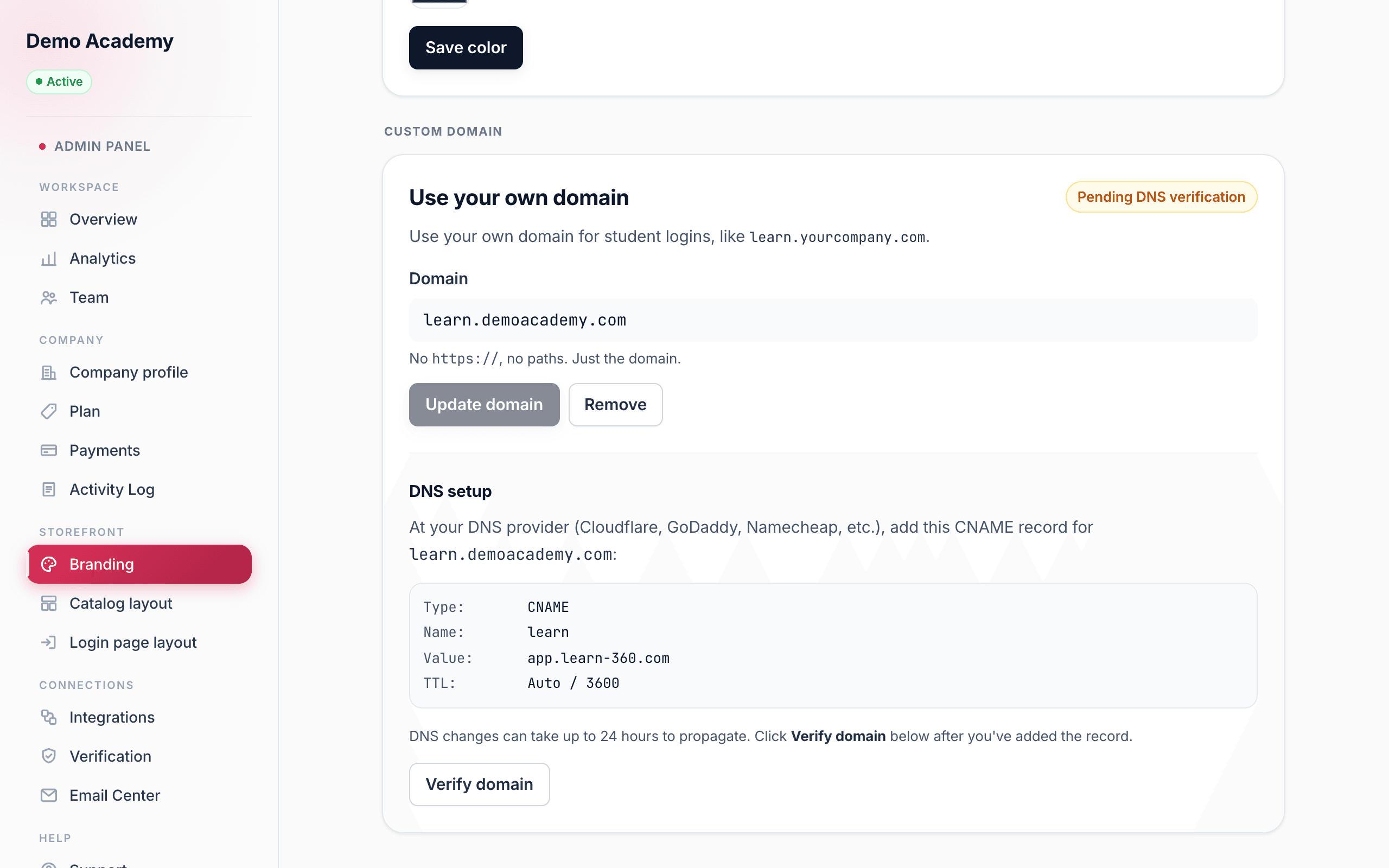
The status pill in the corner of the card starts at Not configured. As soon as you save, it changes to Pending DNS verification and a DNS setup panel appears below with the exact record to add.
Step 2 — Add the CNAME record
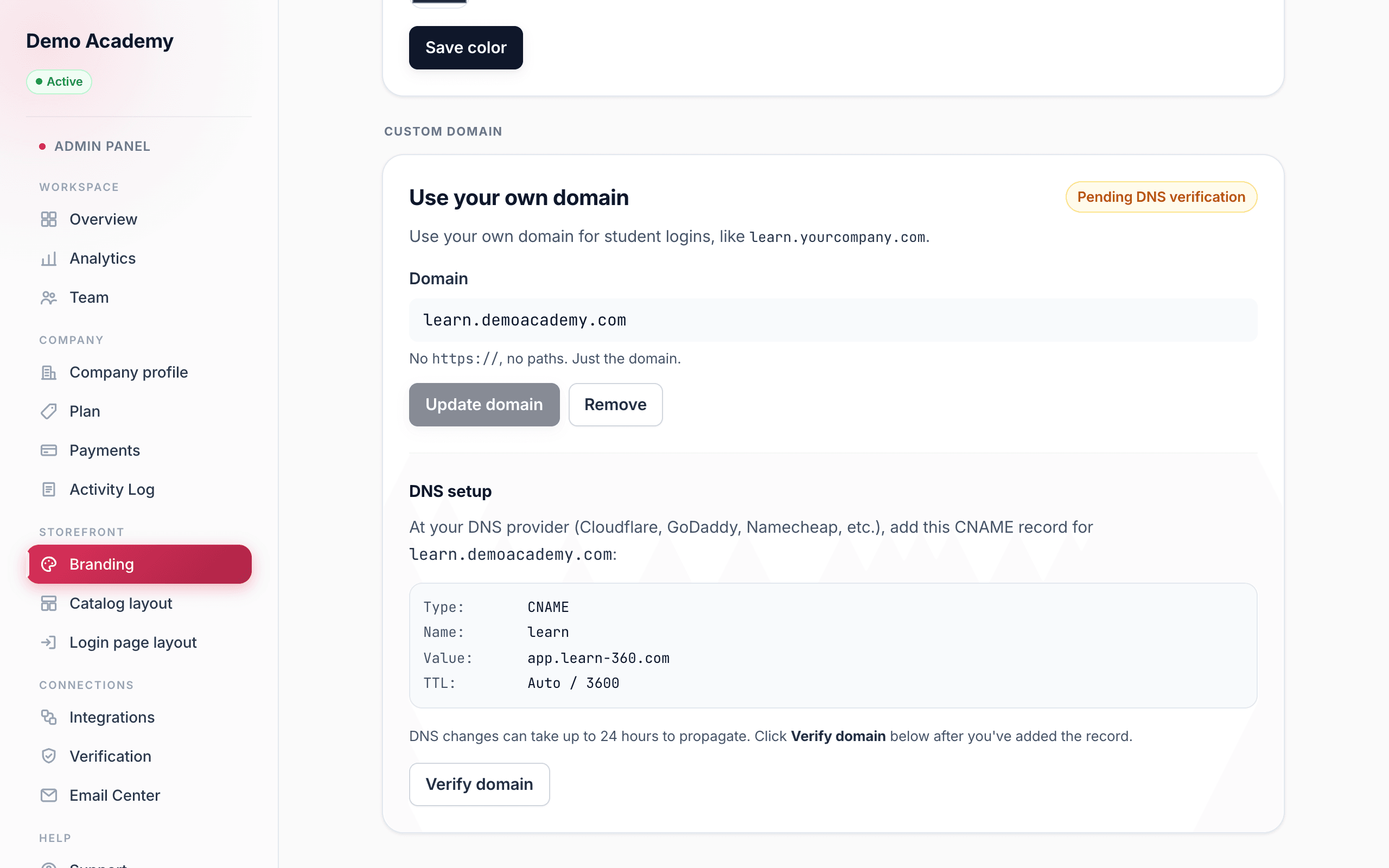
In the DNS setup panel, Learn 360 shows a single CNAME record to add wherever your domain is managed — Cloudflare, GoDaddy, Namecheap, Google Domains, and so on. Copy it exactly:
- Type:
CNAME - Name: your subdomain — for
learn.yourcompany.comthat’s justlearn(Learn 360 fills this in for you based on the domain you saved) - Value:
app.learn-360.com - TTL:
Auto(or3600)
Add that one record at your provider and save it there. You don’t need to change anything else, and you don’t need to touch your main website.
learn); a few want the full host (learn.yourcompany.com) or an @ for the root. If you’re unsure, use the subdomain Learn 360 shows first — that’s correct for the large majority of providers.Step 3 — Verify the domain
Back in Learn 360, click Verify domain at the bottom of the card. The status pill walks through three states:
- Not configured — no domain saved yet.
- Pending DNS verification — your domain is saved, but Learn 360 hasn’t seen the CNAME record take effect yet.
- Verified — the record is live and your domain is connected.
After it’s verified
Once verified, your custom domain jumps to the top of the Your public URL card, tagged Primary, and the platform URL stays listed underneath as a backup. Learners can now sign in and browse your courses at your own address. That’s the link to put on your website and in your emails — see Your storefront & links.
To change domains later, edit the field and click Update domain. To go back to the platform URL, click Remove and confirm — learners simply return to your free Learn 360 address until you set a new one.