The Activity Log is your workspace’s history book. Every time someone signs in, a learner enrolls, a course is finished, a teammate’s permissions change, or you update your branding, Learn 360 quietly writes a line to this log. It’s where you go to answer “who did that, and when?” — a plain, read-only trail of activity across your whole organization.
Open the Activity Log
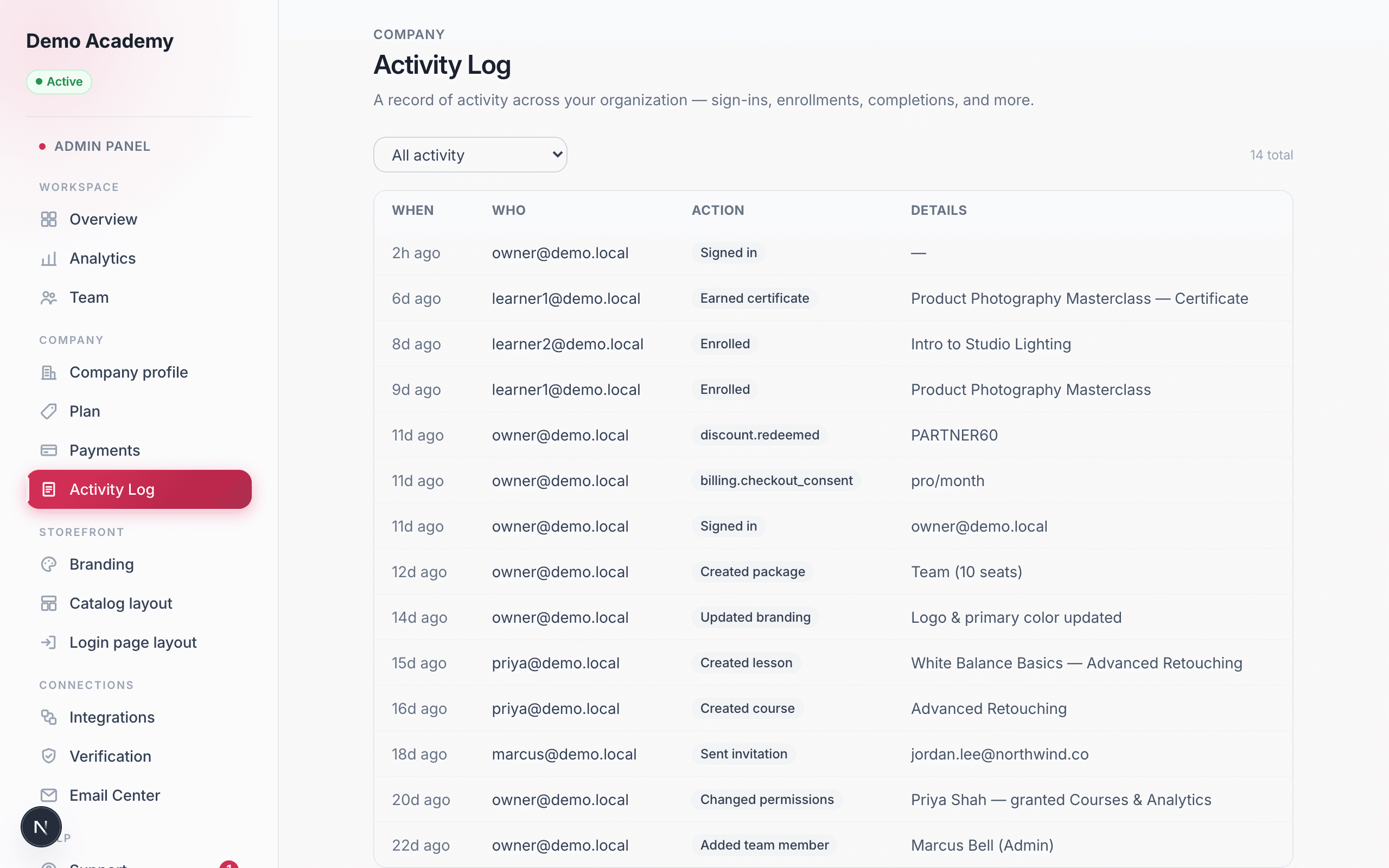
Go to Admin PanelActivity Log. It sits in the Company group of the sidebar, alongside your Payments and Plan pages. The page is headed Activity Log, with the line “A record of activity across your organization — sign-ins, enrollments, completions, and more.” Underneath is a single table, newest events first.
If nothing has happened yet, you’ll simply see “No activity recorded yet.” As soon as people start using your platform, the rows fill in on their own — there’s nothing to switch on.
The four columns
Every row breaks down into the same four columns, so each entry reads like a short sentence:
- When — how long ago it happened, shown in friendly form (just now, 5m ago, 3h ago, 2d ago, and then a plain date once it’s more than a month old). Hover over the time and Learn 360 shows you the exact date and time.
- Who — the email address of the person who did it. Learn 360 records their email at the moment the event happens, so the trail stays readable even if that person is later renamed or removed. If an event has no specific person attached, you’ll see a dash (—).
- Action — a small pill with a plain-language label for what happened, like Signed in, Enrolled, or Changed permissions.
- Details — what the action was about: the course that was completed, the teammate who was added, the package that was created. If there’s nothing extra to name, this shows a dash too.
What the Activity Log records
The log captures the meaningful moments across your workspace, not every click. Each one shows up in the Action column with its own friendly label. The events it tracks are:
People & access
- Signed in — an admin or teammate logged into the dashboard.
- Enrolled — a learner gained access to a course or series.
- Added team member and Changed permissions — you added a teammate or edited what someone is allowed to do (see Manage your team).
- Sent invitation — a private learner invite went out by email.
Courses & content
- Created course, Deleted course, Created lesson, and Archived lesson — the building blocks of your content, as they’re added or removed.
- Created package and Deleted package — your pricing packages (see Set your prices).
- Completed course and Earned certificate — a learner finished a course or was awarded a certificate.
Branding & account
- Updated branding — a change to your logo or colors.
- Exported data, and the account- and company-deletion events (Requested / Cancelled) — the sensitive, big-picture actions, logged so there’s always a record of them.
Filter by action type
Top-left of the table is a single dropdown for narrowing the log to one kind of event. It offers about a dozen choices:
- All activity (the default — everything)
- Logins, Enrollments, Completions, and Certificates
- Courses created, Lessons created, and Packages created
- Members added, Permission changes, and Invitations
- Branding changes
Pick one and the table reloads to show only that kind of event, newest first. Switch back to All activity to see everything again. This is the only filter on the page — there’s no search box or date picker, so to find something specific you choose the closest action type and scroll.
The running total & Load more
To the right of the filter, Learn 360 shows the total count — for example “1,240 total” — which is the number of matching entries, so you can see at a glance how busy your workspace has been. When you change the filter, that number updates to match what you’re looking at.
The table loads 50 entries at a time. If there are more than that, a Load more button appears at the bottom; each click adds the next 50 below the ones you’re already reading, without losing your place. Once you’ve reached the end, the button disappears.
Who can see the Activity Log
The Activity Log is for admins, not learners. As an owner with full access, you always have it. For everyone else it’s gated behind one permission: the Administration permission to view the company activity log. Grant that to a teammate on the Team page and the Activity Log link appears in their sidebar; leave it off and the page stays hidden from them.
It’s a read-only record
The Activity Log is there to be read, not edited. There are no buttons to change, hide, or delete an entry, and no export or download on this page — it’s a faithful, tamper-free history you can trust. If you need a copy of your data for your own records, that’s a separate account feature, not something you pull from this table.
Not the same as the Email Center’s Activity Log
One thing worth clearing up: there are two different screens called “Activity Log,” and they show completely different things.
- This one (Admin PanelActivity Log) is a record of things people did — sign-ins, enrollments, completions, and admin changes.
- The Email Center’s Activity Log (Admin PanelEmail Center, then its Activity Log tab) is a record of emails your platform sent — each with its subject, recipient, a Sent / Sent (test) / Failed status, and a click-to-preview of the actual message.
So if you’re asking “did the welcome email go out?” that’s the Email Center. If you’re asking “who enrolled that student, and when?” that’s this page.